Notice:
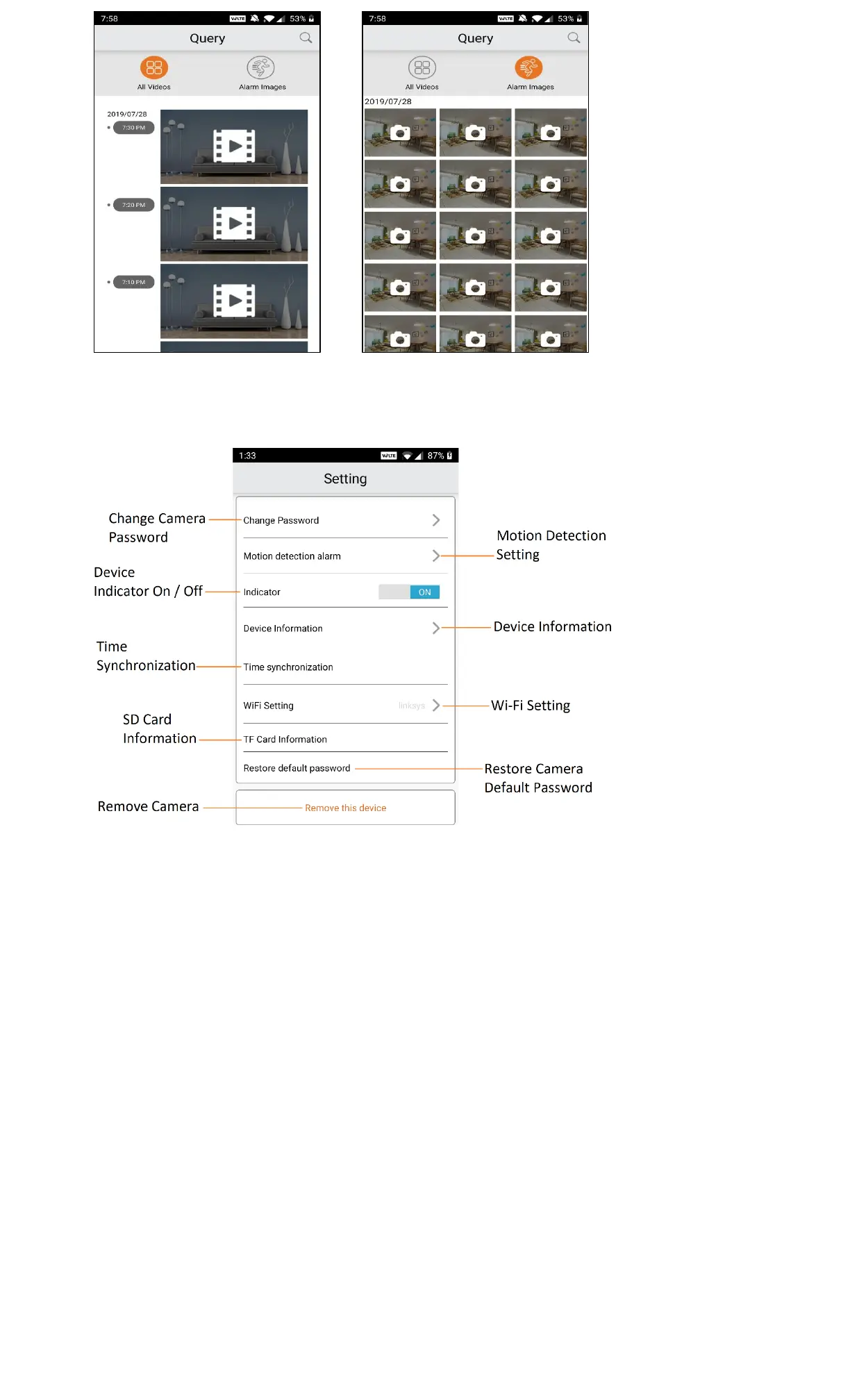
▪ Change Camera Password: For your personal privacy, you should change the camera default password
▪ Motion Detection Alarm: This feature must be turned on to receive motion detection alert on your mobile
device from the camera
▪ Indicator: Use this option to turn on/off the camera operation indicator light
4. Switch Camera Connection Mode
4.1 AP Connection Mode → IP Connection Mode
If the camera is operating in the AP Connection Mode, you can also switch it to the IP Connection Mode by
follow the steps below.
▪ Open the iCookyCam app on your mobile device
▪ In the main Camera window of the app, tap on the camera area to start it then select the Setting gear icon
at the top right corner (P4.1.1)
▪ In the Setting window, tap on the Wi-Fi Setting option (P4.1.2)
▪ In the Wi-Fi Setting window, select your Wi-Fi network name, enter the correct Wi-Fi password, then select
Connect (P4.1.3)
▪ The app starts to setting up the connection between your mobile device and the camera (P4.1.4) and the
camera restarts for about 90 seconds


 To Next Page