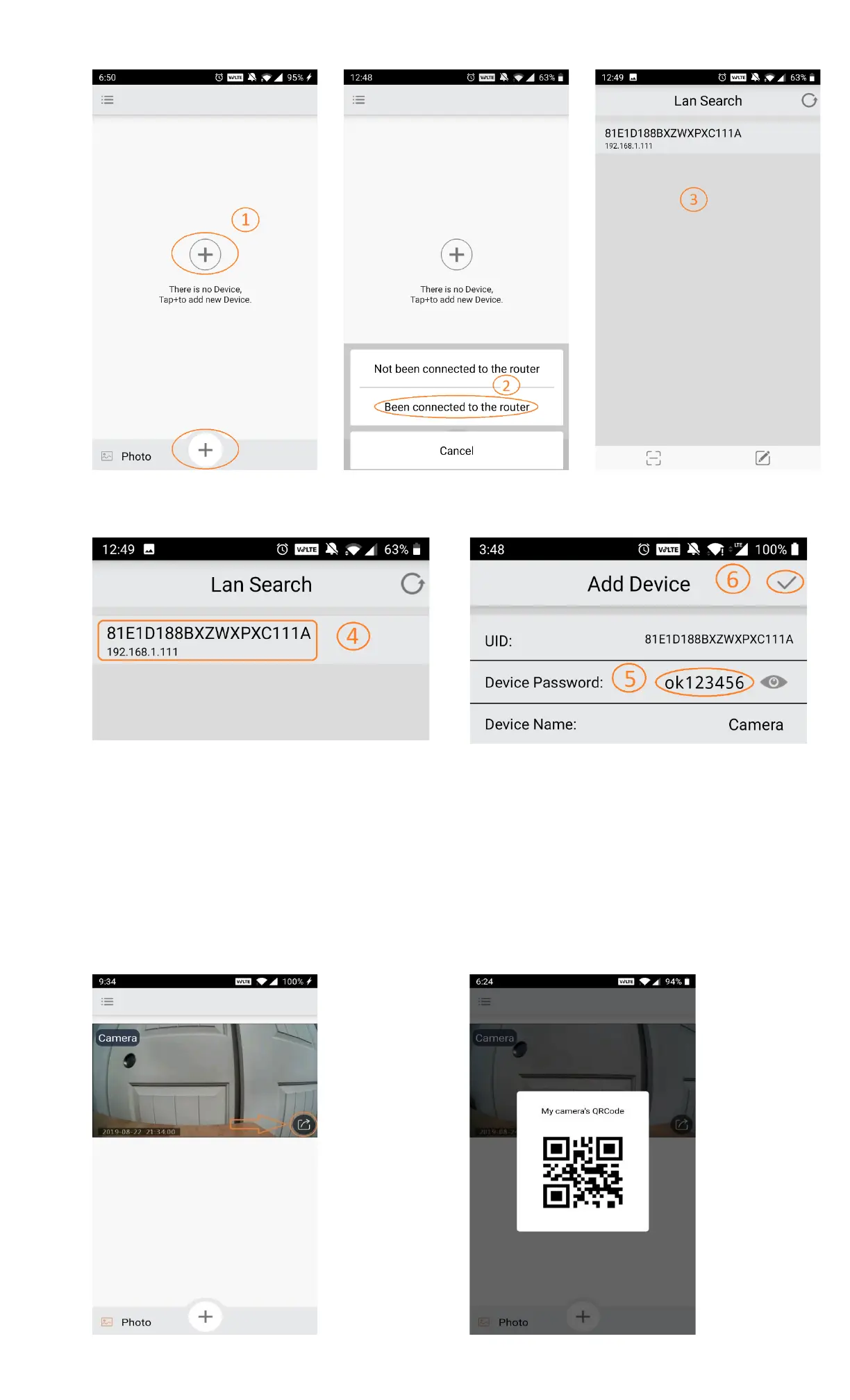
▪ Select the camera that you want to add, enter the camera password ok123456 then select the ✔ mark icon
to add the camera (P7.1.4 – P7.1.5)
Method 2 - Scanning QR Code for Camera
▪ On your main mobile device which already connected to the camera, open the iCookyCam app
▪ Find the camera that you want to add to the new device and select the Share button on the lower right
corner to generate a camera QR code (P7.2.1 – P7.2.2)
▪ On the new device, open the iCookyCam app and select option “Been connected to the router”
▪ In the Lan Search window, select the QR code scan button in the lower left corner to open the scan window
and scan the generated camera QR code on the main device (P7.2.3 – P7.2.4)
▪ Enter the camera password ok123456 then select the ✔ mark icon to add the camera (P7.2.5)


 To Next Page
 Loading...