EasyManua.ls Logo

Canon FS200 - User Manual

Canon FS200
2 pages
Print Icon
To Next Page IconTo Next Page
Loading...
Canon FS200 Basic Video Operation
_____________________________________________________________________________________
DaveWatneeJuly4,2009Page1of2
Powering On and Off
Push the POWER button down to toggle between on and off.
Indicator light turns the color green when power is on.
Indicator light is off when power is off.
Inserting an SD Card
Turn off the camcorder.
Open the battery compartment lid.
Insert the SD Card with the label facing
the battery. Push down until it clicks.
Close the battery compartment lid.
Turn on the camcorder.
Recording Video
Open the LCD panel
Press the Camera/Play
button until you see live video.
Set the camera to Dual Shot mode.
Press the Start/Stop button to
begin recording.
Press the Start/Stop button to pause
recording.
Press the Camera/Play button to stop all recording and
move to Play Back mode.
Question and Answer IconNeed help?

Do you have a question about the Canon FS200 and is the answer not in the manual?

Overview

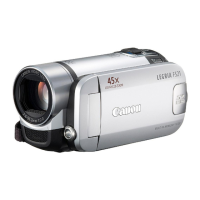
The Canon FS200 is a compact digital camcorder designed for basic video recording and playback. It offers straightforward operation, making it suitable for users who want to capture everyday moments without complex settings.

Function Description:

The primary function of the Canon FS200 is to record video onto an SD card. It features a simple power on/off mechanism, an LCD panel for framing shots and reviewing footage, and a zoom lever for adjusting the field of view. The camcorder supports both recording and playback of video segments directly on the device. It also includes basic editing capabilities such as deleting recorded segments.

Important Technical Specifications:

  • Storage Medium: SD Card. The camcorder uses readily available SD cards for storing recorded video.
  • Zoom: The device features a zoom lever, allowing users to adjust the focal length. While specific optical and digital zoom ratios are not detailed in the provided pages, the "2000x DIGITAL ZOOM" label on the device casing suggests a significant digital zoom capability. The zoom lever has "W" (Wide) and "T" (Telephoto) settings to increase or decrease the video frame size, respectively.
  • Power Indicator: An indicator light turns green when the power is on and is off when the power is off, providing a clear visual cue of the device's power status.
  • Controls: The camcorder incorporates several physical controls for operation:
    • POWER button: Toggles the device on and off.
    • Camera/Play button: Switches between recording (live video) and playback (thumbnail view) modes.
    • Start/Stop button: Initiates and pauses video recording.
    • Zoom Lever (W/T): Controls the zoom in and out.
    • Joystick: Used for navigation within menus, selecting video segments, initiating playback, and confirming actions.
    • FUNC button: Accesses function menus, including the delete function.
  • Display: An LCD panel serves as the primary display for framing shots, viewing live video, and reviewing recorded footage.

Usage Features:

The Canon FS200 emphasizes ease of use with its intuitive controls and clear operational steps:

  • Powering On and Off: A simple push of the POWER button toggles the camcorder on or off. The green indicator light confirms the power status.
  • Inserting an SD Card:
    1. Turn off the camcorder.
    2. Open the battery compartment lid.
    3. Insert the SD Card with the label facing the battery, pushing until it clicks into place.
    4. Close the battery compartment lid.
    5. Turn on the camcorder.
  • Recording Video:
    1. Open the LCD panel.
    2. Press the Camera/Play button until live video is displayed.
    3. Set the camera to "Dual Shot" mode (if desired, though its specific function isn't detailed here).
    4. Press the Start/Stop button to begin recording.
    5. Press the Start/Stop button again to pause recording.
    6. To stop recording and enter Play Back mode, press the Camera/Play button.
  • Zooming: Use the Zoom Lever (W for wide, T for telephoto) to adjust the video frame size while recording or in live view.
  • Playing Back Recorded Video:
    1. Open the LCD panel.
    2. Press the Camera/Play button to view thumbnails of recorded video segments.
    3. Use the Joystick to navigate and select the desired video segment.
    4. Press the Joystick in to start playback. Playback will continue through the selected segment and any subsequent segments.
  • Deleting a Recorded Video Segment:
    1. Use the Joystick to select the video segment to be deleted.
    2. Press the FUNC button.
    3. Use the Joystick to navigate to the DELETE function icon (represented by a trash can).
    4. Press the Joystick twice to confirm the selection of the delete function.
    5. Use the Joystick to select "YES" to confirm the deletion.
    6. Press the Joystick to initiate the deletion process. The segment will be deleted after a brief wait.
    7. Press the Joystick again to exit the deletion confirmation.

Maintenance Features:

The manual primarily focuses on operational aspects rather than explicit maintenance features. However, implicit maintenance practices include:

  • Proper SD Card Handling: The instructions for inserting and removing the SD card suggest care in handling the storage medium to prevent damage.
  • Battery Compartment: The battery compartment lid protects the battery and SD card, implying the need to keep it closed to prevent dust or debris from entering.
  • General Care: While not explicitly stated, the compact nature of the device suggests general care such as keeping it clean and protected from impacts or extreme conditions would be necessary for its longevity.

Overall, the Canon FS200 is designed as a user-friendly camcorder for capturing and reviewing video, with a focus on simplicity and direct control.
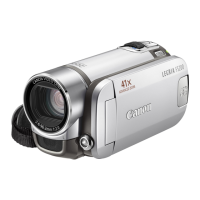
Canon FS200 Specifications

General IconGeneral
BrandCanon
ModelFS200
CategoryCamcorder
LanguageEnglish

Related product manuals