EasyManua.ls Logo

Canon i9950 - User Manual

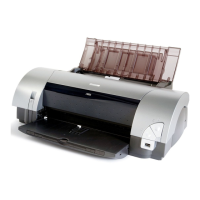
Canon i9950
30 pages
Print Icon
To Next Page IconTo Next Page
Loading...
Quick Start Guide
BUBBLE JET PRINTER
ENGLISH
Table of Contents
Preface 1
Shipping Materials 1
Introduction 1
Setting Up 2
Preparing the Printer 2
Connecting the Printer to the Computer 2
Installing the Print Head 4
Loading Paper 7
Installing the Printer Driver 8
Aligning the Print Head 12
Basic Operations 16
Printing with Windows 16
Printing with Macintosh 18
Print Head Maintenance 20
Appendix 21
Printing Photographs Directly from a Digital Camera 21
Notes on Handling the USB Interface (for Windows Users) 26
For Further Details... 26
i9900_i9950_COV.fm Page 1 Friday, January 9, 2004 3:59 PM

Other manuals for Canon i9950

Questions and Answers

  • J
    john62Jul 26, 2025
    Why is the POWER lamp flashing orange on my Canon i9950 Printer?
    • M
      Michael VasquezJul 26, 2025
      If the POWER lamp on your Canon Printer is flashing orange, it could indicate a couple of issues. If it flashes twice, it means the CD-R tray may not be correctly in place. Ensure the correct CD-R tray (with "A" on the upper side) is used, a CD-R/DVD-R is properly placed, and the tray is inserted correctly. If it flashes six times, the paper output tray might not be in the correct position for CD-R/DVD-R printing. Lift the paper output tray to the CD-R printing position. After checking these, press the RESUME/CANCEL button.
  • E
    Elizabeth AnthonyAug 1, 2025
    What to do if CD-R printing errors are displayed in Windows for my Canon i9950 Printer?
    • K
      Kelly ShawAug 1, 2025
      If you encounter CD-R printing errors displayed in Windows, it might be due to several reasons. First, ensure that the CD-R tray (with "A" on the upper side) is correctly attached and that the CD-R/DVD-R is properly loaded. If the disc isn't recognized, try clearing the 'Detects a printable disc on the CD-R tray' checkbox in the Custom Setting on the Maintenance tab. Also, verify that the paper output tray is in the correct CD-R printing position. If the paper output tray is moved during printing, pull it down and press the RESUME/CANCEL button to cancel printing, then try again.
  • J
    Jeffery MartinAug 7, 2025
    What to do if CD-R printing errors are displayed in Macintosh for my Canon i9950 Printer?
    • S
      Stacie Smith PhDAug 7, 2025
      If you're getting CD-R printing errors displayed in Macintosh, here's what you can check: * **Error No: 1001:** Make sure the CD-R tray (with 'A' on the upper side) is correctly in place. * **Error No: 1002:** Some CD-Rs/DVD-Rs aren't recognized correctly. Clear the 'Detects a printable disc on the CD-R tray' checkbox in Custom Setting on BJ Printer Utility. * **Error No: 1302:** If the CD-R tray is jammed, gently pull it out. If it doesn't budge, turn the printer off and on again to eject the tray. * **Error No: 1850:** Ensure the paper output tray is in the CD-R printing position by pulling the CD-R tray lever slowly down to the bottom. After checking, press the RESUME/CANCEL button.
  • N
    Nathan SmithAug 12, 2025
    How to fix Canon i9950 Printer when it cannot print on CD-Rs or DVD-Rs?
    • C
      Courtney LongAug 12, 2025
      If your Canon Printer is unable to print on CD-Rs or DVD-Rs, first make sure the paper output tray is lifted to the correct CD-R printing position and that the CD-R tray is properly installed. If the CD-R tray isn't being fed, ensure you're using a printable disc. If the CD-R tray is jammed, gently pull it out. If it won't come out, turn the printer off and on again to automatically eject it. Then, replace the CD-R tray and press the RESUME/CANCEL button.
  • N
    Nicholas DiazSep 10, 2025
    What to do if CD-R or DVD-R is not set on Canon i9950 Printer?
    • R
      Robin Flores MDSep 12, 2025
      To resolve the issue of a CD-R or DVD-R not being set in your Canon Printer, ensure that the CD-R or DVD-R is properly placed on the CD-R tray. Reinstall the CD-R tray, and then press the RESUME/CANCEL button.

Summary

Preface

Shipping Materials

Lists all items included in the printer box for the user to check.

Introduction

Explains symbols used in the guide and provides trademark notices.

Setting Up

Preparing the Printer

Instructions for unpacking and placing the printer on a flat surface.

Connecting the Printer to the Computer

Details on connecting the printer to a computer using USB or FireWire cables.

Installing the Print Head

Step-by-step guide for installing the print head unit into the printer.

Loading Paper

Instructions on how to load A4 or Letter size plain paper into the printer.

Installing the Printer Driver

Guide for installing the printer driver on Windows and Macintosh operating systems.

Aligning the Print Head

Procedure to align print head positions for optimal print quality and color registration.

Basic Operations

Printing with Windows

How to perform basic printing tasks using Windows applications.

Printing with Macintosh

How to perform basic printing tasks using Macintosh applications.

Print Head Maintenance

Appendix

Printing Photographs Directly from a Digital Camera

Guide to printing photos directly from digital cameras via PictBridge or Bubble Jet Direct.

Notes on Handling the USB Interface (for Windows Users)

Troubleshooting steps for USB driver installation problems.

For Further Details...

Information on accessing the full User's Guide for more details.

Canon i9950 Specifications

General IconGeneral
Print TechnologyInkjet
Print Resolution4800 x 2400 dpi
Operating System CompatibilityWindows, Mac OS
TypeInkjet
Maximum Print Size13 x 19 inches
Ink Cartridge Configuration6 individual ink tanks
Paper SizesA4, A5, B5, Letter, Legal
ConnectivityUSB 2.0

Related product manuals