<Menu> <Function Settings> <Printer> <Printer Settings> <Color Mode> Select <Auto
(Color/B&W)> or <Black & White>
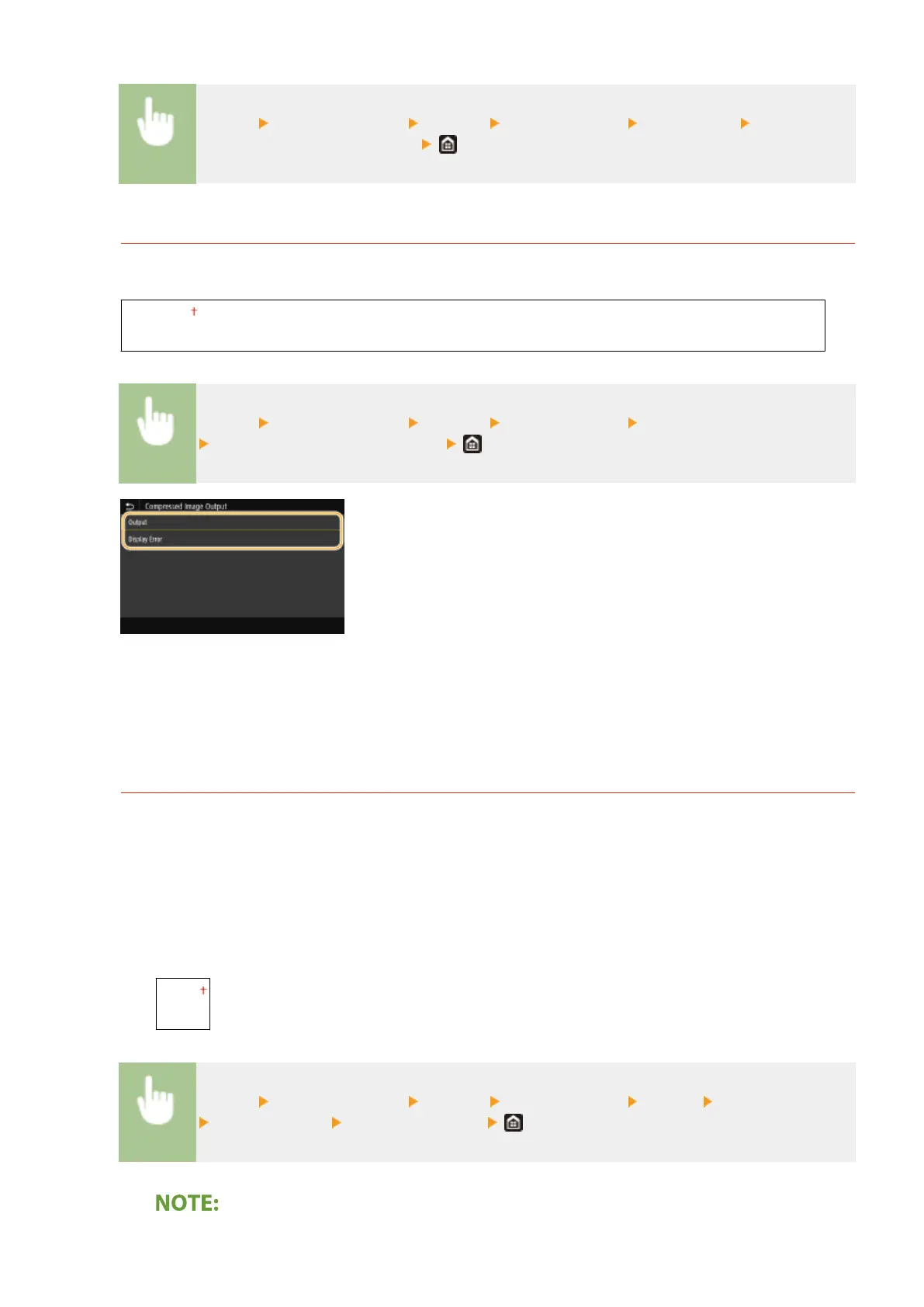
<Compressed Image Output>
Specify the operation that is to be performed when the image quality has degraded due to insucient memory
during printing.
<Output>
<Display Error>
<Menu> <Function Settings> <Printer> <Printer Settings> <Compressed Image Output>
Select <Output> or <Display Error>
<Output>
Continues printing regardless of how much the image quality has degraded.
<Display Error>
If the image quality has degraded signicantly, an error message is displayed, and printing is stopped.
<UFR II>
You can change the settings that become effective when printing from the UFR II printer driver.
<Halftones>
You can select the printing method used to reproduce halftones (the intermediate range between the lighter
and darker areas of an image) for optimal image quality.
<Error Diffusion>
Produces ner printing results than using <Resolution/Gradation>. This option is suitable for printing
sharp outlines of the text or ne-line data.
<Off>
<On>
<Menu> <Function Settings> <Printer> <Printer Settings> <UFR II> <Halftones>
<Error Diffusion> Select <Off> or <On>
Setting Menu List
505








 To Next Page