12
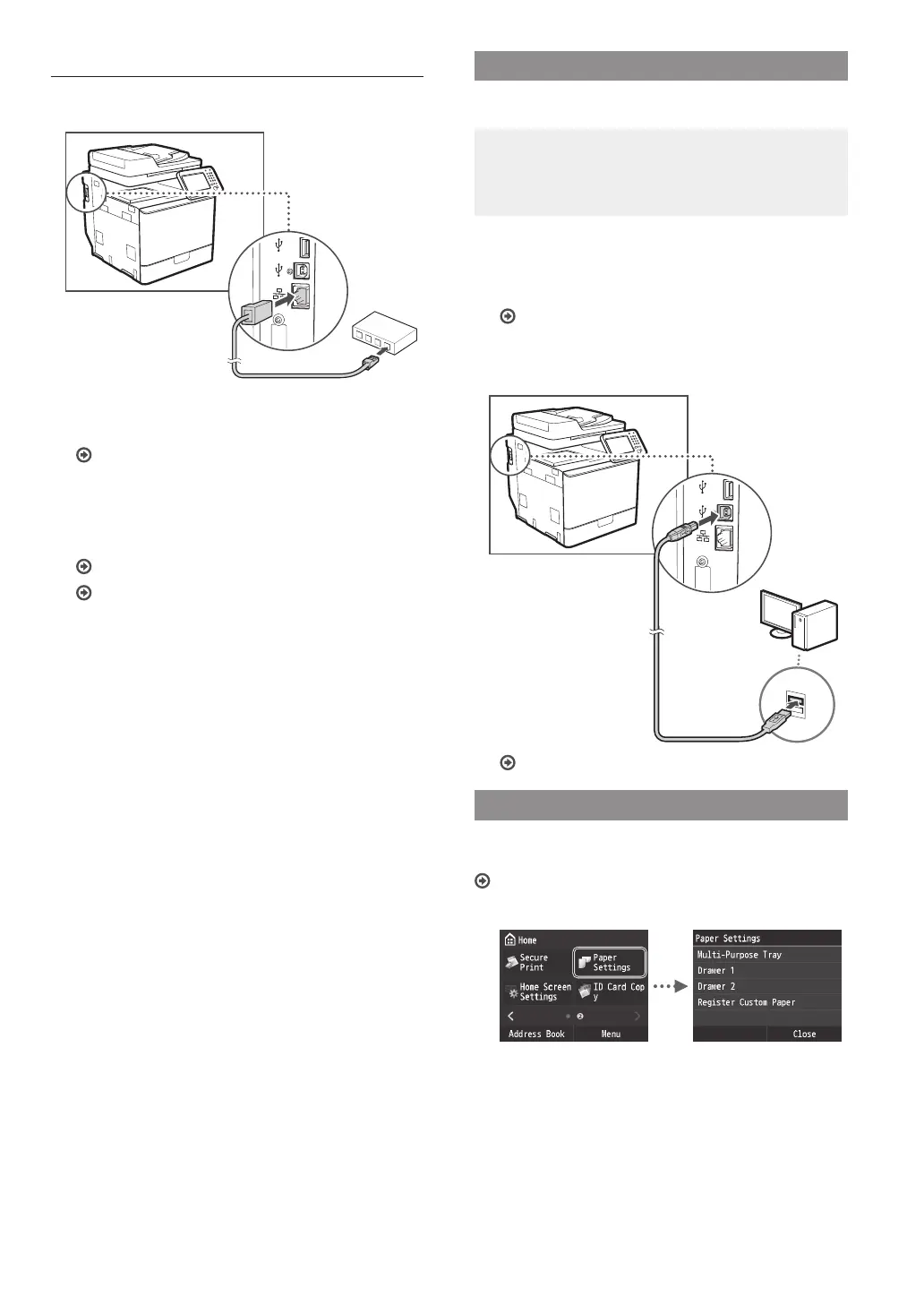
Connecting via a Wired LAN
1
Connect the LAN cable.
The IP address will be automatically congured in 2
minutes. If you want to set the IP address manually, see
the following items.
e-Manual “Network” ▶ “Connecting to a Network” ▶
“Setting IP Addresses”
2
Install the driver and software using the User
Software and Manuals DVD-ROM.
See “For details on the installation procedures:” (P.13).
Proceed to “Setting a Paper Size and Type” (P.12).
Connecting via a USB Cable
Connect the USB cable after installing the MF Drivers.
NOTE
• If you connected the USB cable before installing the MF
drivers, refer to the MF Driver Installation Guide.
1
Install the driver and software using the User
Software and Manuals DVD-ROM.
See “For details on the installation procedures:” (P.13).
2
Connect the USB cable.
Proceed to “Setting a Paper Size and Type” (P.12).
Setting a Paper Size and Type
Following the instructions on the screen, set the paper size
and type. For details, see the e-Manual.
e-Manual “Basic Operations” ▶ “Loading Paper” ▶ “Specifying
Paper Size and Type”





 To Next Page