2
Setting Up the Printer
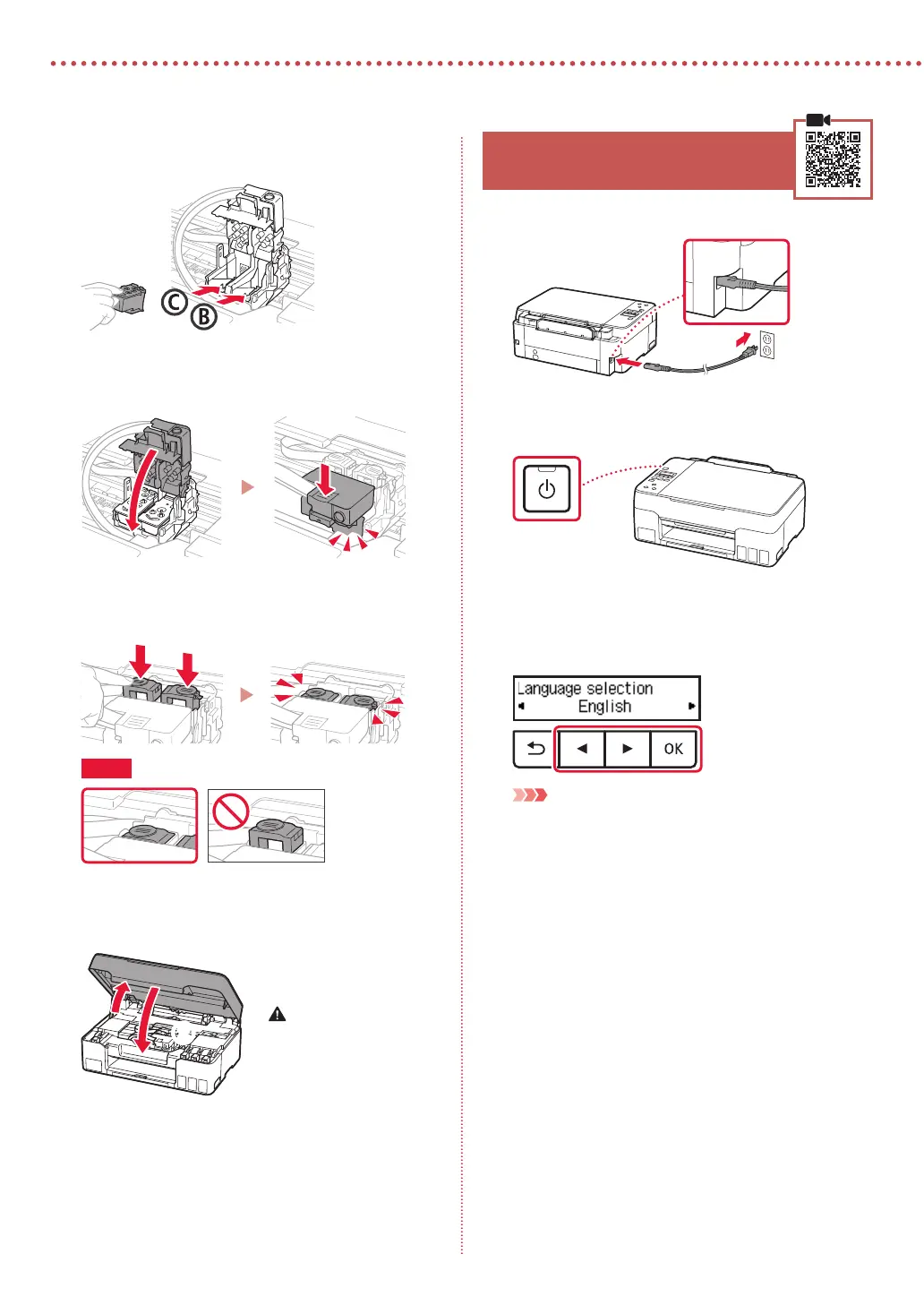
4
Insert the C )color( print head on the left and the
B )black( print head on the right.
5
Close the print head locking cover and press
down until it clicks.
6
Press down both joint buttons completely until
they click.
Check!
7
Close the scanning unit / cover.
•
Open the scanning unit / cover fully and then close it.
b
a
Caution
Watch your ngers.
4. Turning on the Printer
1
Connect the power cord.
Back
2
Press the ON button.
3
When the following screen appears, use the [
and ] buttons to select a language, and then
press the OK button.
Important
If an error appears on the screen, see "If an error message
(support code) appears on the screen" on page 4 and
follow the instructions.



 To Next Page