>
Printing from a Computer
>
Printing with the Bundled Application Software
>
Correcting and
Enhancing Photos > Using the Blemish Remover Function
A065
Using the Blemish Remover Function
You can remove moles.
1.
Select photos in the Select Images screen, then click
(Correct/Enhance
Images).
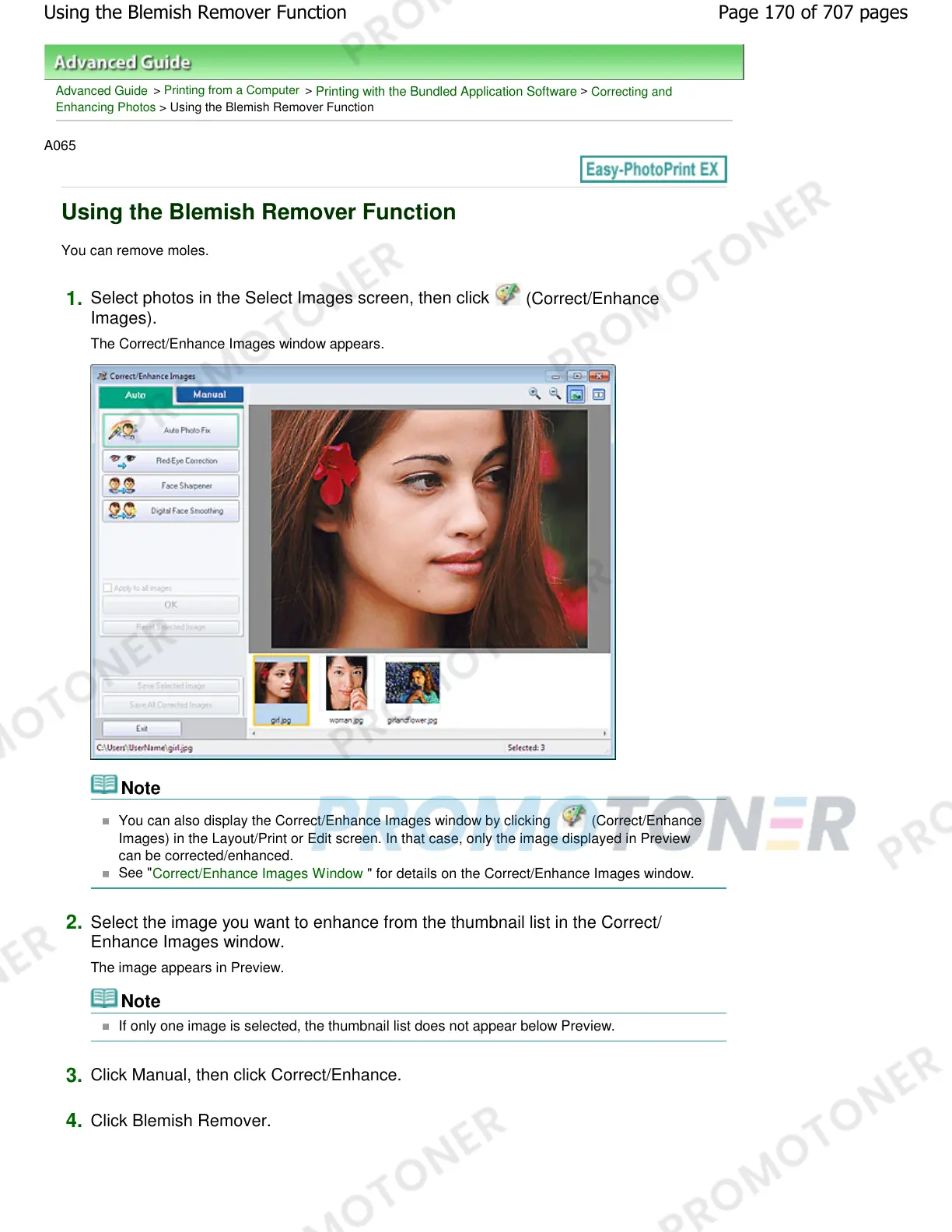
The Correct/Enhance Images window appears.
Note
You can also display the Correct/Enhance Images window by clicking (Correct/Enhance
Images) in the Layout/Print or Edit screen. In that case, only the image displayed in Preview
can be corrected/enhanced.
See "
Correct/Enhance Images Window " for details on the Correct/Enhance Images window.
2.
Select the image you want to enhance from the thumbnail list in the Correct/
Enhance Images window.
The image appears in Preview.
Note
If only one image is selected, the thumbnail list does not appear below Preview.
3.
Click Manual, then click Correct/Enhance.
4.
Click Blemish Remover.
Page 170 of 707 pagesUsing the Blemish Remover Function





 To Next Page