
 Need help?
Do you have a question about the Canon Pixma MG3522 and is the answer not in the manual?
Information and steps for establishing a wireless network connection for the printer.
Steps and considerations before starting the wireless connection setup process.
Detailed instructions for establishing a wireless connection using the WPS method.
Guidance for resolving common issues encountered during network setup.
Troubleshooting steps related to Wi-Fi and Alarm lamp status during WPS connection.
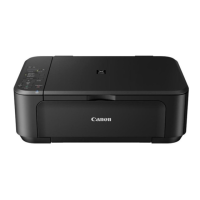
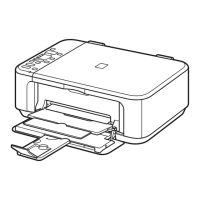
This document is a setup guide for the Canon PIXMA MG3500 series printer, focusing specifically on establishing a wireless network connection. It provides step-by-step instructions and troubleshooting tips to help users connect their printer to a wireless network.
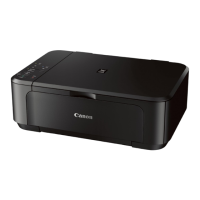
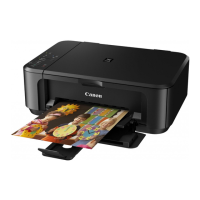
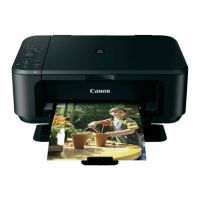
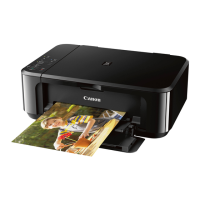
The Canon PIXMA MG3500 series printer is a multi-function device designed for home or small office use, capable of printing, scanning, and copying. This particular guide details the process of setting up its wireless connectivity, allowing the printer to communicate with computers and other devices over a network without physical cables. This wireless capability enhances the printer's versatility and placement options within a user's environment. The primary function covered here is enabling the printer to join an existing wireless local area network (WLAN) via an access point or wireless router, thereby facilitating printing from various networked devices. The guide specifically focuses on the Wi-Fi Protected Setup (WPS) method, which simplifies the connection process by minimizing manual configuration.
The setup process for the Canon PIXMA MG3500 series printer's wireless connection is designed to be user-friendly, particularly through the WPS method.
Preparation for Connection: Before initiating the wireless setup, users are instructed to ensure the printer is powered on. The green POWER lamp serves as a visual indicator that the printer is ready for configuration. This initial check is crucial for a smooth setup process. Users are also advised to confirm that their computer is already connected to the same access point or wireless network router they intend to connect the printer to. This ensures network compatibility and facilitates subsequent steps. The guide emphasizes checking the router's manual or contacting the manufacturer for specific settings, highlighting the importance of understanding the existing network environment.
Wireless Connection Notes: The guide provides several important notes regarding wireless connections. It clarifies that network device configurations, router functions, setup procedures, and security settings can vary, advising users to consult their network device's manual. It also specifies that the device supports IEEE802.11n (2.4 GHz), IEEE802.11g, or IEEE802.11b standards. A critical security note is included: if the device is set to "IEEE802.11n only" mode, WEP or TKIP security protocols are not supported, and users must change the security protocol or the mode setting. For office environments, consulting a network administrator is recommended. The guide also warns against connecting to unsecured networks due to data disclosure risks and explicitly states that "Ad-hoc connections" (direct computer-to-printer connections without an access point) are not supported, requiring an access point for wireless functionality.
Connection Using WPS: The WPS method is presented as a streamlined way to establish a wireless connection.
While this guide primarily focuses on initial setup, it includes troubleshooting information that can be considered a form of maintenance for the network connection.
Troubleshooting WPS Issues: The guide addresses two common scenarios during WPS setup:
Reconfiguring Wireless Connection Settings: If troubleshooting steps do not resolve the issue, or if a user wishes to re-establish the wireless connection, the guide provides a simple method: pressing the Color button on the printer. This action likely resets the wireless configuration, allowing the user to restart the setup process from the beginning. This feature acts as a reset mechanism for network settings, which can be useful for resolving persistent connection problems or when changing network environments.
In summary, the Canon PIXMA MG3500 series setup guide provides clear, concise instructions for establishing a wireless network connection using the WPS method, along with practical troubleshooting advice to maintain a stable connection. It emphasizes user checks, adherence to network standards, and security considerations, making it a comprehensive resource for initial setup and basic network maintenance.
 General
| Print Resolution | 4800 x 1200 dpi |
|---|---|
| Scanner Type | Flatbed |
| Scan Resolution | 1200 x 2400 dpi |
| Paper Capacity | 100 sheets |
| Functions | Print, Scan, Copy |
| Connectivity | USB, Wi-Fi |
| Mobile Printing | AirPrint, Google Cloud Print |
| Print Speed (Black) | 9.9 ipm |
| Print Speed (Color) | 5.7 ipm |
| Paper Sizes | Letter, Legal, 4 x 6, 5 x 7, 8 x 10 |
| Borderless Printing | Yes (4 x 6, 5 x 7, 8 x 10) |




 To Next Page