EasyManua.ls Logo

Canon Power Shot A400 - User Manual

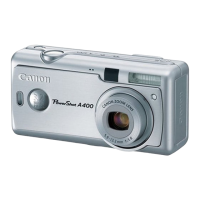
Canon Power Shot A400
142 pages
Print Icon
To Next Page IconTo Next Page
Loading...
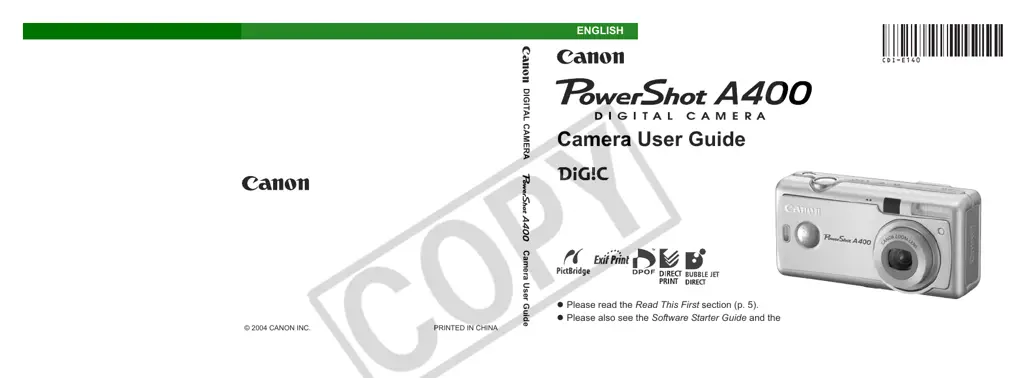
Camera User Guide
z Please read the Read This First section (p. 5).
z Please also see the Software Starter Guide and the Direct Print User Guide.
CDI-E140-010 © 2004 CANON INC. PRINTED IN CHINA
DIGITAL CAMERA
Camera User Guide
ENGLISH

Table of Contents

Questions and Answers

  • L
    Lauren AndersonJul 26, 2025
    How to fix Canon Digital Camera that will not turn on?
    • M
      mariaflemingJul 26, 2025
      If your Canon Digital Camera isn't turning on, here's what you can check: * Ensure the camera is actually switched on. * Make sure the SD card slot/battery cover is securely closed. * Verify the batteries are correctly oriented. * Replace depleted batteries with fresh alkaline or fully recharged Canon NiMH batteries. * Confirm you're using the correct type of batteries (AA-size alkaline or Canon AA-size NiMH). * Clean the battery terminals with a dry cloth and reload the batteries.
  • L
    Laura LeeJul 30, 2025
    What to do if Canon Digital Camera won't take pictures?
    • P
      pvargasJul 30, 2025
      If your Canon Digital Camera isn't taking pictures, check the following: * Ensure the camera is not in Playback mode; switch to a Shooting mode. * If the flash is charging, wait until the upper indicator lights orange steadily before pressing the shutter button.
  • Q
    qlawrenceAug 4, 2025
    How to fix blurry photos on Canon Power Shot A400 Digital Camera?
    • F
      florestravisAug 4, 2025
      If your Canon Digital Camera photos are blurry, try these solutions: * Hold the camera steady while shooting. * Ensure nothing is blocking the AF-assist beam. * Check if the AF-assist beam is turned on. * Make sure the subject is within the camera's focus range. For close subjects, use Macro mode; for distant subjects, use infinity mode. * If the subject is difficult to focus on, use the Focus Lock. * If there is insufficient light, turn on the flash. * If the subject is darker than the surroundings, set exposure compensation to a positive value or use spot metering.
  • S
    Stephanie BarreraAug 9, 2025
    How to fix overexposed photos on Canon Digital Camera?
    • A
      Angela MorrisAug 9, 2025
      If your Canon Digital Camera images are too bright, consider the following: * Ensure the subject is not too close to the flash (minimum 30 cm or 1.0 ft.). * If the subject is brighter than the surroundings, set exposure compensation to a negative value or use spot metering. * Adjust the camera angle if light is shining or reflecting into the camera. * Ensure the flash mode is not set to always fire; use a different flash mode.
  • D
    Deborah CampbellAug 14, 2025
    Why do the batteries drain so fast on my Canon Power Shot A400?
    • C
      Christopher MooreAug 14, 2025
      If your Canon Digital Camera's batteries are draining quickly, consider these factors: * Ensure you are using the correct type of batteries (new AA-size alkaline or Canon AA-size NiMH). * Low ambient temperatures can reduce battery capacity; keep batteries warm in cold environments. * Dirty battery terminals can cause issues; wipe them with a dry cloth before use. * If batteries haven't been used for over a year, performance may improve after several charging cycles. * Old batteries may have lost their effectiveness; replace them with new ones. * Ensure batteries are placed correctly in the charger. * Check for poor electrical contact between batteries and the charger and ensure the power cable is firmly connected.
  • K
    Kristina NewtonAug 20, 2025
    Why can't I playback images on my Canon Power Shot A400?
    • P
      Patricia HornAug 20, 2025
      If you're having trouble playing back images on your Canon Digital Camera, here's what to check: * If the images were shot with another camera or edited on a computer, they may not be compatible. Computer images that cannot be played back will playback if they are added to the camera using the bundled software program ZoomBrowser EX or ImageBrowser. * If the file name or location was changed on a computer, set it back to the camera's original file format/structure. * Avoid opening the SD card slot/battery cover while the power is on; close the cover and then turn the power off.

Summary

Read This First

Safety Precautions

Essential guidelines for safe operation and handling of the camera and accessories to prevent injury or damage.

Preventing Malfunctions

Instructions on avoiding issues like magnetic field interference, condensation, and improper storage to maintain camera functionality.

Components Guide

Camera Controls and Indicators

Overview of the camera's buttons, switches, indicators, and display elements for user interaction and status monitoring.

Preparing the Camera

Installing the Battery and SD Card

Step-by-step guide on inserting batteries and the SD card correctly into the camera for operation.

Formatting an SD Card

Procedure for initializing an SD card, which erases all data and prepares it for optimal use with the camera.

Setting the Date;Time

Instructions on setting the camera's date and time, essential for accurate image data and organization.

Basic Functions

Turning the Power On;Off

Guidance on powering the camera on and off, including indicator lights and operational states.

Mode Switch

Explanation of how to use the mode switch to select between Shooting, Replay, and other camera modes.

Using the LCD Monitor

Instructions on utilizing the LCD monitor for shooting, reviewing images, and navigating menus.

Shooting - The Basics

Auto Mode

How to use the Auto mode for effortless shooting, where the camera sets most parameters automatically.

Selecting a Shooting Mode

Guide to choosing various shooting modes like Auto, Manual, Special Scene, and Movie for different photographic needs.

Changing the Resolution and Compression

Information on adjusting image resolution and compression settings based on the intended use of the photos.

Using the Flash

Explanation of different flash modes and how to utilize flash for optimal lighting in various shooting conditions.

Playback - The Basics

Displaying Images Individually (Single Image Playback)

How to view recorded images one by one on the LCD monitor for review and selection.

Viewing Images in Sets of Nine (Index Playback)

Method for viewing multiple images (up to nine) simultaneously on the LCD monitor for quick browsing.

Jumping between Images

Techniques for quickly navigating through a large number of images using index playback features.

Erasing

Erasing Single Images

Procedure for deleting individual images from the SD card, with a confirmation step.

Erasing All Images

Instructions on how to erase all images and data from the SD card, excluding protected images.

Shooting - Advanced Functions

Selecting Menus and Settings

Guide to navigating menus and adjusting various camera settings using the FUNC. and MENU buttons.

Adjusting the Tone (White Balance)

How to set white balance to accurately reproduce colors under different lighting conditions.

Customizing the Camera (My Camera Settings)

Personalizing camera settings like start-up image and sounds to create a unique user experience.

Various Functions

About Printing

Overview of the two methods for printing images directly from the camera or via photo labs.

Downloading Images to a Computer

Instructions on transferring images from the camera to a computer using various connection and software methods.

Troubleshooting

Camera Operation Issues

Solutions for problems like the camera not operating, not shooting, or lens not retracting.

Shooting Issues

Troubleshooting steps for blurry shots, underexposed or overexposed subjects, and flash problems.

Battery Issues

Guidance on resolving issues with batteries being consumed quickly or not charging properly.

Appendix

Replacing the Date Battery

Procedure for replacing the camera's internal date/time battery when it runs down.

Camera Care and Maintenance

Instructions on how to clean the camera body, lens, viewfinder, and LCD monitor safely.

Specifications

Battery Performance

Details on the expected number of shots and playback time with different battery types under specific conditions.

Photo Tips and Information

How to Adjust the Exposure

Guidance on manually adjusting exposure compensation to achieve optimal brightness in photos.

ISO Speed

Explanation of ISO speed and its impact on image quality, especially in low light or to prevent blur.

Canon Power Shot A400 Specifications

General IconGeneral
Sensor TypeCCD
Resolution3.2 MP
Optical Zoom2.2x
Digital Zoom3.6x
Storage MediaSD Card
Battery Type2 x AA batteries
TypeCompact
Display Size1.5 inches

Related product manuals