EasyManua.ls Logo

Canon Power Shot A80 - User Manual

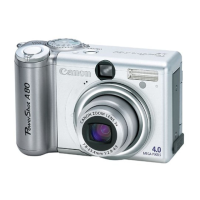
Canon Power Shot A80
218 pages
Print Icon
To Next Page IconTo Next Page
Loading...
CDI-E107-010 XXXXXXXXX © 2003 CANON INC. PRINTED IN JAPAN
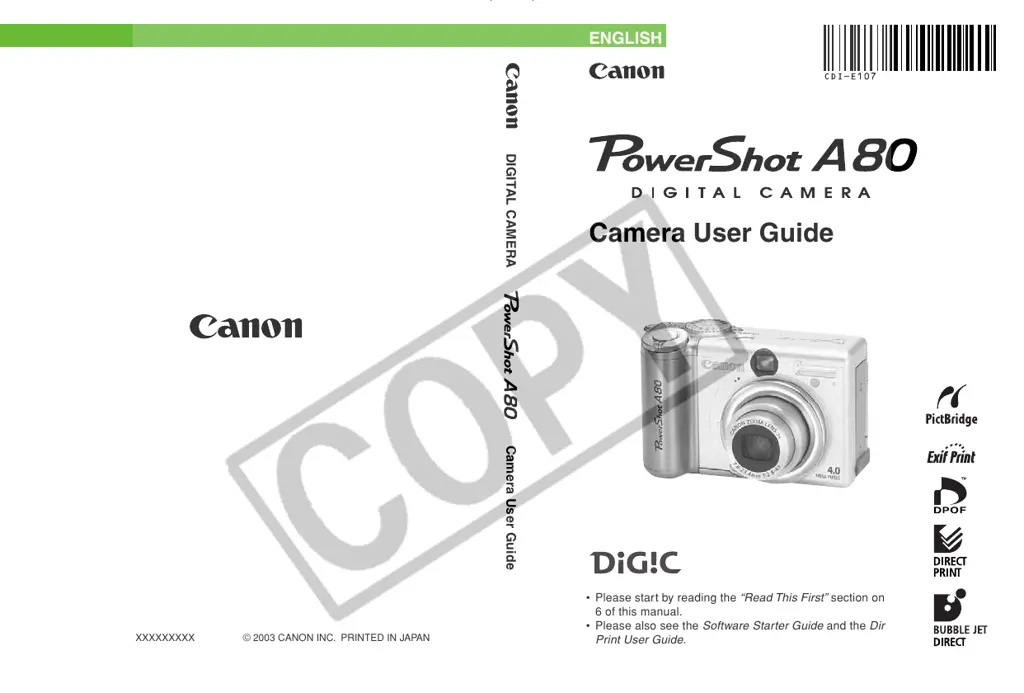
Camera User Guide
ENGLISH
DIGITAL CAMERA Camera User Guide
Please start by reading the
“Read This First”
section on page
6 of this manual.
Please also see the
Software Starter Guide
and the
Direct
Print User Guide
.

Table of Contents

Questions and Answers

  • J
    josephdominguezAug 17, 2025
    Why won't my Canon Power Shot A80 turn on?
    • V
      Vicki BentleyAug 18, 2025
      Your Canon Digital Camera might not be turning on because the power isn't on. Try pressing the ON/OFF button for a few moments. Also, check that the CF card slot cover or battery cover is securely closed. Ensure the batteries are loaded in the correct direction, and that the batteries are unused alkaline or fully recharged (four AA-size batteries). Using an AC adapter may also solve the problem. Finally, poor contact between camera and battery terminals can be the reason. Wipe the terminals with a clean, dry cloth.
  • J
    Jennifer WilliamsAug 20, 2025
    What to do if my Canon Power Shot A80 won't record?
    • B
      brittanythompsonAug 20, 2025
      If your Canon Digital Camera won't record, check that the mode switch is not set to (Playback); switch the camera to Shooting mode. If the flash is charging, wait until the orange indicator stops blinking and lights steadily, signaling that the flash is charged, then press the shutter button. If the CF card is full, insert a new CF card, or download the images to a computer and erase them from the CF card to make space. If the CF card is not formatted correctly, format the CF card.
  • L
    Laura AndersonAug 22, 2025
    What to do if my Canon Power Shot A80 Digital Camera rechargeable batteries won't charge?
    • S
      Stephanie MeyersAug 22, 2025
      If your Canon Digital Camera rechargeable batteries won't charge, ensure they were placed in the charger in the correct direction. Also, check for poor electrical contact by firmly setting batteries into the charger and ensuring the power cord is firmly connected to the charger and plugged into the power outlet. Dirty battery terminals can also prevent charging, so wipe them well with a dry cloth before charging. If the battery life has been exceeded, replace all 4 batteries with new ones.
  • T
    Timothy RamseyAug 25, 2025
    Why does my Canon Power Shot A80 Digital Camera battery drain so fast?
    • A
      April StricklandAug 26, 2025
      Your Canon Digital Camera battery might be draining quickly because you are not using the right type of batteries. Use only unused AA-size alkaline batteries or Canon AA-size NiMH batteries. If the batteries are cold, keep them warm until ready to use, as performance deteriorates at low temperatures. Dirty battery terminals can also cause this issue, so wipe them well with a dry cloth before use. Also, if the batteries have not been used for over a year, performance should return to normal after several charging cycles (if rechargeable). If rechargeable batteries have lost their effectiveness, replace all 4 batteries with new ones.
  • R
    richardgarnerAug 27, 2025
    Why are my Canon Digital Camera shots blurry?
    • C
      Christopher AlvaradoAug 27, 2025
      If your Canon Digital Camera shots are blurry, it could be due to camera movement during the shot. Hold the camera steady when shooting. Check that the autofocus function isn't hampered by an obstruction to the AF-assist beam; ensure your finger or other items aren't blocking it. Also, verify that the AF-assist beam is set to [On]. If the subject is outside the camera's focus range, ensure there is at least 45 cm (1.5 ft.) between the camera lens and the subject. For close-ups, use the macro mode between 5 to 45 cm (2.0 in. to 1.5 ft.) from the lens when set to wide angle and between 25 to 45 cm (10 in. to 1.5 ft.) when set to telephoto. If the subject is hard to focus on, use the focus lock or the manual focus.
  • P
    patrickcraigAug 30, 2025
    Why doesn't the flash fire on my Canon Digital Camera?
    • D
      Dr. Linda KingAug 30, 2025
      The flash on your Canon Digital Camera might not be firing because the flash mode is set to Off. Set the flash to any other mode except Off.
  • R
    rmacdonaldSep 1, 2025
    Why is my Canon Power Shot A80 image not showing on TV?
    • T
      Timothy MurphySep 2, 2025
      If your Canon Digital Camera image is not showing on TV, it could be due to an incorrect video system setting. Set the video system to the appropriate setting, NTSC or PAL, for your TV. Also, check that the mode dial is not turned to (stitch assist); turn the mode dial to any mode other than .
  • S
    Stephanie OrtizSep 4, 2025
    What to do if my Canon Digital Camera lens will not retract?
    • C
      Christopher CookSep 4, 2025
      If the lens on your Canon Digital Camera won't retract, it might be because the battery cover or CF card slot cover was opened with the camera on. Close the CF card slot cover or battery cover, then turn off the camera. Alternatively, if the CF card slot cover or battery cover was opened while the camera was recording to the CF card, close the covers, and then use the ON/OFF button to turn the power off correctly.
  • L
    Lisa PierceSep 6, 2025
    Why is my Canon Digital Camera image too dark?
    • D
      David MillerSep 6, 2025
      If your Canon Digital Camera subject comes out underexposed (too dark), it could be due to insufficient light for shooting. Set the flash on. If the subject is darker than the surroundings, set exposure compensation to a positive value or use spot AE point light metering. Also, the subject may be beyond the range of the flash. When flash is used, the distance between lens and subject should not exceed 4.4 m (14.4 ft.) at wide angle end or 2.5 m (8.2 ft.) at telephoto end setting.
  • M
    Michael BrennanSep 9, 2025
    Why is my Canon Power Shot A80 image too bright?
    • A
      antoniowellsSep 9, 2025
      If the subject in your Canon Digital Camera photos comes out overexposed (too bright), it could be because the subject is too close to the flash. When flash is used, the distance between lens and subject should be no less than 25 cm (10 in.). If the subject is brighter than the surroundings, set exposure compensation to a negative value. Also, check if light is shining or reflecting into the camera, and adjust the camera angle. Finally, make sure the flash mode isn't set so that the flash always fires; set the flash to any other mode except On.

Summary

Camera Operation and Settings

Camera Body Temperature

Information about camera body temperature during prolonged use.

LCD Monitor and Video Format

Details on LCD monitor and video format settings.

Language and Disclaimer

Guidance on language setting and legal disclaimers.

Trademark Acknowledgments

List of acknowledged trademarks used in the manual.

About this Camera User Guide

Symbols Used

Explanation of symbols used throughout the manual and their meanings.

User Questions

Pointers to relevant sections for common user questions.

Quick Start Guide

Install Batteries and CF Card

Instructions on how to insert batteries and a CF card into the camera.

Power On and Mode Setup

Steps to power on the camera and set initial parameters.

Quick Start Guide (Continued)

Camera Operation Steps

Steps for setting mode dial, focusing, shooting, and viewing images.

Components Guide

Camera Body Parts and Terminals

Identification and explanation of major camera parts like buttons, dials, and terminals.

Camera Connections and Accessories

Attaching the Wrist Strap

Instructions on how to attach the wrist strap to the camera.

Connection Terminals and Cables

Details on connection terminals and cables for peripherals.

Camera Indicators

Indicator Lights Explained

Explanation of camera indicator lights and their meanings.

Shooting Mode Dial

Shooting Mode Zones

Explanation of Auto, Image Zone, and Creative Zone shooting modes.

Preparing the Camera

Installing the Batteries

Instructions on how to insert batteries into the camera.

Proper Battery Handling

Battery Handling Details

Battery Terminals and Performance

Advice on cleaning terminals and impact of temperature on performance.

Storage and Seals

Guidance on battery storage and warnings about damaged seals.

Battery Status Indications

Installing a CF Card

CF Card Slot and Eject Button

Location and function of the CF card slot cover and eject button.

About CF Cards

Handling and Condensation Precautions

Guidelines for handling CF cards and preventing condensation.

Storage Recommendations

Recommended locations for storing CF cards.

Setting the Date;Time

Date;Time Menu and Settings

Accessing and setting the camera's date and time.

Date;Time Battery Charging

How the internal date/time battery is recharged.

Setting the Language

Language Menu and Selection

Accessing and selecting the desired display language.

Basic Camera Functions

Powering On and Off

How to turn the camera on and off.

Startup Displays

What appears on the LCD upon camera startup.

Switching Shooting and Playback Modes

Entering Shooting Mode

How to switch to shooting mode.

Entering Playback Mode

How to switch to playback mode.

Using the LCD Monitor

LCD Monitor Positions

Explanation of LCD monitor's adjustable positions.

LCD Monitor Positioning Options

180 Degree Tilt and Folding Back

How to tilt and fold the LCD monitor.

LCD Monitor Display Modes

LCD Monitor Information Displays

Shooting and Playback Mode Information

Information shown on LCD during shooting and playback modes.

Information View Displays

Shooting Mode Icons Overview

Playback Mode Information Details

Image File and Histogram Information

Additional Image File Information

Additional information that may appear with image files.

Understanding Histograms

Explanation of histograms for judging image brightness.

Using the Viewfinder for Shooting

Autofocus and Viewfinder Comparison

Explanation of autofocus technology and viewfinder vs. recorded image differences.

Using the Zoom Function

Wide-Angle and Telephoto Zoom

How to use the zoom lever for wide-angle and telephoto shots.

Digital Zoom Feature

Information about the camera's digital zoom feature.

Shutter Button Operation

Half-Pressing the Shutter Button

How pressing the shutter button halfway affects settings.

AF Frame Display

How the AF frame appears on the LCD monitor.

Fully Pressing the Shutter Button

AF-Assist Beam Functionality

Selecting Camera Menus and Settings

Using the FUNC. Button for Settings

How to access and change settings using the FUNC. button.

Using the MENU Button for Settings

How to access and change settings using the MENU button.

Navigating Between Camera Menus

Menu Settings and Defaults

FUNC. Button Menu Items

Menu items accessible via the FUNC. button.

Menu Options Overview

Rec. Menu Options

Menu items related to recording settings.

Play Menu Options

Menu items related to playback functions.

Switching Menus via Zoom Lever

Shooting Modes: Camera Select Settings

AUTO Mode Operation

How to use the camera in automatic shooting mode.

Auto Mode Shooting Steps

Focusing and Metering

How to focus and meter in Auto mode.

Taking the Photo

How to take a photo in Auto mode.

Reviewing Images After Shooting

Image Display Methods

Options for viewing captured images immediately after shooting.

Changing Image Display Duration

Resolution and Compression Settings

Image Resolution Options

Explanation of image resolution settings and their purposes.

Image Compression Options

Explanation of image compression settings and their purposes.

Using the Camera Flash

Flash Mode Selection

Explanation of different flash modes (Auto, Flash on, Flash off).

Flash Operation and Red-Eye Reduction

Shooting with Flash

How to take a photo with flash.

Red-Eye Reduction Function

How to enable or disable the red-eye reduction feature.

Portrait Mode Shooting

Landscape Mode Shooting

Night Scene Mode Shooting

Fast Shutter Speed Mode

Slow Shutter Speed Mode

Panoramic Images (Stitch Assist Mode)

Framing Subjects for Panoramas

Tips for framing subjects for panorama stitching.

Movie Mode Recording

How to Shoot Movies

How to record movies using the camera.

Macro Mode Usage

Activating and Using Macro Mode

How to activate and use macro mode for close-ups.

Self-Timer Function

Using the Self-Timer

How to use the self-timer for taking photos with a delay.

Digital Zoom Feature

Enabling and Using Digital Zoom

How to enable and use the digital zoom feature.

Continuous Shooting Modes

Standard vs. High-Speed Continuous

How to shoot multiple frames continuously and high-speed bursts.

Shooting Modes: Selecting Particular Effects

Program AE (P Mode)

How to use the camera in Program AE shooting mode.

Tv Mode: Setting Shutter Speed

Av Mode: Setting Aperture

M Mode: Manual Shutter and Aperture

Autofocus Mode Selection

Light Metering Mode Selection

Adjusting Exposure Compensation

White Balance Adjustment

Auto and Preset White Balance

How the camera automatically sets white balance and preset options.

Custom White Balance Setup

How to set a custom white balance based on a reference.

Changing Photo Effects

Changing ISO Speed

Adjusting Flash Output

Autofocus Challenges and Solutions

Shooting with Focus Lock

Techniques for focusing on difficult subjects using focus lock.

Using AF Lock for Recomposition

Manual Focus Mode Operation

Saving Custom Shooting Settings (C1;C2)

Savable Settings Overview

List of settings that can be saved to custom modes.

Setting the Auto Rotate Function

Resetting File Numbers

File Number Assignment Options

Options for how file numbers are assigned.

Displaying Images Individually

Magnifying Images for Detail

Exiting Magnified View

How to exit the magnified view.

Index Playback: Viewing Multiple Images

Jumping Between Images in Index Playback

Viewing Recorded Movies

Movie Playback Interface

Display of controls during movie playback.

Editing Movie Clips

Available Movie Editing Methods

Explanation of available movie editing functions.

Rotating Images on the Display

Attaching Sound Memos to Images

Auto Play Feature

Pausing, Resuming, and Stopping Auto Play

How to control the auto play sequence.

Protecting Images from Deletion

Erasing Images Individually

Erasing All Images from CF Card

Formatting a CF Card

Print Settings Overview

About Direct Printing

Overview of direct printing capabilities and options.

DPOF Print Settings

Selecting Images for Printing

How to select images for printing using DPOF.

Setting Print Styles

Print Type Options

Options for print output (Standard, Index, Both).

Date and File Number Options

Options to add date and file number to prints.

Image Transfer Settings (DPOF Order)

Selecting Images for Transfer

How to mark images for transfer to a computer.

Downloading Images to Computer

Connecting via USB Cable

Steps to connect the camera to a PC using a USB cable.

USB Connection Procedure

Driver and Software Installation

Instructions for installing necessary camera software and drivers.

Physical Connection Steps

Steps to physically connect the camera to the computer.

Downloading Images Without Software Installation

Downloading Directly from CF Card

Viewing Images on a TV Set

AV Cable Connection and TV Setup

How to connect the camera to a TV and configure TV settings.

Customizing Camera Settings (My Camera)

Changing My Camera Settings

How to customize start-up images and sounds.

Registering Custom Camera Settings

List of Menu Options and Messages

FUNC. Menu Items

List of settings available through the FUNC. menu.

Menu Item Details (ISO, Photo Effect, Metering, Resolution)

Image Quality Settings

Settings for ISO speed, photo effects, metering, and resolution.

Rec. Menu Options

AF and Red-Eye Settings

Settings for AF frame and red-eye reduction.

Zoom and Review Settings

Settings for digital zoom and image review duration.

Display and Save Settings

Settings for display reverse and saving custom configurations.

Review and Reverse Display Settings

Image Review Duration

Settings for image display duration after shooting.

Reverse Display Function

Settings for reversing image display.

Save Settings Function

How to save settings to custom modes.

Play Menu Functions

Image Protection and Rotation

How to protect images and rotate them on display.

Sound Memos and Erasing

How to add sound memos and erase images.

Play Menu Features (Auto Play, Print, Transfer)

Auto Play Function

Feature for automatically playing back all images.

Print and Transfer Order Settings

How to set print order and transfer order for computer.

Setup Menu Options

Mute and Volume Settings

Settings for disabling camera sounds and adjusting volumes.

Setup Menu Options (Continued)

Sound and Power Saving Settings

Settings for shutter sound volume, playback volume, and power saving.

Date;Time Settings

Settings for date, time, and format.

Setup Menu Options (Continued)

CF Card Formatting and File Numbering

Procedures for formatting CF cards and managing file numbers.

Auto Rotate and Distance Units

Settings for automatic image rotation and manual focus distance units.

Setup Menu Options (Continued)

Language and Video System Settings

Settings for camera display language and video output standard.

My Camera Menu Functions

Theme, Start-up Image, and Sound

Customizing theme, start-up image, and start-up sound.

My Camera Menu Functions (Continued)

Operation, Selftimer, and Shutter Sounds

Customizing operation, selftimer, and shutter sounds.

Resetting Camera Settings to Default

List of LCD Monitor Messages

Using Battery Kits

Rechargeable Batteries and Charger

Instructions for using rechargeable batteries and charger.

Using the AC Adapter Kit ACK600

Using Lenses and Lens Adapters

Lens Specifications

Information about wide converter, tele-converter, and close-up lens.

Macro Shooting Ranges and Lens Adapter

Macro Shooting Ranges

Table showing shooting distances and field coverage in macro mode.

Conversion Lens Adapter Details

Specifications of the conversion lens adapter.

Camera Care and Maintenance Procedures

Troubleshooting Camera Issues

Camera Not Operating

Solutions for issues related to camera power and operation.

Camera Not Recording

Solutions for problems preventing image recording.

Troubleshooting Recording and Lens Issues

Camera Not Recording (Continued)

Solutions for flash charging, full CF card, or incorrect formatting.

Lens Retraction Problems

Solutions for the lens failing to retract.

Troubleshooting Battery Issues

Rapid Battery Consumption

Causes and solutions for rapid battery drain.

Rechargeable Battery Charging Problems

Troubleshooting steps when rechargeable batteries fail to charge.

Troubleshooting Focus and Blurriness

Blurry or Unfocused Shots

Solutions for blurry or unfocused images.

Troubleshooting Focus and Exposure

Focusing Difficulties and Underexposure

Further solutions for focus issues and underexposed images.

Troubleshooting Overexposure and LCD Anomalies

Overexposed Images

Solutions for overexposed images.

LCD Vertical Stripe Anomaly

Explanation of a specific visual anomaly on the LCD.

Troubleshooting Image Artifacts and Connectivity

Image Artifacts (Dots;Asterisks)

Explanation of white dots or asterisks in images.

Flash, TV, Zoom, and CF Card Issues

Solutions for flash not firing, TV display, zoom, and CF card speed problems.

Camera Specifications Overview

Sensor, Lens, and Zoom Specifications

Details on pixels, sensor, lens, zoom, viewfinder, and LCD.

AF, Shutter, Metering, and Exposure Specs

AF system, shutter, metering, exposure, and sensitivity specifications.

Camera Specifications (Continued)

White Balance, Flash, and Shooting Modes

Specifications for white balance, flash, and shooting modes.

Continuous Shooting, Self-timer, and Media Specs

Specs for continuous shooting, self-timer, PC control, media, file format, compression, and resolution.

CF Card Capacity and Image Size Estimates

Accessory Specifications

Battery, Charger, and Adapter Specs

Specifications for NiMH battery, charger, and power adapter.

Card and Converter Specifications

CompactFlash Card Specs

Specifications of the CompactFlash card.

Lens Converter Specs

Specifications for wide and telephoto converters.

Lens and Adapter Specifications

Close-Up Lens and Adapter Specs

Specifications for the close-up lens and conversion lens adapter.

Index of Topics

Functions Available by Shooting Mode

Canon Power Shot A80 Specifications

General IconGeneral
Image SensorCCD
Optical Sensor Size1/1.8"
Optical Zoom3x
Digital Zoom3.6x
LCD ScreenYes
Image StabilizationNo
ISO RangeAuto, 50, 100, 200, 400
Video RecordingYes
Max Shutter Speed1/2000 sec
Min Shutter Speed15 sec
Display TypeLCD
TypeCompact
Effective Pixels4.0 MP
Optical Sensor Resolution4.1 Megapixels
Display Size1.5"
Battery Type4 x AA batteries
Supported Flash MemoryCompactFlash
Exposure ModesManual, Program
Shooting ProgramsLandscape, Night, Portrait
White BalanceAuto, Cloudy, Daylight, Fluorescent, Tungsten
Focal Length7.8 - 23.4mm (35mm equivalent: 38 - 114mm)

Related product manuals