EasyManua.ls Logo

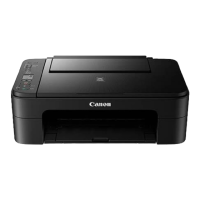
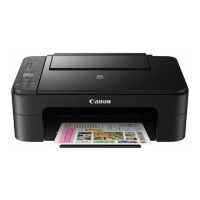
Canon TS3100 Series - User Manual

Canon TS3100 Series
369 pages
Print Icon
To Next Page IconTo Next Page
Loading...
TS3100 series
Online Manual
Basic Operation
Network
Handling Paper, Originals, FINE Cartridges, etc.
Maintenance
Overview of the Machine
Information about Paper
Printing
Copying
Scanning
Frequently Asked Questions
List of Support Code for Error
English

Table of Contents

Question and Answer IconNeed help?

Do you have a question about the Canon TS3100 Series and is the answer not in the manual?

Summary

Using Online Manual

Symbols Used in This Document

Explains the meaning of various symbols used throughout the manual for clarity.

Touch-enabled Device Users (Windows)

Provides guidance for users interacting with the manual via touch-enabled Windows devices.

Trademarks and Licenses

Lists trademarks and legal licenses associated with the product and its software.

Basic Operation

Printing Photos from a Computer

Step-by-step guide on how to print photos from a computer using the printer.

Printing Photos from a Smartphone;Tablet

Instructions for printing photos wirelessly from a smartphone or tablet device.

Copying

Details the process of making copies of documents using the printer.

Network

Available Connection Methods

Outlines the different ways to connect the printer to a network.

Restrictions

Details any limitations or restrictions related to network usage.

Default Network Settings

Shows the default network configurations for LAN and Wireless Direct connections.

Connecting to Another Computer via LAN;Changing from USB to LAN Connection

Guide on connecting additional computers or switching from USB to LAN connection.

Changing Wireless LAN Connection Method

Steps to switch between infrastructure and Wireless Direct modes.

Handling Paper, Originals, FINE Cartridges, etc.

Loading Paper

Explains how to properly load paper into the printer's rear tray.

Loading Plain Paper; Photo Paper

Detailed instructions for loading plain and photo paper into the rear tray.

Loading Originals

Provides instructions on how to place originals on the platen glass for scanning or copying.

Loading Originals on the Platen Glass

Specific steps for placing originals onto the platen glass for scanning.

Supported Originals

Lists the types and sizes of originals that can be scanned or copied.

Replacing a FINE Cartridge

Step-by-step guide on how to replace the ink cartridges in the printer.

Replacing a FINE Cartridge

Detailed procedure for replacing the ink cartridges.

Checking the Ink Status with the Ink Lamps on the Operation Panel

How to check ink levels using the printer's operation panel lamps.

Maintenance

If Printing Is Faint or Uneven

Troubleshooting steps for issues like faint prints or uneven print quality.

Maintenance Procedure

General procedure for performing printer maintenance tasks.

Printing the Nozzle Check Pattern

How to print a nozzle check pattern to diagnose print quality issues.

Examining the Nozzle Check Pattern

How to interpret the nozzle check pattern to identify print head problems.

Cleaning the Print Head

Procedure for cleaning the print head to resolve print quality issues.

Deep Print Head Cleaning

Advanced print head cleaning process for more stubborn issues.

Aligning the Print Head

Steps to adjust the print head position for accurate printing.

Cleaning

General section for printer cleaning procedures.

Cleaning Paper Feed Rollers

How to clean the paper feed rollers to prevent paper feeding issues.

Cleaning Inside the Printer (Bottom Plate Cleaning)

Procedure for cleaning the interior of the printer, including the bottom plate.

Overview

Safety

Important safety precautions and guidelines for operating the printer.

Safety Precautions

Detailed safety advice for choosing a location, power supply, and working around the printer.

Regulatory Information

Information about FCC compliance and other regulatory notices for US users.

Users in Canada

Compliance information specific to users in Canada.

WEEE (EU&EEA)

Information regarding the disposal of electronic waste in the EU and EEA.

Handling Precautions

General precautions for handling the printer and its components safely.

Main Components and Their Use

An overview of the printer's primary physical components.

Main Components

An overview of the printer's primary physical components.

Front View

Identification and description of the parts visible from the front of the printer.

Rear View

Identification and description of the parts visible from the rear of the printer.

Inside View

Identification and description of the components located inside the printer.

Operation Panel

Description of the buttons, lamps, and LCD on the printer's control panel.

Power Supply

Information and instructions related to the printer's power connection and usage.

Confirming that the Power Is On

How to verify that the printer is powered on by checking the ON lamp.

Turning the Printer On and Off

Instructions for powering the printer on and off.

Checking the Power Plug;Power Cord

How to inspect the power plug and cord for any potential issues.

Unplugging the Printer

Procedure for safely disconnecting the printer from the power source.

Indication of LCD

Explanation of the various icons and status indicators displayed on the printer's LCD.

Changing Settings

Guide on how to adjust various settings for the printer.

Specifications

Technical details and specifications of the printer model.

General Specifications

General technical specifications of the printer, including dimensions and weight.

Copy Specifications

Details related to the printer's copying capabilities and settings.

Scan Specifications

Details related to the printer's scanning capabilities and settings.

Network Specifications

Information regarding the network protocols and standards supported by the printer.

Wireless LAN

Technical details about the printer's wireless LAN connectivity standards and security.

Minimum System Requirements

Specifies the minimum system requirements for Windows and Mac OS to operate the printer software.

Information about Paper

Print Area

Information about the printable area on different paper sizes.

Supported Media Types

Lists the types of paper and media that are compatible with the printer.

Paper Load Limit

Specifies the maximum number of sheets that can be loaded into the printer at once.

Unsupported Media Types

Lists paper types that should not be used with the printer to avoid issues.

Handling Paper

Guidelines for handling paper to ensure proper printing and prevent damage.

Printing

Printing from Computer

Comprehensive guide to printing documents and photos from a computer.

Printing from Application Software (Windows Printer Driver)

Detailed instructions for printing using the Windows printer driver.

Basic Printing Setup

Describes the essential settings on the Quick Setup tab for basic printing.

Various Printing Methods

Overview of different printing techniques and options available.

Setting a Page Size and Orientation

How to set the paper size and orientation for printing documents.

Setting the Number of Copies and Printing Order

How to specify the number of copies and the order of pages for printing.

Execute Borderless Printing

Instructions for printing photos or documents without any margins on the paper.

Scaled Printing

How to enlarge or reduce documents to fit a specific paper size during printing.

Page Layout Printing

Printing multiple pages of a document onto a single sheet of paper.

Tiling;Poster Printing

Enlarging image data and dividing it into multiple pages to create large prints or posters.

Duplex Printing

Instructions for printing on both sides of the paper (manual duplex printing).

Printing on Postcards

Specific instructions for printing on postcard-sized paper.

Overview of the Printer Driver

Canon IJ Printer Driver

General information about the Canon IJ printer driver software.

Opening Printer Drivers Setup Screen

How to access the printer driver's configuration interface.

Canon IJ Status Monitor

Information about the Canon IJ Status Monitor application.

Checking Ink Status from Your Computer

How to check the remaining ink levels and cartridge status from a computer.

Instructions for Use (Printer Driver)

Restrictions on the Printer Driver

Details on known restrictions and limitations when using the printer driver.

Printer Driver Description

Description of the printer driver's interface and functionality.

Quick Setup tab Description

Explanation of the Quick Setup tab for registering and selecting commonly used print settings.

Main tab Description

Description of the Main tab for basic print setup based on media type.

Page Setup tab Description

Explanation of the Page Setup tab for arranging documents and setting copies.

Print Options dialog box

Details about the Print Options dialog for customizing print data settings.

Scanning Using Application Software (ScanGear)

What Is ScanGear (Scanner Driver)?

Explanation of ScanGear as the software required for scanning documents.

Scanning in Basic Mode

Simple on-screen steps for scanning documents easily using Basic Mode.

ScanGear (Scanner Driver) Screens

Overview of the user interface screens for ScanGear.

General Notes (Scanner Driver)

Important restrictions and notes regarding the use of the scanner driver.

Frequently Asked Questions

Network

FAQs related to network connectivity and troubleshooting.

Print

Common questions and answers regarding printing problems.

Installation

FAQs related to software installation and driver issues.

Error

Frequently asked questions about error codes and messages displayed by the printer.

Examples of Problems

Common issues users encounter with the printer and potential solutions.

Network Settings and Common Problems

Wireless LAN

Common problems and solutions related to wireless LAN connections.

Wireless Direct

Common problems and solutions related to Wireless Direct connections.

LAN Setting Tips;Changing LAN Settings

Tips for LAN settings and how to change them.

Printing;Scanning from Smartphone;Tablet

Common problems when printing/scanning from mobile devices.

Problems while Using Printer

General problems encountered while using the printer.

Network Communication Problems

Cannot Find Printer on Network

Troubleshooting steps when the printer cannot be detected on the network.

Network Connection Problems

Solutions for issues related to establishing a network connection.

Printing Problems

Printing Does Not Start

Troubleshooting steps when printing fails to initiate.

No Ink Comes Out

Steps to resolve issues where no ink is being ejected during printing.

Paper Does Not Feed Properly;,No Paper Error

Solutions for paper feeding errors or "No Paper" messages.

Print Results Are Unsatisfactory

Troubleshooting steps for poor print quality like streaks or misaligned lines.

Scanning Problems (Windows)

Scanning Problems

General troubleshooting for scanning issues on Windows.

Scanning Problems

Scanner Does Not Work

Steps to take when the scanner function is not operational.

ScanGear (Scanner Driver) Does Not Start

Troubleshooting steps when the ScanGear driver fails to launch.

Mechanical Problems

Power Does Not Come On

Steps to troubleshoot when the printer does not power on.

Power Shuts Off By Itself

Solutions for when the printer unexpectedly turns itself off.

USB Connection Problems

Troubleshooting steps for issues related to USB connections.

Cannot Communicate with Printer via USB

Steps to resolve communication errors when using a USB connection.

Installation and Download Problems

Cannot Install MP Drivers (Windows)

Troubleshooting steps for issues encountered during MP Drivers installation on Windows.

Errors and Messages

An Error Occurs

General guide on what to do when an error message is displayed.

Message (Support Code) Appears

Explains messages and support codes that may appear during operation.

List of Support Code for Error

Support Code Appears on Computer Screen

Lists support codes displayed on the computer screen and their corresponding error causes.

List of Support Code for Error (Paper Jams)

Specific support codes related to paper jam errors and their resolution.

1300 (Error Code)

Cause

Describes the cause of the error code 1300, typically a paper jam.

What to Do

Provides the steps to resolve the paper jam error.

1203 (Error Code)

Cause

Describes the cause of the error code 1203, usually an open cover during printing.

What to Do

Provides the steps to resolve the error code 1203.

1401 (Error Code)

Cause

Indicates that the FINE cartridge is not installed.

What to Do

Instructions for installing the FINE cartridge to resolve the error.

1430 (Error Code)

Cause

Indicates that the FINE cartridge cannot be recognized.

What to Do

Instructions for reinstalling or replacing the FINE cartridge.

1485 (Error Code)

Cause

Indicates that an inappropriate ink cartridge is installed.

What to Do

Instructions for installing the correct ink cartridge.

1682 (Error Code)

Cause

Indicates that the FINE cartridge cannot be recognized.

What to Do

Instructions for replacing the FINE cartridge.

1686 (Error Code)

Cause

Indicates that the ink may have run out.

What to Do

Instructions for continuing printing when ink has run out.

1688 (Error Code)

Cause

Indicates that the ink has run out.

What to Do

Instructions for replacing the ink cartridge and continuing printing.

168 A (Error Code)

Cause

FINE cartridge is not installed properly or is incompatible.

What to Do

Instructions for correctly installing a compatible FINE cartridge.

1700 (Error Code)

Cause

Indicates that the ink absorber is almost full.

What to Do

Advice on continuing printing and contacting service for a full ink absorber.

1890 (Error Code)

Cause

Protective material or tape may still be attached to FINE cartridge holder.

What to Do

Instructions for removing protective material from the FINE cartridge holder.

2900 (Error Code)

Cause

Scanning of the print head alignment sheet failed.

What to Do

Steps to resolve print head alignment sheet scanning failures.

2901 (Error Code)

Cause

Printer is waiting to scan the print head alignment sheet.

What to Do

Instructions for scanning the print head alignment pattern.

4102 (Error Code)

Cause

Media type and paper size settings are not correctly set.

What to Do

Instructions to correct media type and paper size settings.

4103 (Error Code)

Cause

Cannot perform printing with current print settings.

What to Do

Steps to change print settings and retry printing.

5011 (Error Code)

Cause

Printer error has occurred.

What to Do

Steps to resolve a general printer error by power cycling.

5012 (Error Code)

Cause

Printer error has occurred.

What to Do

Steps to resolve a general printer error by power cycling.

5100 (Error Code)

Cause

Printer error has occurred.

What to Do

Steps to resolve a printer error by checking cartridge installation and impediments.

5200 (Error Code)

Cause

Printer error has occurred.

What to Do

Steps to resolve a general printer error by power cycling.

5 B00 (Error Code)

Cause

Printer error has occurred.

What to Do

Advice to contact service center for printer errors related to ink levels.

6000 (Error Code)

Cause

Printer error has occurred.

What to Do

Instructions for clearing paper jams and resolving printer errors.

Summary

Using Online Manual

Symbols Used in This Document

Explains the meaning of various symbols used throughout the manual for clarity.

Touch-enabled Device Users (Windows)

Provides guidance for users interacting with the manual via touch-enabled Windows devices.

Trademarks and Licenses

Lists trademarks and legal licenses associated with the product and its software.

Basic Operation

Printing Photos from a Computer

Step-by-step guide on how to print photos from a computer using the printer.

Printing Photos from a Smartphone;Tablet

Instructions for printing photos wirelessly from a smartphone or tablet device.

Copying

Details the process of making copies of documents using the printer.

Network

Available Connection Methods

Outlines the different ways to connect the printer to a network.

Restrictions

Details any limitations or restrictions related to network usage.

Default Network Settings

Shows the default network configurations for LAN and Wireless Direct connections.

Connecting to Another Computer via LAN;Changing from USB to LAN Connection

Guide on connecting additional computers or switching from USB to LAN connection.

Changing Wireless LAN Connection Method

Steps to switch between infrastructure and Wireless Direct modes.

Handling Paper, Originals, FINE Cartridges, etc.

Loading Paper

Explains how to properly load paper into the printer's rear tray.

Loading Plain Paper; Photo Paper

Detailed instructions for loading plain and photo paper into the rear tray.

Loading Originals

Provides instructions on how to place originals on the platen glass for scanning or copying.

Loading Originals on the Platen Glass

Specific steps for placing originals onto the platen glass for scanning.

Supported Originals

Lists the types and sizes of originals that can be scanned or copied.

Replacing a FINE Cartridge

Step-by-step guide on how to replace the ink cartridges in the printer.

Replacing a FINE Cartridge

Detailed procedure for replacing the ink cartridges.

Checking the Ink Status with the Ink Lamps on the Operation Panel

How to check ink levels using the printer's operation panel lamps.

Maintenance

If Printing Is Faint or Uneven

Troubleshooting steps for issues like faint prints or uneven print quality.

Maintenance Procedure

General procedure for performing printer maintenance tasks.

Printing the Nozzle Check Pattern

How to print a nozzle check pattern to diagnose print quality issues.

Examining the Nozzle Check Pattern

How to interpret the nozzle check pattern to identify print head problems.

Cleaning the Print Head

Procedure for cleaning the print head to resolve print quality issues.

Deep Print Head Cleaning

Advanced print head cleaning process for more stubborn issues.

Aligning the Print Head

Steps to adjust the print head position for accurate printing.

Cleaning

General section for printer cleaning procedures.

Cleaning Paper Feed Rollers

How to clean the paper feed rollers to prevent paper feeding issues.

Cleaning Inside the Printer (Bottom Plate Cleaning)

Procedure for cleaning the interior of the printer, including the bottom plate.

Overview

Safety

Important safety precautions and guidelines for operating the printer.

Safety Precautions

Detailed safety advice for choosing a location, power supply, and working around the printer.

Regulatory Information

Information about FCC compliance and other regulatory notices for US users.

Users in Canada

Compliance information specific to users in Canada.

WEEE (EU&EEA)

Information regarding the disposal of electronic waste in the EU and EEA.

Handling Precautions

General precautions for handling the printer and its components safely.

Main Components and Their Use

An overview of the printer's primary physical components.

Main Components

An overview of the printer's primary physical components.

Front View

Identification and description of the parts visible from the front of the printer.

Rear View

Identification and description of the parts visible from the rear of the printer.

Inside View

Identification and description of the components located inside the printer.

Operation Panel

Description of the buttons, lamps, and LCD on the printer's control panel.

Power Supply

Information and instructions related to the printer's power connection and usage.

Confirming that the Power Is On

How to verify that the printer is powered on by checking the ON lamp.

Turning the Printer On and Off

Instructions for powering the printer on and off.

Checking the Power Plug;Power Cord

How to inspect the power plug and cord for any potential issues.

Unplugging the Printer

Procedure for safely disconnecting the printer from the power source.

Indication of LCD

Explanation of the various icons and status indicators displayed on the printer's LCD.

Changing Settings

Guide on how to adjust various settings for the printer.

Specifications

Technical details and specifications of the printer model.

General Specifications

General technical specifications of the printer, including dimensions and weight.

Copy Specifications

Details related to the printer's copying capabilities and settings.

Scan Specifications

Details related to the printer's scanning capabilities and settings.

Network Specifications

Information regarding the network protocols and standards supported by the printer.

Wireless LAN

Technical details about the printer's wireless LAN connectivity standards and security.

Minimum System Requirements

Specifies the minimum system requirements for Windows and Mac OS to operate the printer software.

Information about Paper

Print Area

Information about the printable area on different paper sizes.

Supported Media Types

Lists the types of paper and media that are compatible with the printer.

Paper Load Limit

Specifies the maximum number of sheets that can be loaded into the printer at once.

Unsupported Media Types

Lists paper types that should not be used with the printer to avoid issues.

Handling Paper

Guidelines for handling paper to ensure proper printing and prevent damage.

Printing

Printing from Computer

Comprehensive guide to printing documents and photos from a computer.

Printing from Application Software (Windows Printer Driver)

Detailed instructions for printing using the Windows printer driver.

Basic Printing Setup

Describes the essential settings on the Quick Setup tab for basic printing.

Various Printing Methods

Overview of different printing techniques and options available.

Setting a Page Size and Orientation

How to set the paper size and orientation for printing documents.

Setting the Number of Copies and Printing Order

How to specify the number of copies and the order of pages for printing.

Execute Borderless Printing

Instructions for printing photos or documents without any margins on the paper.

Scaled Printing

How to enlarge or reduce documents to fit a specific paper size during printing.

Page Layout Printing

Printing multiple pages of a document onto a single sheet of paper.

Tiling;Poster Printing

Enlarging image data and dividing it into multiple pages to create large prints or posters.

Duplex Printing

Instructions for printing on both sides of the paper (manual duplex printing).

Printing on Postcards

Specific instructions for printing on postcard-sized paper.

Overview of the Printer Driver

Canon IJ Printer Driver

General information about the Canon IJ printer driver software.

Opening Printer Drivers Setup Screen

How to access the printer driver's configuration interface.

Canon IJ Status Monitor

Information about the Canon IJ Status Monitor application.

Checking Ink Status from Your Computer

How to check the remaining ink levels and cartridge status from a computer.

Instructions for Use (Printer Driver)

Restrictions on the Printer Driver

Details on known restrictions and limitations when using the printer driver.

Printer Driver Description

Description of the printer driver's interface and functionality.

Quick Setup tab Description

Explanation of the Quick Setup tab for registering and selecting commonly used print settings.

Main tab Description

Description of the Main tab for basic print setup based on media type.

Page Setup tab Description

Explanation of the Page Setup tab for arranging documents and setting copies.

Print Options dialog box

Details about the Print Options dialog for customizing print data settings.

Scanning Using Application Software (ScanGear)

What Is ScanGear (Scanner Driver)?

Explanation of ScanGear as the software required for scanning documents.

Scanning in Basic Mode

Simple on-screen steps for scanning documents easily using Basic Mode.

ScanGear (Scanner Driver) Screens

Overview of the user interface screens for ScanGear.

General Notes (Scanner Driver)

Important restrictions and notes regarding the use of the scanner driver.

Frequently Asked Questions

Network

FAQs related to network connectivity and troubleshooting.

Print

Common questions and answers regarding printing problems.

Installation

FAQs related to software installation and driver issues.

Error

Frequently asked questions about error codes and messages displayed by the printer.

Examples of Problems

Common issues users encounter with the printer and potential solutions.

Network Settings and Common Problems

Wireless LAN

Common problems and solutions related to wireless LAN connections.

Wireless Direct

Common problems and solutions related to Wireless Direct connections.

LAN Setting Tips;Changing LAN Settings

Tips for LAN settings and how to change them.

Printing;Scanning from Smartphone;Tablet

Common problems when printing/scanning from mobile devices.

Problems while Using Printer

General problems encountered while using the printer.

Network Communication Problems

Cannot Find Printer on Network

Troubleshooting steps when the printer cannot be detected on the network.

Network Connection Problems

Solutions for issues related to establishing a network connection.

Printing Problems

Printing Does Not Start

Troubleshooting steps when printing fails to initiate.

No Ink Comes Out

Steps to resolve issues where no ink is being ejected during printing.

Paper Does Not Feed Properly;,No Paper Error

Solutions for paper feeding errors or "No Paper" messages.

Print Results Are Unsatisfactory

Troubleshooting steps for poor print quality like streaks or misaligned lines.

Scanning Problems (Windows)

Scanning Problems

General troubleshooting for scanning issues on Windows.

Scanning Problems

Scanner Does Not Work

Steps to take when the scanner function is not operational.

ScanGear (Scanner Driver) Does Not Start

Troubleshooting steps when the ScanGear driver fails to launch.

Mechanical Problems

Power Does Not Come On

Steps to troubleshoot when the printer does not power on.

Power Shuts Off By Itself

Solutions for when the printer unexpectedly turns itself off.

USB Connection Problems

Troubleshooting steps for issues related to USB connections.

Cannot Communicate with Printer via USB

Steps to resolve communication errors when using a USB connection.

Installation and Download Problems

Cannot Install MP Drivers (Windows)

Troubleshooting steps for issues encountered during MP Drivers installation on Windows.

Errors and Messages

An Error Occurs

General guide on what to do when an error message is displayed.

Message (Support Code) Appears

Explains messages and support codes that may appear during operation.

List of Support Code for Error

Support Code Appears on Computer Screen

Lists support codes displayed on the computer screen and their corresponding error causes.

List of Support Code for Error (Paper Jams)

Specific support codes related to paper jam errors and their resolution.

1300 (Error Code)

Cause

Describes the cause of the error code 1300, typically a paper jam.

What to Do

Provides the steps to resolve the paper jam error.

1203 (Error Code)

Cause

Describes the cause of the error code 1203, usually an open cover during printing.

What to Do

Provides the steps to resolve the error code 1203.

1401 (Error Code)

Cause

Indicates that the FINE cartridge is not installed.

What to Do

Instructions for installing the FINE cartridge to resolve the error.

1430 (Error Code)

Cause

Indicates that the FINE cartridge cannot be recognized.

What to Do

Instructions for reinstalling or replacing the FINE cartridge.

1485 (Error Code)

Cause

Indicates that an inappropriate ink cartridge is installed.

What to Do

Instructions for installing the correct ink cartridge.

1682 (Error Code)

Cause

Indicates that the FINE cartridge cannot be recognized.

What to Do

Instructions for replacing the FINE cartridge.

1686 (Error Code)

Cause

Indicates that the ink may have run out.

What to Do

Instructions for continuing printing when ink has run out.

1688 (Error Code)

Cause

Indicates that the ink has run out.

What to Do

Instructions for replacing the ink cartridge and continuing printing.

168 A (Error Code)

Cause

FINE cartridge is not installed properly or is incompatible.

What to Do

Instructions for correctly installing a compatible FINE cartridge.

1700 (Error Code)

Cause

Indicates that the ink absorber is almost full.

What to Do

Advice on continuing printing and contacting service for a full ink absorber.

1890 (Error Code)

Cause

Protective material or tape may still be attached to FINE cartridge holder.

What to Do

Instructions for removing protective material from the FINE cartridge holder.

2900 (Error Code)

Cause

Scanning of the print head alignment sheet failed.

What to Do

Steps to resolve print head alignment sheet scanning failures.

2901 (Error Code)

Cause

Printer is waiting to scan the print head alignment sheet.

What to Do

Instructions for scanning the print head alignment pattern.

4102 (Error Code)

Cause

Media type and paper size settings are not correctly set.

What to Do

Instructions to correct media type and paper size settings.

4103 (Error Code)

Cause

Cannot perform printing with current print settings.

What to Do

Steps to change print settings and retry printing.

5011 (Error Code)

Cause

Printer error has occurred.

What to Do

Steps to resolve a general printer error by power cycling.

5012 (Error Code)

Cause

Printer error has occurred.

What to Do

Steps to resolve a general printer error by power cycling.

5100 (Error Code)

Cause

Printer error has occurred.

What to Do

Steps to resolve a printer error by checking cartridge installation and impediments.

5200 (Error Code)

Cause

Printer error has occurred.

What to Do

Steps to resolve a general printer error by power cycling.

5 B00 (Error Code)

Cause

Printer error has occurred.

What to Do

Advice to contact service center for printer errors related to ink levels.

6000 (Error Code)

Cause

Printer error has occurred.

What to Do

Instructions for clearing paper jams and resolving printer errors.

Canon TS3100 Series Specifications

General IconGeneral
Print TechnologyInkjet
Print Resolution4800 x 1200 dpi
FunctionsPrint, Copy, Scan
Mono Print Speed7.7 ipm
Colour Print Speed4.0 ipm
Scanner TypeFlatbed
Scanner Resolution600 x 1200 dpi
ConnectivityUSB, Wi-Fi
Copy Speed (Black)3.0 ipm
Copy Speed (Color)1.6 ipm
Dimensions (W x D x H)435 x 316 x 145 mm
Weight3.9 kg
Operating System SupportWindows, macOS
Input Capacity60 sheets
Output Capacity50 sheets
Paper SizesA4, A5, B5
Mobile PrintingCanon PRINT app, AirPrint, Mopria

Related product manuals