EasyManua.ls Logo

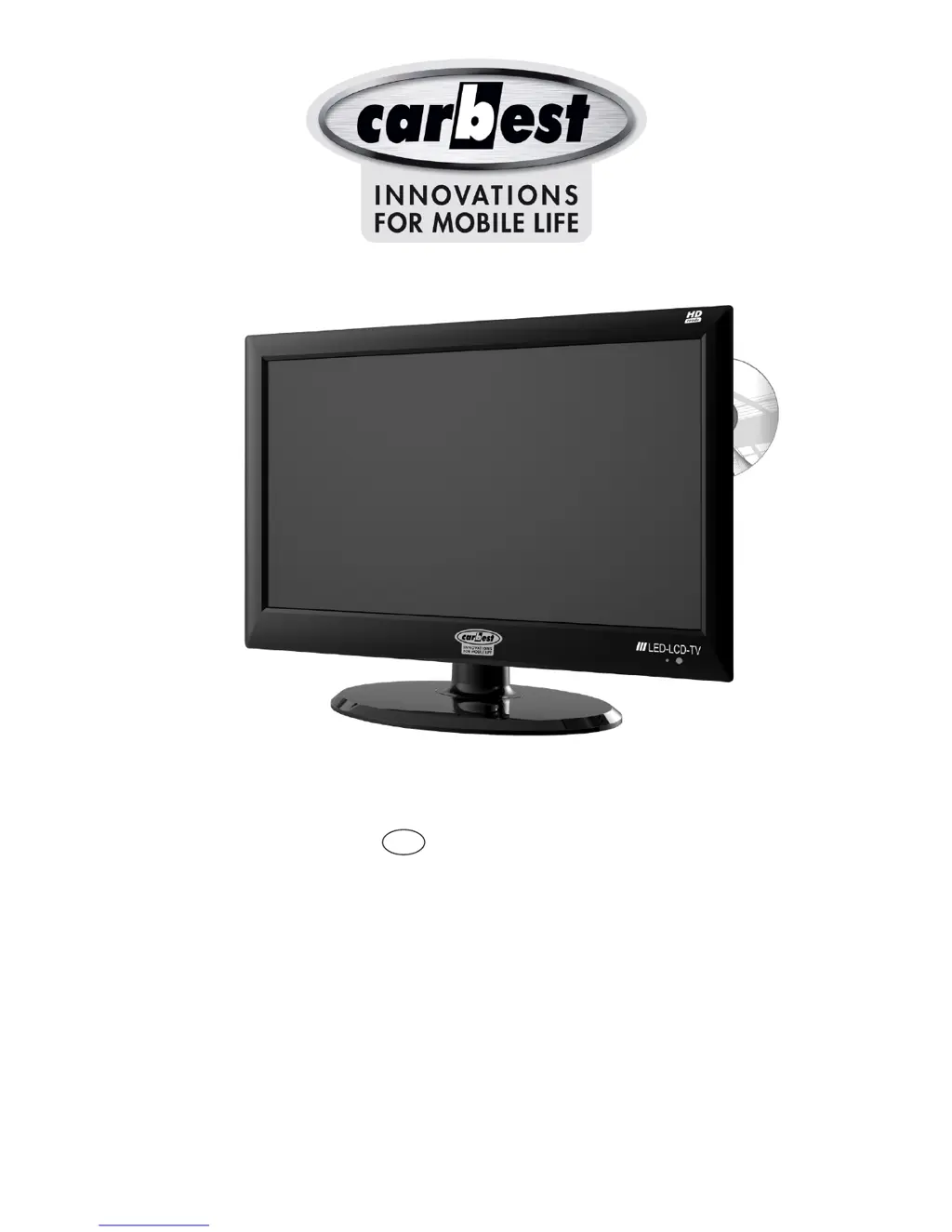
Carbest 494822 - User Manual

Carbest 494822
36 pages
Print Icon
To Next Page IconTo Next Page
Loading...
User Manual
GB
494822

Questions and Answers

  • A
    Amanda CherryAug 1, 2025
    What to do if my Carbest 494822 TV has no picture?
    • J
      Julie KerrAug 1, 2025
      If your Carbest TV shows no picture, first ensure the TV is powered ON and in operation mode by pressing the power button. Then, check that the AV cable and antenna line are firmly connected to the TV. Try removing and reconnecting the AV cable at both ends. Also, verify that your antenna settings are correct and that the channel is currently broadcasting. Finally, check the brightness level of the TV.
  • E
    Elizabeth SteeleAug 6, 2025
    Why is my Carbest TV remote control not working?
    • R
      Rodney DavisAug 6, 2025
      If the remote control isn't working with your Carbest TV, make sure the top end of the remote is pointed directly at the receiving part of the TV. Try removing and reinserting the batteries, or replace them altogether.
  • D
    David RodriguezAug 11, 2025
    How to fix a Carbest 494822 TV that has no power?
    • S
      Sarah SandersAug 11, 2025
      If your Carbest TV displays no message on the front panel or has no power, check the main power cable to ensure it's properly plugged into a suitable power outlet and that the main power supply is switched on. If applicable, verify that the power switch on the side of the TV is turned ON.
  • M
    Mr. Brandon MorganAug 16, 2025
    Why is there no sound on my Carbest 494822 TV?
    • B
      Brenda DelgadoAug 17, 2025
      If you are experiencing no or poor sound on your Carbest TV, check that your AV cable is connected correctly. Verify the volume levels on your TV and ensure that the TV is not muted. Also, check the audio type or soundtrack option in the AV menu.
  • M
    Mr. Christopher Salazar MDAug 21, 2025
    How to improve the picture and sound quality on Carbest 494822 TV?
    • S
      Stephanie RossAug 21, 2025
      To improve poor picture and sound quality on your Carbest TV, install the antenna in a location free of obstacles. Ensure there are no mobile phones or microwave ovens near the TV. Use a 75 ohm coaxial cable when connecting the TV and antenna. For poor AV picture quality when connecting a video player, use Shielded Twisted Pair cable.
  • N
    Nancy HudsonAug 27, 2025
    What to do if I cannot make reservations/recordings on Carbest 494822?
    • F
      fstoneAug 27, 2025
      If you cannot make reservations or recordings on your Carbest TV, check that previous reservations are not conflicting with the new one. Make sure the TV is in operation or standby mode at the time of the reservation or recording. If the power switch or power outlet is off, the TV will not be able to switch on at the time of the reservation or recording.

Summary

WARNING

Electric Shock Hazard

Do not remove the cover; no user-serviceable parts inside. Contact authorized service personnel for any required service.

Product Care and Safety

Avoid humidity, abrasive cleaners, and objects that may scratch the LCD screen to prevent electric shock and fire.

IMPORTANT SAFETY PRECAUTIONS

General Usage and Installation Guidelines

Follow instructions, avoid water, clean with dry cloth, ensure ventilation, keep from heat, use correct plugs, protect cords, and use specified accessories.

Handling, Servicing, and Environmental Precautions

Use caution with carts, unplug during storms, refer servicing to professionals, avoid liquids and splashes on the apparatus.

USING THE REMOTE CONTROL

Remote Control Usage Cautions

Avoid shock, liquids, and high humidity. Do not expose to direct sunlight, which may cause deformation.

Battery Installation and Precautions

Open battery cover, insert two AAA batteries with correct polarity, and replace the cover.

MAIN UNIT DESCRIPTION

Control Panel Button Function

Details the function of each button on the TV's control panel, including Power, Source, Menu, Volume, Channel, Eject, Play/Pause, and IR Receiver.

REMOTE CONTROLLER

Remote Control Buttons Overview

Explains the function of each button on the remote control, including Power, Mute, Source, Mode, Volume, Channel, Menu, and Navigation.

SELECT INPUT SOURCE

Input Source Selection

Press Source to display list, use arrow/Source button to select, and ENTER to confirm input source.

CHANNEL MENU

Channel Menu Operations

Press MENU to open main menu, then navigate to Channel for tuning and program management.

ATV Manual Tuning

Analog TV Manual Tuning

Adjust channel, colour, sound, fine-tune, and AFC for analog TV.

DTV Tuning and Information

Digital TV Manual Tuning

Search for digital TV programs and select channels.

PICTURE MENU

Picture Mode and Basic Adjustments

Set Picture Mode and adjust basic parameters like Contrast, Brightness, Colour, and Tint.

SOUND MENU

Sound Mode and Basic Settings

Set Sound Mode (Standard, Music, Movie, Sports, Personal) and adjust Treble, Bass, and Balance.

SETUP MENU

Language and Accessibility

Set OSD, TT, Audio, Subtitle languages, and Hearing Impaired feature.

System Configuration and Management

Configure PVR, Aspect Ratio, Blue Screen, First Time Installation, Reset, Software Update, HDMI CEC, and Auto Power.

SCREEN MENU

Auto Adjust and Screen Settings

Perform Auto Adjust and configure Screen settings like H-Offset, V-Offset, Size, and Phase.

MEDIA OPERATION

Accessing Media Menu

Plug in USB, set Source to Media, and select Media from the Source menu.

PHOTO-MENU

Photo Playback

Select PHOTO in the Media menu to view photos from USB storage.

MUSIC MENU

Music Playback

Select MUSIC in the Media menu to play audio files from USB storage.

MOVIE SUB-MENU

Movie Playback Controls

Controls for movie playback including Repeat, Set A/B, Playlist, Info, Slow/Step forward, Goto time, and Zoom.

MOVIE MENU

TEXT MENU

DVD MENU

DVD FUNCTIONS OPERATING INSTRUCTIONS

MP3;JPEG Playback

GENERAL SETUP PAGE

AUDIO SETUP PAGE

PREFERENCE PAGE

TROUBLESHOOTING

No Display or Power Issues

Check power cable, outlet, and switch if the TV shows no message or power.

No Picture or Poor Picture Quality

Verify connections, antenna settings, brightness, and channel air status for picture issues.

No Sound or Poor Sound Quality

Check AV cable connection, volume, mute status, and audio settings for sound problems.

Remote Control Operation

Troubleshoot remote control issues by checking direction, battery insertion, and replacement.

SPECIFICATIONS

Carbest 494822 Specifications

General IconGeneral
BrandCarbest
Model494822
CategoryTV
LanguageEnglish