15
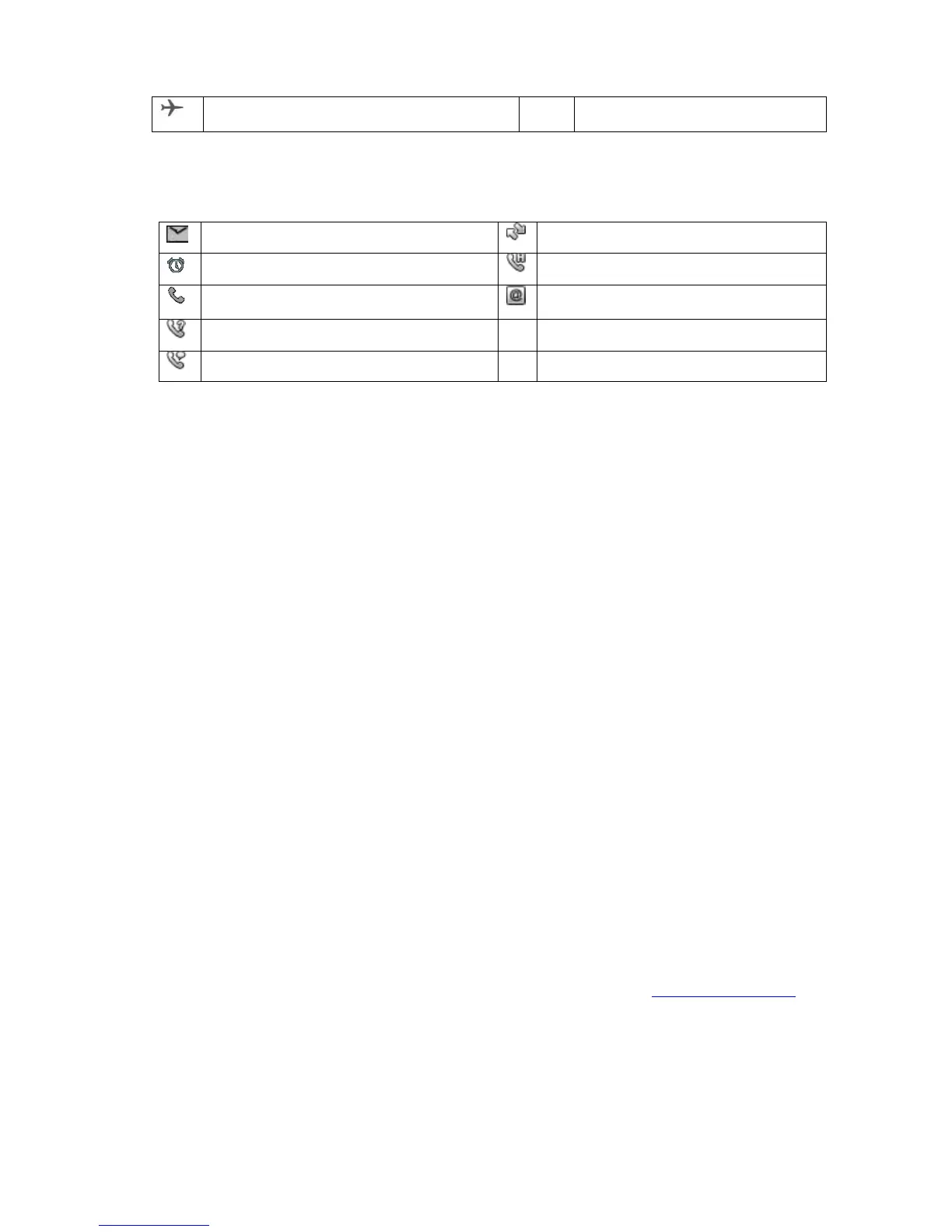
Notification Icons
New Text or email message
W
allpapers
You can select system or user-defined wallpapers. When changing the wallpaper, the screen
image does not affect all pages, only the idle screen.
1. To change the wallpaper, press Menu > Settings.
2. Select Phone settings > Display > Wallpaper.
3. Select System or User defined.
System: Scroll and view the images. Select an image to set as the wallpaper, and
press OK.
User defined: The file manager displays the available space. Select Open and
scroll through the list of items to use as wallpaper, such as photos that you
downloaded. Select a photo to set as the wallpaper, and press OK.
4. Press Back until the main screen appears.
Using the USB Mass Storage
To transfer music and pictures from your PC onto your mobile phone’s microSD card, set the
microSD card as USB mass storage.
1. Connect your mobile phone to your PC with the USB cable.
2. Select the Mass storage option on your device storage.
3. Mass storage folders for Phone and MicroSD card will pop up on your PC screen. You
can now transfer files from your PC to your phone’s microSD card.
Note: While the USB mass storage function is enabled, some functions might not be available.
There is a Phone Suite PC application available for download via the www.catphones.com
website. The link is available under the B100 model support page. It can be used for editing
contacts, messaging, file management and calendar entries



 To Next Page