Cat
®
S40 Smartphone User Manual
1
Welcome to the Cat
®
S40 Smartphone
The S40 4G smartphone is designed for the outdoors, with features to cope with challenging
environments. It’s certied to the highest industry standard for ruggedness, IP68, so it’s
waterproof and the screen can even be used with wet ngers. It has excellent scratch-resistant
glass, is dustproof and can withstand being dropped from a height of 1.8m. It also has a quad
core (1.1Ghz) processor running the latest version of Android™ 5.1, Lollipop with access
to Google Play™ meaning there is no compromise between performance and protection.
Complementing the durable design features, the S40 boasts performance enhancing
applications enabling you to enjoy web browsing, messaging, music and more with its high
capacity battery and expandable memory of up to 64GB.
Getting to Know Your Mobile Phone
Phone at a Glance
Key Functions at Your Fingertips
Power button
Press to turn on your mobile phone. •
Press and hold to open the Phone options menu. •
Press to lock or wake the screen when your mobile phone is on.•
Home button
Press at any time to display the Home screen. •
A long press of the Home button will display the Google™ icon. Touch the •
icon on the display to launch Google search or Google Now™.
Recent Apps button
Press to list the recent applications used.
Back button
Press• to display the previous screen you were working in.
Use to • close onscreen keyboard.
Volume/ Camera
buttons
When in the camera app, press the Volume/ Camera buttons to instantly
take your pictures. The Volume/ Camera buttons also have other
functionalities when the camera app is not in use.
Volume – Press the • Volume up button ( ) to increase the volume, or the
Volume down button ( ) to decrease the volulme.
Screenshot – Press both • Power + Volume down buttons ( + ) simultaneously.
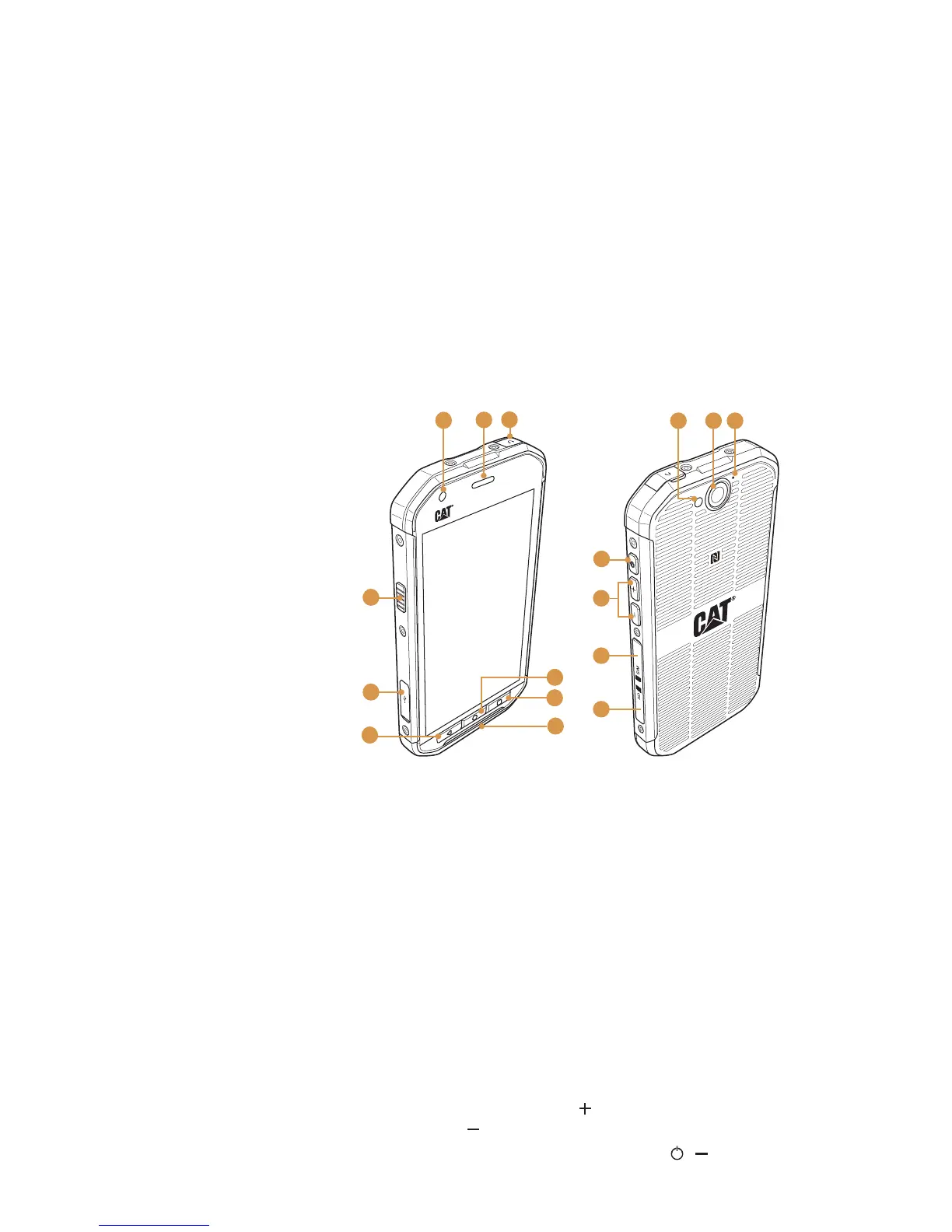
1. Front camera
2. Earpiece
3. Headphone port
4. LED ash
5. Rear camera
6. Microphone
7. MicroSD card slot
8. SIM card slot
9. Volume / Camera buttons
10. Power button
11. Microphone/ Speaker
12. Recent Apps button
13. Home button
14. Back button
15. USB port
16. Programmable button
FRONT VIEW REAR VIEW
8
10
9
54 6
7
16
15
3
2
1
13
12
11
14



 To Next Page
 Loading...