BIO X6 User Manual v. 1.0 102
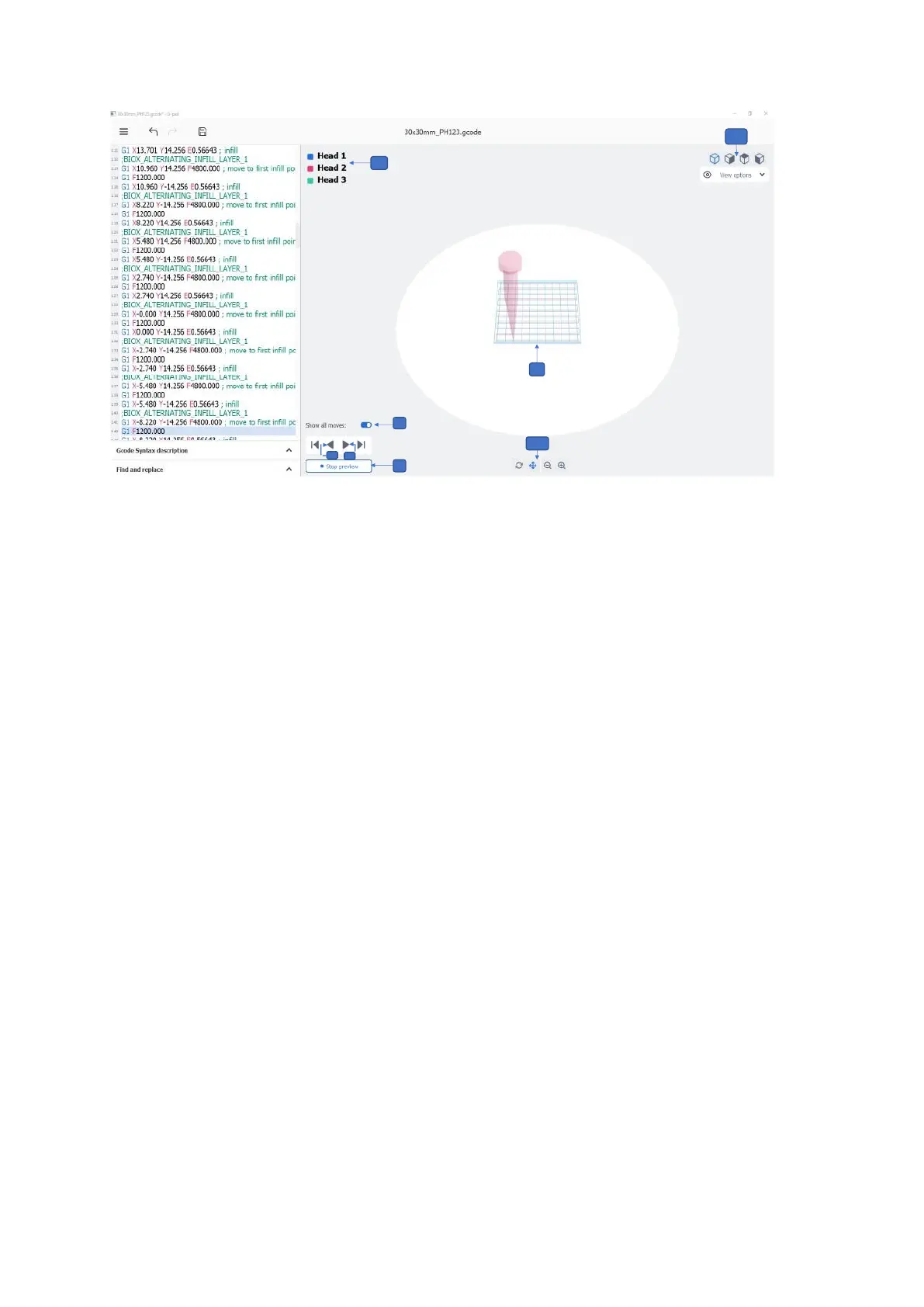
4. Tap the Right arrow to preview the travel moves automatically for each line of code
in forward motion.
5. Tap the Left arrow to preview the travel moves automatically for each line of code in
backward motion.
6. Show all moves: Enable this toggle button to view all the layers of code in the
preview and show the travel moves in the selected direction. Disable the toggle
button to show only the preview of the current layer.
7. Preview: Preview all the layers of code along with travel move when the Show all
moves toggle button is enabled
8. Stop Preview: Tap to stop the preview of travel move
9. Toolhead bar: Display the tool heads to be used in the bioprinting process. Each tool
is given a color for identifying the layers it is to print of the 3D model in the preview.
10. Isometric views: Tap to choose between different options: perspective, top view,
side view. This helps you visualize with more detail the models to print and check for
issues on the model or with the slice.
11. Visualization bar: Tap to choose between different options: rotate, drag, zoom in
and zoom out. This option helps you visualize with more detail the models to print and
check for issues on the model or with the slice.


 To Next Page
 Loading...