BIO X6 User Manual v. 1.0 110
6.2.2 Tool bar
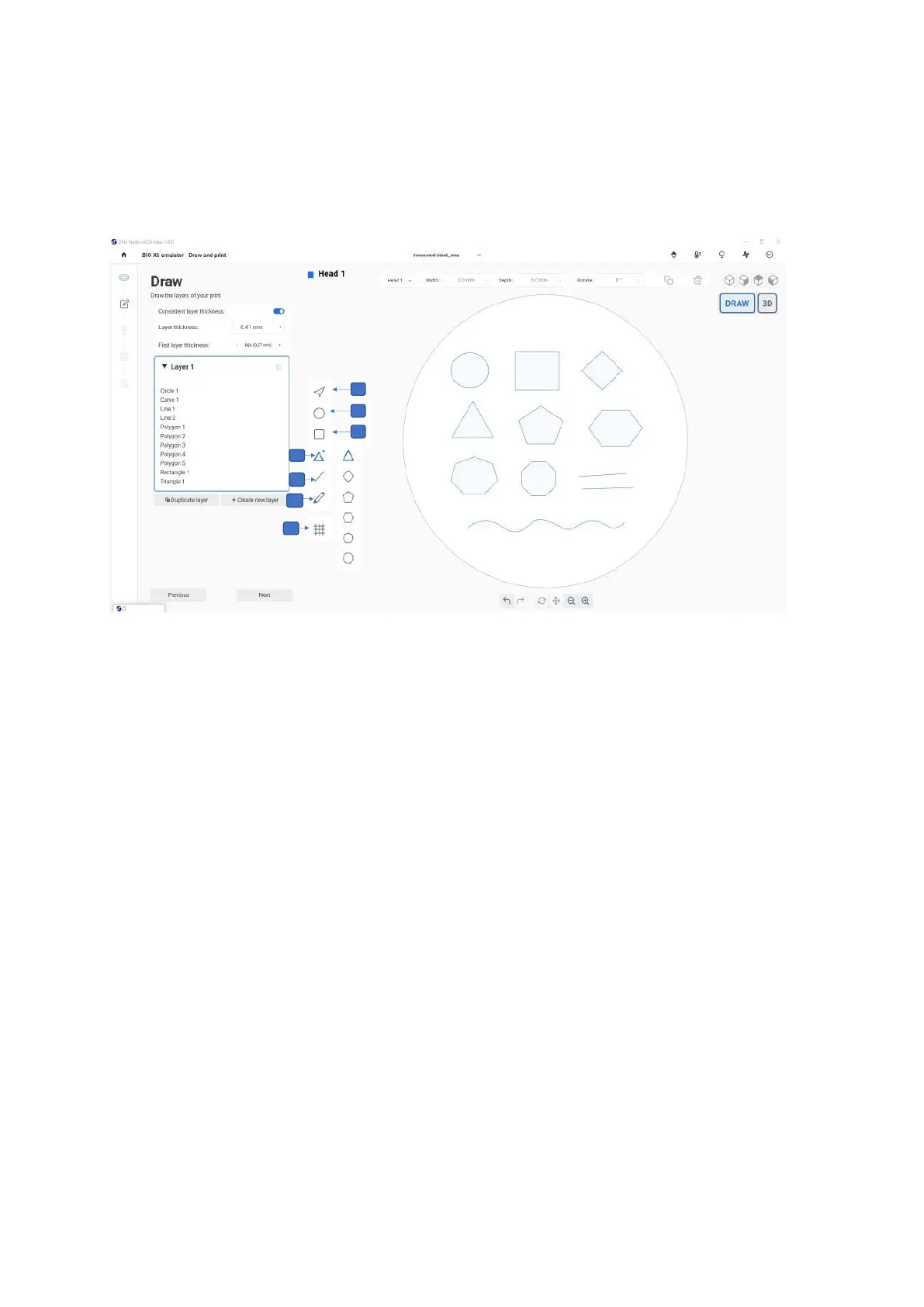
The tool bar offers different options to draw shapes and to display and adjust the grid. Select
predefined shapes such as lines, squares, circles, and polygons or use the pencil tool to
draw freehand.
Figure 82 Draw tool bar
1. Selector: Tap this icon to select any shape which is already drawn on the surface.
2. Circle: Tap and drag the pointer on the surface to draw a circle.
3. Square: Tap and drag the pointer on the surface to draw a square.
4. Polygons: Tap, chose the required shape and drag the pointer on the surface to
draw a polygon.
5. Line: Tap and drag the pointer on the surface to draw a line
6. Pencil: Allows you to draw any freeform shape. Tap and draw any shape or curves
on the surface.
7. Grid: Tap to display the grid and to adjust the grid settings (see screenshot below).


 To Next Page