BIO X6 User Manual v. 1.0 115
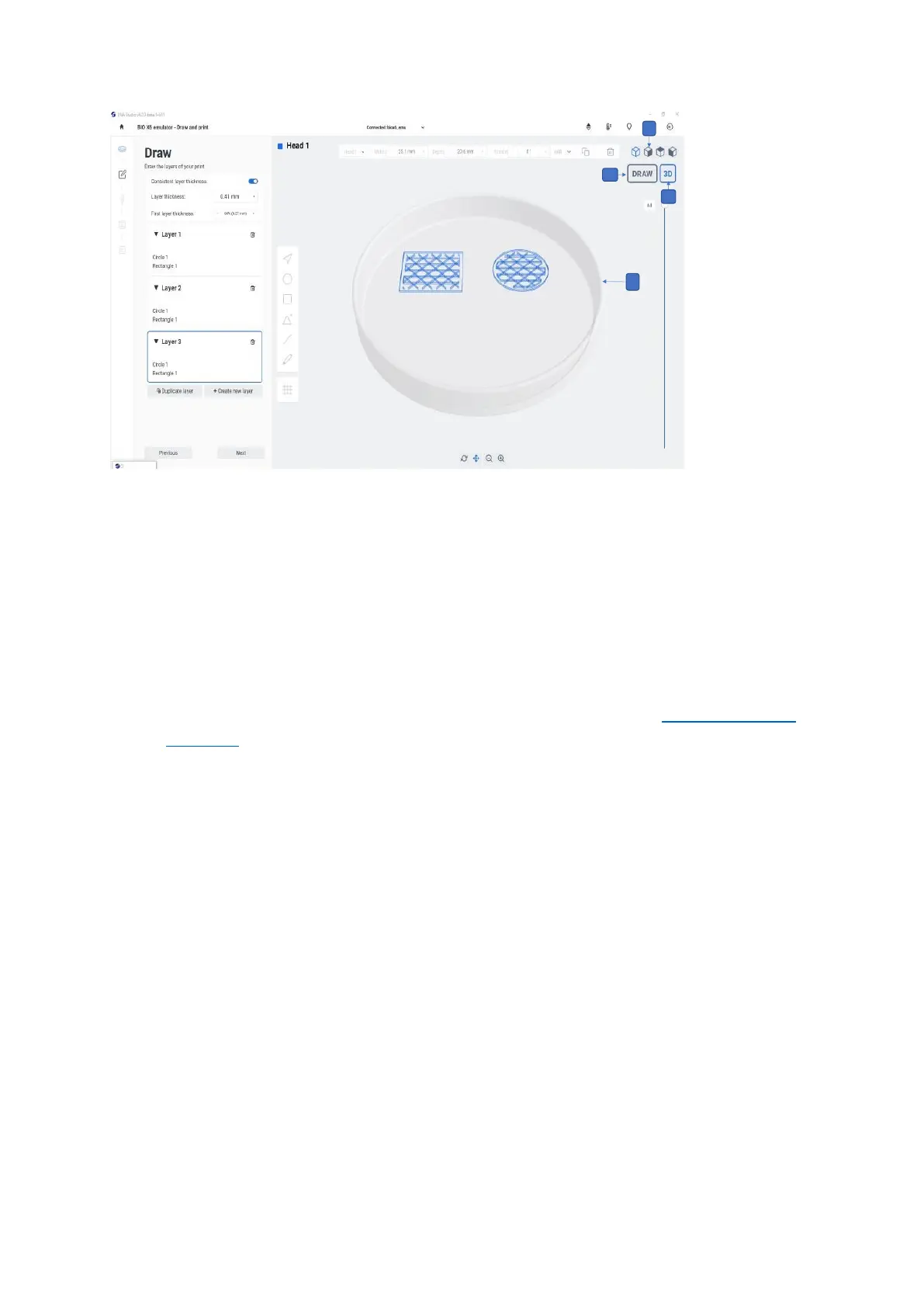
Figure 88 Views and draw modes in Draw & Print
1. Isometric views: These view options are only available in 3D mode. Tap to choose
between different options: perspective, top view, side view. This helps you visualize
with more detail the models to print and check for issues on the model or with the
slice.
View mode selector: The model can be viewed in two different dimensions
2. 3D: The 3D view is the standard view for printing 3D models (see Bioprinting from a
3D model). Use the slider and isometric views to show all the layers in 3D.
3. Draw: Draw is an orthogonal (two dimensional) view from the top. It is the default
selection when using Draw mode.
4. Preview: The shapes and how they are organized on the printing surface are
displayed here.
6.2.5 Actions bar
The actions bar at the bottom center of the screen provides different options to undo and
redo changes, zoom in and out, view the surface by dragging or rotating in all directions.


 To Next Page