HAWK 8000 CONTROLLER – BACKUP & RESTORE GUIDE
EN2Z-1027GE51 R0517 4
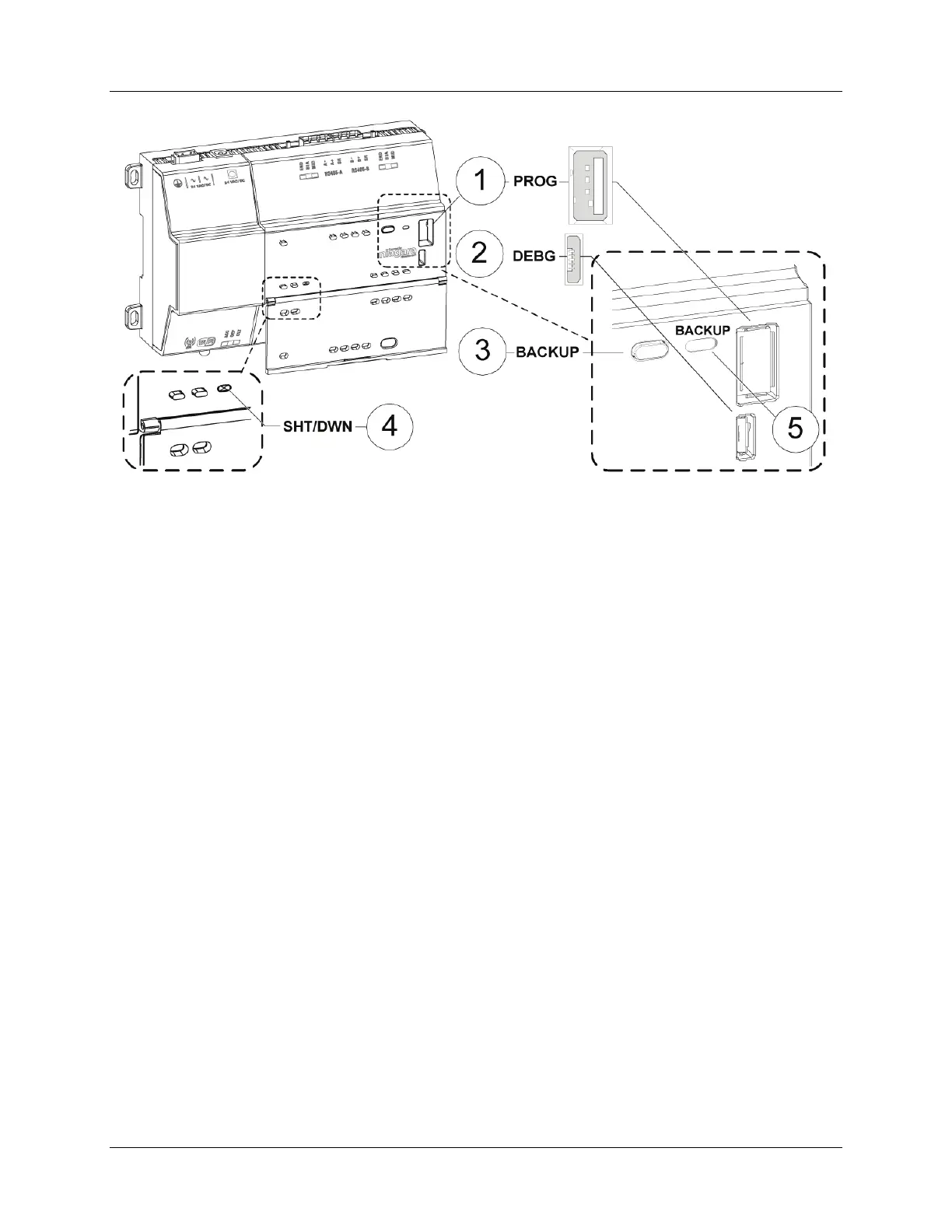
Fig. 1. LEDs, USB ports, and pushbuttons behind access door
LEGEND:
1 PROG USB 2.0 for use with USB Flash (thumb) drive
2 DEBUG Micro-A USB for serial debug communications
3 BACKUP Pushbutton switch to start a USB backup, or if held in during power up/boot up, initiates a
factory recovery image
4 SHT/DWN Recessed pushbutton switch for initiating a controlled shutdown
5 BACKUP LED to indicate USB media present, or a backup, restore, or factory recovery image in
progress
Step 3: Press and hold down the backup and restore button until the LED flashes at medium speed (100
msec ON and 100 msec OFF), then release the button.
The system begins the backup. While backing up, the LED flashes slowly (one second ON, one second
OFF). When the backup completes, the system prepares the USB flash drive to be removed safely.
NOTE: If the backup is unable to complete successfully, the LED flashes rapidly (200 ms ON, 200 ms OFF, 200
ms ON, 3 seconds OFF), indicating an error. In this case, simply unplug the USB thumb drive, wait for the
LED to turn OFF, then insert the thumb drive and try the backup procedure again.
If problems persist, possible causes could be:
• Insufficient disk space on the thumb drive
• Write protect enabled on the thumb driver
Step 4: When the backup and restore LED turns OFF, remove the USB flash drive and store it in a safe
place.
The backup image includes the contents of the boot partition, /home/niagara, /opt/niagara, etc. The name
of the resulting image file follows this convention: hostid (unique host ID of the HAWK 8000), underscore
(_) timestamp. For example:
• Qnx-TITAN-D01C-CA36–CB10–4E3B_20170912230355
• Qnx-TITAN-D01C-CA36–CB10–4E3B_20171015212346
Restoring from a USB Backup
Restoring from a USB backup returns the controller to the state it was in when the system made the backup.
You may restore to a controller other than the one on which the backup was made, provided that the target controller
is the same model. The restore procedure does not require access to COACH NX.


 To Next Page