5
1. Remove Compass MAP from its package.
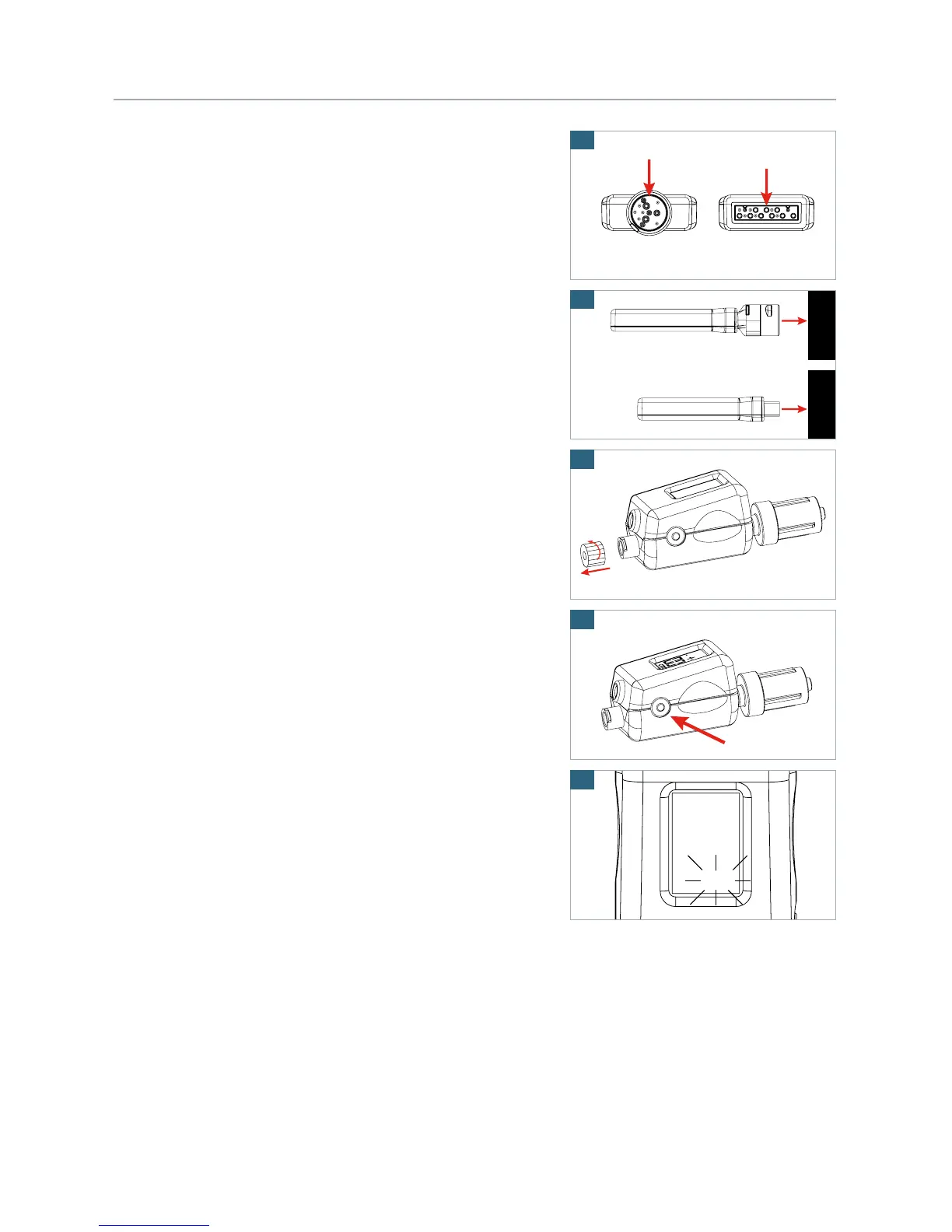
2. Align the multi-pin Compass MAP connectors with the
matching port of the compatible* vital signs monitor
(Figure 1).
3. Insert Compass MAP into a compatible* vital signs
monitor (Figure 2) and power on the monitor
(if it is not already on).
If Compass MAP is already plugged into the patient
monitor, either remove and reinsert Compass MAP or
power cycle the patient monitor to put Compass MAP
into “scanning mode”. (Power cycling can be achieved
by turning the monitor off then turning it on again).
4. With Compass MAP plugged in and the patient monitor
turned on, Compass MAP LED will blink two times
every four seconds to indicate that it is scanning for
a compatible Compass Cast.
5. Zero the pressure signal on the patient monitor
per the monitor’s IFU.
6. Remove Compass Cast from its sterile package.
7. Remove the proximal luer cap (Figure 3).
8. Activate and calibrate Compass Cast by depressing the
power button for approximately one second until the LCD
reads “00” (Figure 4).
WARNING: Activate and auto-calibrate Compass Cast
prior to attaching accessories to avoid incorrect
baseline pressure.
9. The “mm” symbol on the Compass Cast display will blink
on and off to indicate that it is searching for a Compass
MAP (Figure 5).
10. When a wireless connection is established between the
Compass MAP and Compass Cast, the “mm” will stop
blinking on Compass Cast, and the LED on Compass
MAP will switch from flashing to solid.
* Compatible vital signs monitors include GE Healthcare
and Philips Medical Systems.
Compass CAST FCCID: 2AF4Z-CWHG001
Compass MAP FCCID: 2AF4Z-CWM001


 To Next Page