2. Interface Description
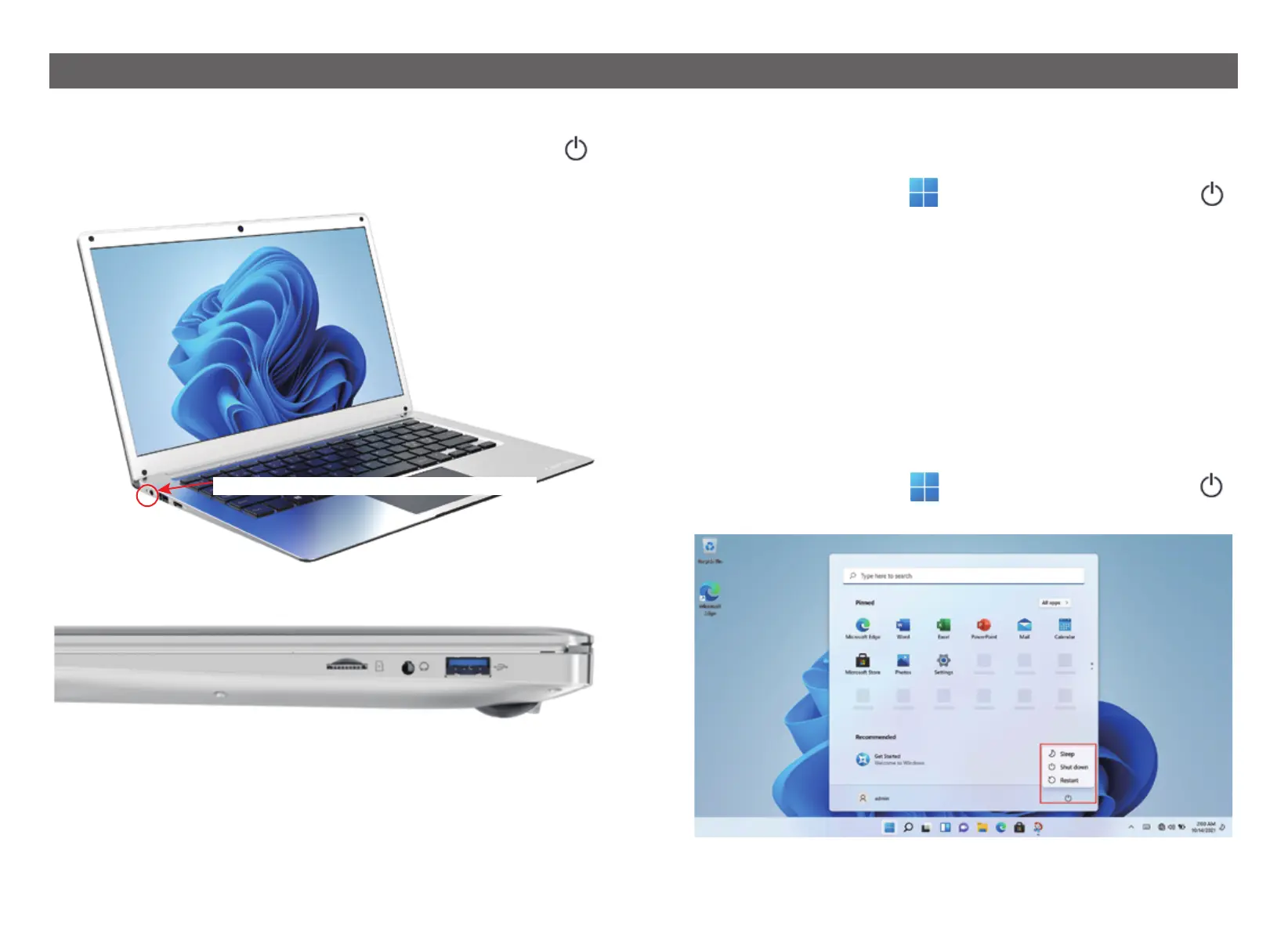
2.1 Power On
2.2 Right Side Interface Description
Insert the adapter and then press the keyboard as shown in the figure
The keyboard power button turns on the device for the first time.
1) External Memory Mini TF cards slot: This interface can insert TF cards.
2) Headphone Jack: This connector can plug in headphones.
3) USB3.0 interface: This interface can plug in U disk and mouse.
2.3 Turn off the Computer and Sleep
When the computer is turned off, the data that has not been saved will
be lost. Be sure to save your data before turning off the computer.
Click [Start] on the taskbar graphic,Then click [Power supply]
Figure and select [Shut Down].
6
1.
Click [Start] on the taskbar graphic,Then click [Power supply]
Figure and select [Sleep].
3.
When the computer goes to sleep, the power consumption is very low,
You don't have to worry about losing data because of running out of
power, because Windows will automatically save all your work and shut
down the computer when the power is low. When your computer goes
to sleep, you can wake up the computer by pressing the power button,
pressing any key on the keyboard, clicking the mouse button, or open-
ing the computer screen.
You can refer to the following ways to put your computer into sleep
mode:
2.
This interface is a 12V/2A DC power interface


 To Next Page