EasyManua.ls Logo

Cerillo stratus - User Manual

Cerillo stratus
2 pages
Print Icon
To Next Page IconTo Next Page
Loading...
Quick Start Guide
STRATUS
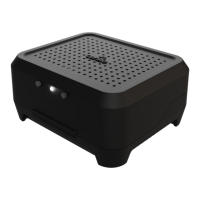
Your new Stratus is an L.E.D.-based plate reader used to measure
optical densities in standard plate formats.
Step 1: Get Started. Confirm receipt of all components and device (shown above). The
microSD card may already be installed in the Stratus.
Step 2: Location. Place your Stratus where you’d like to measure. This is anywhere your
samples will be happy – incubator, anaerobic chamber, benchtop, hood, etc.
Step 3: Power the Device.First, insert the microSD card. Then, plug the power adapter into
a standard wall outlet, and the USB cable into the power adapter and the Stratus.
Step 4: Allow for Equilibration. The Stratus needs 60 minutes to equilibrate to new environ-
mental conditions. This can be a good time to do your experimental prep work.
Step 5: Go!(See reverse.)
support@cerillo.net
cerillo.net
Important Notes
1. The Stratus should only be used with the provided USB 2.0 cable. The Stratus is not
compatible with USB 3.x cables.
2. Additional technical information is provided at cerillo.net.
Stratus Components
Stratus (1) microSD card (1) USB Cable (1) Power Adapter (1)
Question and Answer IconNeed help?

Do you have a question about the Cerillo stratus and is the answer not in the manual?

Summary

Stratus Quick Start Guide

Component Checklist

Confirm receipt of all Stratus components, including the device, microSD card, USB cable, and power adapter.

Optimal Device Placement

Position the Stratus in a suitable environment for accurate sample measurement, such as an incubator or benchtop.

Powering and Equilibration Procedure

Connect the power supply and allow the Stratus 60 minutes to acclimate to new environmental conditions.

Operational Notes

Important information regarding USB cable compatibility and where to access further technical details.

Sample Measurement Protocols

Single and Continuous Reads

Instructions for performing single plate reads and continuous measurements, including calibration and stopping procedures.

Reading Data from MicroSD

Details on accessing collected measurements from the microSD card, including file storage and formats.

Computer Integration and Software

Guidance on operating the Stratus via USB with a computer and downloading necessary Cerillo software.

Status Light Indicators

Explanation of the different colors and patterns displayed by the Stratus status light and their meanings.

Overview

The Cerillo Stratus is an LED-based plate reader designed for measuring optical densities in standard plate formats. It is a compact and versatile device suitable for various laboratory environments, including incubators, anaerobic chambers, benchtops, and hoods.

Function Description:

The Stratus measures optical densities using LED technology. It can perform single reads or continuous reads of samples in standard plate formats. Data collected by the device is automatically stored on an on-board microSD card, which can then be accessed using any commercially available adapter. For more advanced control and data management, the Stratus can also be connected to a computer via a USB cable, allowing users to download Cerillo software for direct control, data access, and configuration.

Important Technical Specifications:

  • Measurement Technology: LED-based optical density measurement.
  • Plate Compatibility: Standard plate formats.
  • Data Storage: On-board microSD card.
  • Connectivity: USB 2.0 cable for power and computer connection.
  • Power: Power adapter for standard wall outlets.
  • USB Compatibility: Only compatible with USB 2.0 cables; not compatible with USB 3.x cables.
  • Data File Format: Data files are saved as standard .csv files, organized by date (YYYYMMDD) and time (hh-mm-ss).
  • Internal Clock: Pre-set to the user's time zone by Cerillo at the time of shipment.

Usage Features:

  • Getting Started:

    1. Confirm receipt of all components: Stratus device, microSD card (may be pre-installed), USB cable, and power adapter.
    2. Place the Stratus in the desired measurement location.
    3. Insert the microSD card (if not already installed).
    4. Plug the power adapter into a standard wall outlet.
    5. Connect the USB cable to both the power adapter and the Stratus.
    6. Allow 60 minutes for the Stratus to equilibrate to new environmental conditions before use.
  • Calibration:

    • The Stratus requires calibration after equilibrating to a new environment.
    • To calibrate, hold down the Stop (right) button until the status light flashes, then release it.
    • Calibration takes approximately 3 minutes. Do not press any buttons during this process.
    • Calibration is complete when the status light turns off.
  • Single Read Protocol:

    1. Ensure the device is calibrated.
    2. Insert the plate into the Stratus.
    3. Press and release the Start (left) button to initiate a single read.
  • Continuous Read Protocol:

    1. Press and hold the Start button until the status light begins to flash white.
    2. After a 10-second delay, the Stratus will auto-calibrate and then begin continuous reading.
    3. To stop a continuous read, press the Stop (right) button until the status light turns red.
  • Status Light Indicators:

    • White: Booting
    • Green: Read/Reading
    • Red: Stop
    • Dim Yellow: Between Reads
    • Cyan: Calibrating
    • Green/White: Continuous Read
    • Red/White: Calibrate
  • Data Retrieval:

    • Data is automatically stored on the microSD card.
    • To access data, ensure the Stratus is unplugged before inserting the microSD card into a computer via an adapter. Inserting the card while the Stratus is plugged in will prevent recognition and data recording.
    • Data files are organized by date and time, stored as .csv files, compatible with most spreadsheet and data analysis software.
  • Computer Control and Software:

    • The Stratus can be powered by plugging the provided USB cable into a computer's USB port instead of the power adapter.
    • For direct control, data access, and configuration from a computer, download the Cerillo software from cerillo.net/software.

Maintenance Features:

  • USB Cable: Use only the provided USB 2.0 cable. Incompatible USB 3.x cables may cause issues.
  • Technical Information: Additional technical information is available on the cerillo.net website.
  • Support: For any problems or troubleshooting, contact support@cerillo.net.

Cerillo stratus Specifications

General IconGeneral
BrandCerillo
Modelstratus
CategoryLaboratory Equipment
LanguageEnglish