This document provides a user guide for the Schok Classic flip phone, detailing its features, usage, and technical specifications.
Device Overview and Physical Features
The Schok Classic is a flip phone designed for ease of use. The front of the phone, when closed, features a secondary display that shows the time, date, and network status. When opened, the main display, keypad, and various function keys are revealed.
Key physical components include:
- Earpiece: For audio during calls.
- Camera: Located on the back of the phone, with a flash and a charging LED indicator.
- Main Display: The primary screen when the phone is open.
- Secondary Display: Visible when the phone is closed, showing essential information like time and date.
- OK/Execute Multi-Function Key: Central button for selecting items and executing commands.
- Volume+ Keys: For adjusting audio volume.
- Call/Send Key: To initiate or answer calls.
- Navigation Key: A 4-way directional pad (Up, Down, Left, Right) for menu navigation.
- Headphone 3.5mm jack: For connecting wired headphones.
- Keypad lock: A physical switch to lock the keypad.
- Microphone: For voice input during calls or recordings.
- Soft Keys: Context-sensitive keys (Left Soft Key, Right Soft Key) whose functions change based on the displayed menu.
- Back Key: To go back to the previous screen or menu.
- END/PWR Key: To end calls or power the device on/off.
- Type-C™ Charger Port: For connecting the charging cable.
Charging and Battery
The Schok Classic uses a removable battery. To charge the device:
- Remove the back cover by inserting a fingernail into the cutout and lifting gently.
- Insert the battery, ensuring the three gold connectors align with the phone's connectors.
- Replace the back cover, pressing along the edges until it clicks into place.
- Connect the USB-Type-C side of the cable to the phone's port.
- Connect the larger USB side of the cable to the wall charger's USB port.
- Plug the wall charger into an electrical outlet.
- Charge the device for at least two hours.
Tip: Although the phone comes pre-charged, it's recommended to charge it for two full hours before first use.
Warning: Use only approved chargers to avoid damaging the phone and voiding the warranty. Do not charge for more than eight hours.
SIM and SD Card Installation
To insert SIM and SD cards:
- Remove the back cover and the battery (by inserting a fingernail at the bottom where it's marked "Pull/Jale").
- Nano SIM card: Locate the SIM slot. Slide down and lift the metal lid. Insert the SIM card with the angled cut facing the top left angled space. Close the metal lid and slide it up to lock.
- Micro SD Memory Card: Locate the micro SD card slot on the top right side, near the battery gold connectors. Slide the metal lid to the right and lift it. Place the Micro SD card in position, then slide the metal lid to the left to lock it.
Powering On/Off and Navigation
- Turn ON: Press and hold the power button for two seconds.
- Turn OFF: Press and hold the power button for four seconds. The system will shut down in approximately five seconds.
Navigation is primarily done using the 4-way Navigation Key (Up, Down, Left, Right) and the OK/Execute Key. The Left and Right Soft Keys provide context-sensitive options.
Home Screen and Notifications
The home screen displays the Status Bar, which shows vital information like battery level, signal strength, time, and notifications (alarms, calendar events). To open notifications, press the down Navigation key from the home screen.
Phone Calls
- Making a call from Home Screen: Input the number and press the OK/Execute key.
- Making a call from anywhere: Press the Back key until the Home Screen is reached, then input the number and press the OK/Execute key.
- Making a call from contacts: Scroll through the contact list using the Navigation key, find the contact, and press the Call button.
Answering/Rejecting calls:
- Closed phone: Flip (open) the phone to automatically answer.
- Opened phone: Press the Call/Send Key to answer.
- End/Reject call: Press the END key.
Recent Phone Calls
The phone automatically logs accepted, missed, and dialed calls. From the home menu, press the Call/Send Key and use the Navigation key to scroll left or right to view call types: Missed calls, Received calls, Dialed Calls, All Calls.
For more information on a recent call:
- Press Left Soft key to send a message.
- Press OK/Execute key to view call information.
- Press Right Soft key to open options: Add to contacts, Delete record(s), Lock/Unblock calls, Add to call rejection list.
Additional Phone Features
- Sound off: From the Home Screen, press and hold the Volume down key for vibration mode only. Press again for alarms only. Press again for all sounds off. Press and hold Volume up to return to normal.
- Switching between calls: If on a call and another call comes in, the phone will beep. Press the Call/Send key to put the current call on hold and answer the new call. Press Call/Send key again to return to the first call.
- Three-way call: While on the first call, press Right Soft Key (Options), select New Call, and dial the second number. When the second party answers, press Right Soft Key (Options), then press the 2 Key to merge the call.
- Block Internet and Data access: Go to Settings > Internet and Data control lock. The default password is 0000. This menu allows toggling Wi-Fi and Data on/off and changing the password.
Screenshots
To capture a screenshot, simultaneously press and hold the Volume down key and the Power ON/OFF End Key for two seconds. Screenshots are saved in Media Center > File Manager > Pictures > Screenshots.
To save contact information:
- From the Home Screen, press the Left soft key to open the Contacts app.
- Press the Right soft key (Options).
- Press the OK key or 1 to add a New contact.
- Use the Keypad to add the name.
- Use the Navigation key to move to the phone number field and enter the number.
- Continue using the Navigation key to enter other fields.
- Press the OK key to save.
Emergency contacts (ICE):
- Navigate to Contacts > ICE.
- Press the OK key.
- Choose an ICE entry and press the OK key.
- Navigate to the desired contact and press the OK key.
Messages
The Schok Classic has a built-in messaging app for sending text messages, pictures, sounds, business cards, voice recordings, and videos.
To send a message:
- From the Home Screen, press the OK key, then the Right soft key to open Message.
- Navigate to Options (Right soft key).
- Use the Navigation key to select New message.
- Click the OK key on New message.
- Select To: by pressing the OK Key.
- Use the Navigation key to choose a contact and press the OK key.
- Click the Left Soft Key (Done).
- Use the Navigation key to scroll to "input Text".
- Use the Keypad to write your message.
- Click the OK key to send.
To view conversation threads, use the Navigation key to select a conversation and click the OK key.
Browse the Internet
The Schok Classic includes an internet browser.
- From the Home Screen, press the OK/Execute key and use the Navigation key to scroll to "Browser".
- Click the OK/Execute key on the Browser app (wait 5 seconds).
- Use the Navigation key to move the black arrow to select items, and the OK key to execute commands.
- To go to a specific web address, navigate to "Search or type URL" at the top and use the keypad to enter the address.
Keyboard and special characters tips:
- @ and . symbols: Long press the # symbol.
- Space: Press the 0 key.
- Uppercase: Press the * (Star) key.
- Erase text/numbers: Press the Back key.
After entering the web address, press the OK Key.
Browser features:
- Tabs: Press the Left Soft Key (Tabs) to view open tabs.
- History: Press the Right Soft Key (Options) and scroll to "History" to reload visited pages.
- Bookmark: Press the Right Soft Key (Options), scroll to "Bookmark", select a webpage, and click the OK Key.
- Top: Press the Right Soft Key (Options), scroll to "Top", and press the OK Key to go to the top of a webpage.
- Fast Scrolling: Press and hold the Navigation Key to quickly move the black arrow up and down.
- Scroll page function: Press and hold the OK Key on a webpage to use this function.
Camera
- From the Home Screen, click the Schok multi-function key to open the Camera app.
- If the multi-function key is configured for another app, go to MENU, scroll to Camera App, and click the OK key.
Taking a picture:
- Point the lens at the object and click the OK key. Pictures are saved to the Gallery App.
- Click the Left Soft Key to open the Gallery App.
- Zoom In & Out: Click the Left or Right Navigation key.
- Options: Click the Right Soft Key (Options) to access settings like Auto Review, Self-Timer, Size, Shutter sound, and Storage (if a memory card is installed).
- SELFIE: Open Camera App, close the phone lid, use the secondary display as a viewfinder, and click the Volume Down key to take the picture.
Gallery: Shows all stored pictures.
- From the Home Screen, press the OK Key to open the Menu.
- Use the Navigation Key to scroll to Gallery and click the OK Key.
- Use the Navigation Key to choose a picture and click the OK Key.
- Pressing the Right Soft Key (Options) provides options like Crop, Delete, Details, Send, Set as Wallpaper, or Contact photo.
- Pressing the Left Soft Key (Guide) opens a pop-up window for Full Screen view, Rotate (left/right), and Zoom in/out. Use the numbers corresponding to each option in the pop-up window.
Multi-Function Key (Short Press)
The Schok Classic's multi-function key can be configured for different apps. By default, a short press opens the Camera App.
To change its function:
- From the Home Screen, press the OK Key.
- Use the Navigation key to scroll to Tools & Settings.
- In Tools & Settings, scroll to Settings and click the OK Key.
- In Settings, scroll to Multi-Function Key and click the OK Key.
- A list of apps will appear. The default Camera App will show "On", others "OFF".
- Highlight the desired app (e.g., Calculator App) and click the OK Key. This will set it to "ON" and turn the Camera App "Off" for the multi-function key.
Note: All apps are always available in the Menu List (OK Key from Home Screen).
OK Key (Long Press)
Inside any app, long pressing the OK key for more than one second activates a virtual mouse, controlled by the Navigation keys. This is used to select objects designed for touch panel devices. Long press the OK Key again to disable the mouse and return to normal operation.
Technical Specifications (SC3218)
- Operating system: Android™ 8 (Go edition)
- Display Size & Resolution: 3.2" 480 x 800 (WVGA)
- Secondary Display: 2" 176 x 220
- Processor: Qualcomm® MSM8909 32Bit, 1.1GHz Quad-Core
- Graphic processing unit (GPU): Adreno A304 @ 456MHz
- Memory (RAM): 1 GB DDR 3
- System and User Memory: 8 GB
- SD Card Slot max capacity: 64 GB
- Sim card slots and SIM size: 1 Nano SIM card
- Rear Camera (primary): 8MP with Autofocus and Flash
- Front Camera: Rear Camera with viewfinder
- Rear camera video recording: 720P @ 30 FPS
- Battery type: Lithium ION rechargeable
- Battery capacity: 3.8V 1,650 mAh / 6.27Wh
- Battery limited voltage: 4.35V
- Battery standard: GB/T 31241-2014/1|CP5/46/58
- Wi-Fi and band: 802.11/a/b/g/n. 2.4GHz
- GPS: GPS & AGPS
- Bluetooth: 4.2 with BR/EDR + BLE
- USB port: Type-C™ connector
- G-Sensor: Yes
- Phone communication standards: 4GLTE/VoLTE/VILTE
- Phone bands 2G: GSM 850/900/1800/1900
- Phone bands 3G: UMTS Band 2/4/5
- Phone CDMA bands: BC0 / BC1 / BC10
- Phone bands 4G: 2/4/5/12/13/17/25/26, 28(A&B)/30/41/66/71
- Hearing Aid Compatibility: M4 / T4
- Dimensions: 4.52 x 2.28 x 0.74 inches
- Phone weight with Battery: 4.76oz
- Phone weight without Battery: 3.70oz
- Structure outside & Inside: Plastic
- Phone electric input: 5.0V ± 1.0A
- USB Wall charger input: 100-240V~50/60Hz 0.2A
- USB Wall charger output: 5.0V ± 1.0A

 Need help?
 General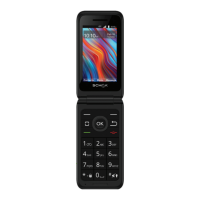

 To Next Page