
 Need help?
Do you have a question about the Cheap Charlie CN710 and is the answer not in the manual?
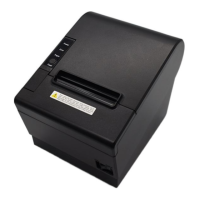
Overview of the CN710 thermal POS printer, its capabilities, and supported operating systems.
Highlights key features like low noise, high-speed printing, auto-cutter, and various interface options.
Details technical specifications including printing method, resolution, width, speed, interfaces, and memory.
Specifies requirements for thermal receipt paper, including type, width, thickness, and diameter.
Details specific parameters for thermal receipt paper and black mark paper.
Defines parameters for black mark paper, including imprint position and reflectivity.
Provides important notes and precautions for using paper to ensure print quality and printer longevity.
Defines the printing position parameters and the paper cutting position relative to the print head.
Details paper width, effective printing width, and margin settings.
Illustrates the position of the paper cut relative to the print head.
Shows physical dimensions and identifies key external components of the printer.
Explains the meaning of indicator lights and buzzer sounds for status and error reporting.
Instructions for unpacking the printer and verifying the contents.
Guidelines for choosing a suitable installation location, considering environmental factors.
Step-by-step guide to connecting the power adapter to the printer and power source.
Instructions for connecting communication cables like USB, Serial, or Ethernet.
Procedure for connecting a cash drawer to the printer's dedicated port.
Guidance on the process of loading or changing the paper roll in the printer.
Confirms the correct type of printing paper is essential before loading.
Detailed steps and visual aids for loading or replacing the paper roll.
Instructions on how to print a self-test page for verifying printer functionality.
Steps to configure the printer's IP address for network connectivity via its web interface.
Defines the pinout and wire colors for the USB Type B female connector.
Details the pin definition for the MPC-3-001B power interface.
Specifies the pinout and functions for the RJ11-6P6C cash drawer interface.
Defines the pinout for the DB9F serial port, including signal names and definitions.
Details the pin definition for the RJ45 Ethernet interface, listing pin numbers and their definitions.
Troubleshooting steps for common issues when the printer fails to power on or operate.
Guides users on interpreting indicator lights and buzzer alerts for error diagnosis.
Addresses issues like poor print quality, color strips, or missing text during printing.
Troubleshooting for problems related to the auto-cutter, such as jamming or incomplete cuts.
Provides detailed procedures for clearing paper jams and resolving cutter retraction issues.
 General
| Brand | Cheap Charlie |
|---|---|
| Model | CN710 |
| Category | Printer |
| Language | English |

 To Next Page