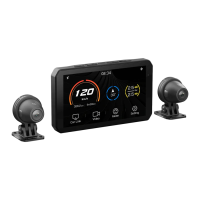
Power Button
Interface Introduction
Interface Introduction
Activation Steps:
03
Product Activation
Download the
CHIGEE GO App
①
Turn on your phone's
Bluetooth and Wi-Fi
②
③ Click "Connect Device"
④
Click on the AIO-5 lite host to
confirm that the connection
device has been successfully
activated.
Connect your phone
Yes
No
04
Operating and Interface Introduction
Home Key
Switch Key
Record Key
Lock Key
The "Home Key" can be clicked to return to the home
page in any interface.
Home Key
The "Lock Key" can be short-pressed to turn of
f the screen,
and long-pressed for 2 seconds to lock the touch screen
(suitable for rainy and snowy weather), and long-pressed for
6 seconds to forcibly restart.
Lock Key
The "Record Key" can be clicked to enter the recorder
preview page.
Record Key
The "Switch Key" can be clicked to switch between the
projection page and the dashboard page.
Switch Key
①
②
③
④
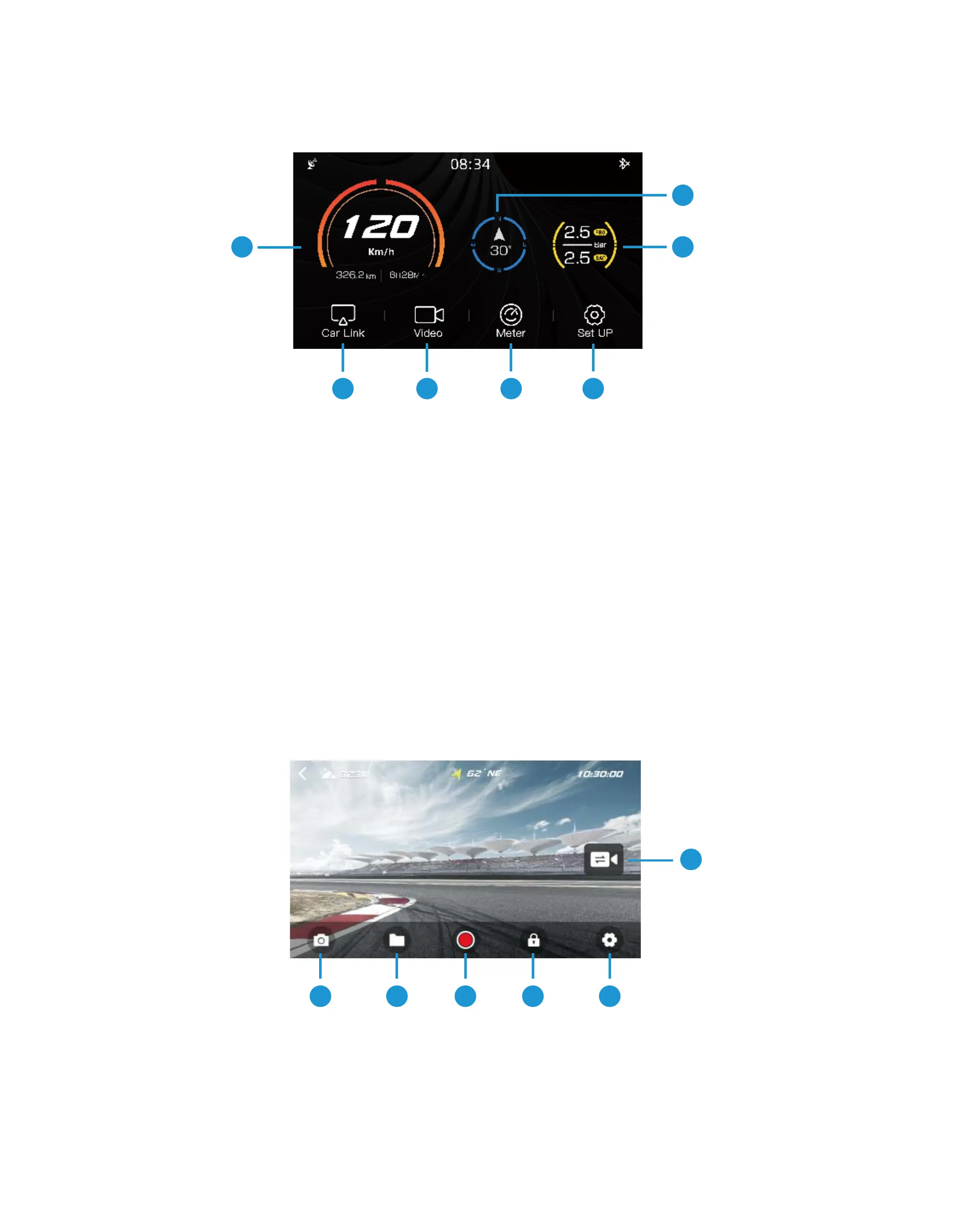
Screen Mirroring
Choose a Screen
Mirroring Device Type
①
Real-time Preview
of Dash Cam footage
②
Dash Cam
View Real-Time
Vehicle Data
③
Dashboard
Access the Dash
Cam settings page
④
Settings
Display current speed
and cumulative mileage
⑤
Speedometer
Vehicle's current
direction
⑥
Direction
Real-time display of current
vehicle tire pressure data
⑦
Tire Pressure Monitoring
1 2 3
4
5
7
6
Homepage
Live View
1
2 3
4 5
6
Shoot
Take photos
Start recording video
/End recording
Click to enter the
video file library
①
②
③
Files
Start/End
Add a lock marker
to the video
Enter the recorder
settings page
④
Lock
⑤
Settings
Switch the image
preview screen
⑥
Camera Switch
05
Setting up the Dash Cam
Resolution Setting
Turn on this feature and the front and rear cameras will be
saved as a single video file, with the images presented in
a large-small format.
Fusion Output
Set the recording duration of each video clip for the
Motorcycle Dash Cam, available options: 1 minute, 2 minutes,
3 minutes.
Recording Time
Choose the data you need to overlay to the video files,
options include: time, speed, and latitude/longitude. For more
data, overlay in the CHIGG GO APP.
Data overlay
Set the mirror correction to preview the inverted image,
or set the rear camera mirror as a rearview mirror.
Mirror Preview
Once activated, if the vehicle has an impact, the video
of that time period will be marked as locked and will not
be overwritten by the loop recording. Sensitivity options:
High, Medium, Low.
Collision Lock
When the vehicle is in a parked state and is subjected
to vibration, the device will silently record a 30-second
video file, and the sensitivity can be set. Sensitivity
options: High, Medium, Low.
Parking Monitoring
Voice Recording
Microphone Volume Settings.
06
06
System Settings
Display and Volume
Adjust the screen brightness and speaker volume, and
enable the auto brightness mode.
Storage
Check the remaining capacity of the built-in storage and
TF card, and format the operation. Please back up
important video files before formatting.
Reset
Restore factory settings, all presets will be changed
to default.
Device
Customize the settings or view the features, available
options: Tire Pressure Sensor, Bluetooth Headset, Remote
Control, GPS, OBD, Blind Spot Monitoring.
About
Display device SN code, version number, and
Bluetooth name.
Video Download
Enter this page to enable the host's WiFi hotspot, and
you can download videos by connecting the phone to
WiFi.
Language
Set the display language. Options available: Simplified
Chinese, Traditional Chinese, English, Japanese.
Time
Set the time and date.
07
06
07
Device Setup
Tire Pressure
By installing a tire pressure monitoring sensor, you can
read the real-time tire pressure and pop up a warning
window when it reaches the alarm preset value, while
issuing an alarm sound. The pressure data can be
synchronized to the recording file in real time through data
superposition.
Blind Spot Detection
Remote Control
By installing CGRC PRO remote control, you can lock the
video, switch the interface, take photos, answer the phone
and other operations.
GPS
View GPS signal strength.
OBD
Equip with a wireless Bluetooth OBD module to read
engine real-time data, and the OBD data will be
synchronized to the video file in real-time through data
overlaying.
BSD Blind Spot Detection System, when a vehicle
approaches from the rear side blind spot, the device
will issue an audible and visual alarm.
Although the BSD Blind Spot Monitoring System is a useful auxiliary tool,
drivers should always remain vigilant and not rely too heavily on the
system. The system may have false alarms or missed alarms, so drivers
should always keep a comprehensive view of their surroundings, using
the BSD system as an aid rather than relying on it completely. This includes
but is not limited to observing the rearview mirror, turning to confirm blind
spot conditions, using turn signals and adjusting speed reasonably.
BSD Disclaimer
07
06
08
Function Description
Wireless Mirroring
Connect your iOS device to the Bluetooth device
(CHIGEE-XXXX) to enable Apple CarPlay.
Connect your phone to the device Bluetooth
(CHIGEE-XXXX) to control music and answer calls.
※
※
Note: Data with ※ is optional equipment. Optional
functional expansion parts can be displayed.
① Speed
② Direction
③ Time
④ RPM/GPS Speed
⑤ Tire Pressure
⑥ Voltage
⑦ Trip Elevation
Difference
⑧ Start-up Time
⑨ Engine Water
Temperature
⑩ Subtotal Mileage
Throttle Opening
Professional Dashboard
1
2
3
4
5
6
7
8
9
11
10
※
※


 To Next Page
 Loading...