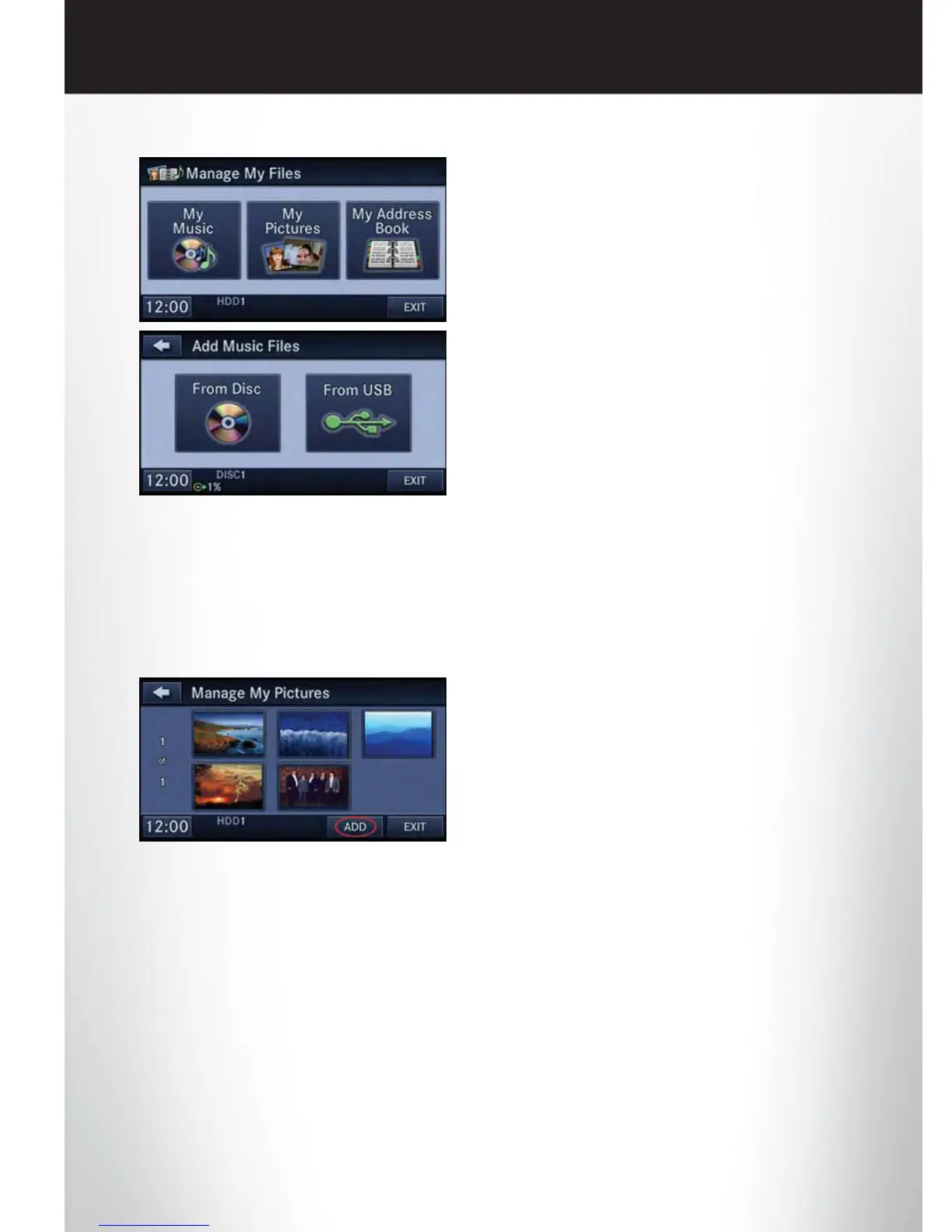
• Touch the “MY MUSIC” soft-key, then
touch the “Add Music Files” to HDD
soft-key.
• Touch “From USB” soft-key, then select
the folders or titles you would like to copy,
and then touch the “SAVE” soft-key to
start the copy process.
NOTE: The copy progress is shown in the
lower left corner of the screen.
Copying P ictures To The HDD
• Insert either a CD or a USB device containing your pictures in JPEG format.
• Press the “MENU” hard-key to access the Settings Menu, then touch the “My Files”
soft-key.
• Touch the “My Pictures” soft-key to get an overview of the currently stored images, then
touch the “Add” soft-key.
• Touch the “From Disc” or “From USB”
soft-key, then select the folders or pictures
you wish to copy to the HDD. Use the
“PAGE” soft-keys to page through the list
of pictures.
• Touch the desired pictures or press the
“All” soft-key for all pictures. Confirm your
selections by touching the “SAVE” soft
key.
NOTE: The copy progress is shown in the lower left corner of the screen.
Display a P icture on the Radio Screen
• Once the import is complete, the pictures will then be available in the “MY PICTURES”
screen.
• Press the “MENU” hard-key to access the Settings Menu, then touch the “My Files”
soft-key and then touch the “My Pictures” soft-key. Touch the desired picture, then touch
the “Set as Picture View” soft-key and then touch the “Exit” soft-key. Lastly press the
“MENU” hard-key and then touch the “Picture View” soft-key to display the chosen
picture on the radio screen.
ELECTRONICS
44










 To Next Page