
 Need help?
Do you have a question about the CHURCHILL NAVIGATION ION and is the answer not in the manual?
Details the 3-year warranty coverage, exclusions, and contact information for repairs.
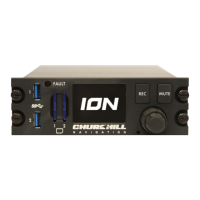
Describes the ION as a compact, solid-state DZUS mounted video recorder with specific features.
Details technical specifications including dimensions, weight, display, environmental qualifications, power, and connection types.
Explains how to power on the ION unit using aircraft or standard power sources and troubleshooting boot issues.
Details the ION's hardware interface, including buttons and the control knob for operation.
Describes basic operation using the control knob and REC button to select recorders and start/stop recording.
Defines 'recorders' and explains how HD-SDI-1, HD-SDI-2, and Analog recorders are formed.
Explains the recorder selection screen and its overview of recorder status and media space.
Details the process of recording video using the ION unit.
Provides recommendations for USB and SD card media for recording video on the ION.
Explains how to select and start recording HD-SDI video using the ION's controls.
Details how to select and record analog video using the ION unit, with notes on setup.
Covers audio setup and related operations for the ION unit.
Recommends balanced audio input and COM port connection for best quality.
Explains how to use the hardware mute button to mute/unmute audio for all recordings.
Guides users on how to install firmware and software updates for the ION unit.
Details the process of downloading and installing software or firmware updates via removable media.
Explains the .TS (Transport Stream) file format used for ION video files and naming conventions.
Guides users on accessing and selecting video files for playback on the ION unit.
Details how to use the controls for playback, skipping, and adjusting speed.
Recommends media players for Windows users to play .TS files.
Recommends VLC Player for Macintosh users to view .TS files.
Suggests software for editing recorded .TS files and mentions transcoding needs.
Lists requirements for the weather radar function, including ARINC 708 data and a USB converter.
Explains how to access the WX Radar option from the ION's Recorders Menu.
Details how the ION receives and displays weather radar data, and its limitations.
Describes the on-screen display of radar echoes, noting the absence of a moving map.
Explains the HD-SDI out display, including moving maps and echo transparency options.
Explains the need for a Camera Link Adapter Board to interface with cameras.
Describes how menu options are enabled for Camera Link input when a camera is connected.
Explains how to access the setup menu from the recorder selection screen.
Describes the on-screen keyboard functionality for text entry in the setup menu.
Allows users to load, save, and export system configuration files (graphs).
Allows configuration of available recorders (HD-SDI-1, HD-SDI-2, Analog).
Details options within the recorder menu like Name, Trigger, Historical, and Media Priority.
Explains scaler output options for adjusting video resolution and format.
Covers encoder configuration presets and bitrate selection for recording.
Details how to configure metadata and override external data with user-defined values.
Allows enabling/disabling timestamp text overlay and customizing its appearance.
Explains global metadata settings and how they affect all recordings.
Details how to enable/disable video inputs like HD-SDI and Analog.
Covers VANC settings for HD-SDI and analog input signal type configuration.
Discusses video output settings for the ION unit.
Details output resolution and source selection for the video output.
Covers configuration for using the ION as a video server (port, name, description).
Discusses audio playback and gain settings.
Details audio playback settings and input/volume gain adjustments.
Explains support for General Purpose Input/Output connections.
Details how to control GPIO aspects based on hardware and ION version.
Describes the configuration of RS422 and RS232 serial ports.
Details serial port settings like Baud rate, Parity, Data Bits, Stop Bits, Flow control, RX/TX enabled.
Covers settings to control the brightness of the ION display, fault light, and backlighting.
Explains brightness sources (Cockpit Dimmer, Light Sensor, Manual) and calibration.
Introduces the diagnostics section for checking system status.
Lists information available in the About menu (SW, ION serial, firmware versions).
Explains how to test the fault light and use caution in certain lighting conditions.
Lists common causes for the fault light and recommended resolutions.
Explains how to set up analog signal types to resolve no-signal issues.
Provides contact information for Churchill Navigation Support.
 General
| Operating System | Android |
|---|---|
| GPS | Yes |
| Bluetooth | Yes |
| USB | Yes |
| SD Card Slot | Yes |
| Voice Guidance | Yes |
| Touchscreen | Yes |
| Display Size | 7 inches |
| Resolution | 800 x 480 pixels |

 To Next Page