BladeM LED Display System
Installation Manual
Cirrus | 200 West Rd, Portsmouth, NH 03801 | 877 636 2331 | contact@cirrusled.com | cirrusled.com
23
This document is confidential & proprietary to Cirrus Systems for distribution to direct customers and their installers only.
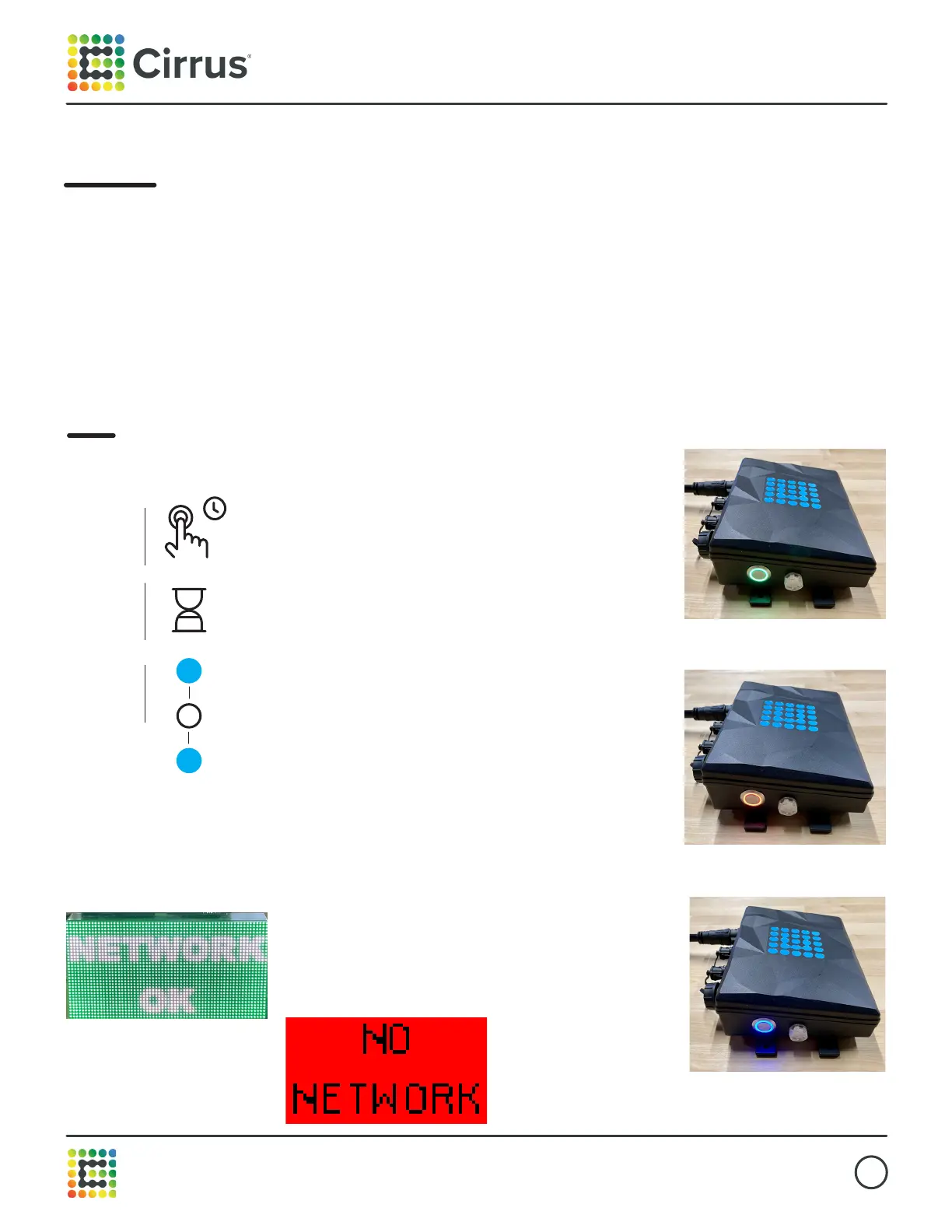
Hold the button for
5 seconds and release when the
light turns blue.
Step 1
Automapping
If the auto-mapping process doesn’t complete
correctly, please reach out to Cirrus Support at
877-636-2331 option 2.
Automapping
There is a pause while the
controller attempts to send
mapping data to the panels.
Step 2
Once the automapping completes,
a system check is initiated. The
sign should show a panel map for
15 seconds, then a network status
for 15 seconds. These will continue
alternating for 2 minutes or until
the Button is pressed once quickly.
Step 3
With our patented automapping technology, new signs can be installed without even making a phone call. After installing and
connecting the M1 Pro Controller and all the panels. Following the instructions below will address all the panels and put the
controller into a diagnostic mode, which will check the network connection before returning to normal function.
Green indicator
Red indicator
Blue indicator



 To Next Page