
 Need help?
Do you have a question about the Cisco MERAKI MX67 and is the answer not in the manual?
Configure IP address, subnet mask, default gateway, and DNS server information for the WAN connection.
Configure the device to obtain an IP address automatically from upstream WAN/ISP servers.
Configure VLAN tagging for the WAN uplink if it is on a trunk port.
Configure a second internet port for WAN connectivity on MX68 devices.
Configure the LAN2 port to function as an Internet port on MX67 devices.
Configure PPPoE authentication and credentials for DSL circuit connections.
Configure web proxy settings for fallback HTTP communication with the Cloud Controller.
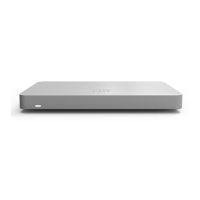
The Cisco Meraki MX67 and MX68 are enterprise security appliances designed for distributed deployments that require remote administration. They are ideal for network administrators who demand both ease of deployment and a state-of-the-art feature set. These devices serve as security appliances, providing network security and connectivity for various environments.
The MX67 and MX68 series devices are designed to provide robust security and network management capabilities. They act as a central point for network connectivity, offering features such as WAN connectivity, LAN ports for connecting various devices, and in some models, cellular failover capabilities. The devices are managed remotely through the Meraki Dashboard, simplifying administration for distributed networks.
The MX67/MX68 models come with a power adapter and two CAT5 Ethernet cables, along with wall screws and anchors for mounting. The MX67W/MX68W models include two WiFi antennae in addition to the standard accessories. The MX67C model is similar to the MX67 but includes an active, supported SIM card slot for cellular capabilities. The MX68CW model combines the features of the MX68W with a SIM card slot for cellular failover.
The front panels of the MX67/67C/67W and MX68/68W/68CW series feature an LED status indicator. This LED provides visual cues about the device's operational status. A solid orange light indicates that power is applied but the appliance is not connected to the Meraki Dashboard. Alternating colors signify that the appliance is attempting to connect to the Meraki Dashboard. A flashing white light indicates a firmware upgrade in progress. A solid white light means the device is fully operational and connected, actively using a wired WAN uplink. A solid purple light indicates that the device is fully operational and connected, actively using an integrated cellular failover.
The MX67/MX67W/MX67C models feature a back panel with several ports and buttons. From left to right, these include a SIM Card Slot (on MX67C) for cellular capabilities, a USB port (USB 3.0) for external 3G/4G wireless modems with an LED indicating traffic status, a WAN/Internet port for connectivity to the WAN, and four LAN ports. These LAN ports connect to computers, printers, access points, or Ethernet switches, with a steady green LED indicating bidirectional connectivity and a flashing green LED indicating traffic. There is also a power input for the unit's power supply and a reset button.
The MX68/MX68W/MX68CW models have a more extensive back panel. They feature two WAN/Internet ports for connectivity to the WAN. There are eight LAN ports for connecting various network devices, with LED indicators for connectivity and traffic. Additionally, these models include two PoE+ ports, which provide connectivity and up to 30W of PoE power to devices like access points or IP cameras. These PoE+ ports also have LED indicators for connectivity and traffic. The power input and reset button are also present on these models.
For cellular-enabled models (MX67C, MX68CW), the SIM card slot allows for the insertion of active, supported SIM cards to enable cellular capabilities. The USB port on all models supports 3G/4G wireless cards, with an LED indicating traffic status.
Setting up the device involves connecting it to a WAN. All Meraki MX devices require an IP address. The local management web service, accessible via a browser on a client PC connected to one of the LAN ports, allows for configuring basic ISP/WAN connectivity. Users can set up a static IP address by disabling other network services on the client machine, accessing http://setup.meraki.com, and entering the necessary IP address, subnet mask, default gateway IP, and DNS server information under the "Uplink configuration" tab. By default, MX devices are configured to obtain a DHCP IP address from upstream WAN/ISP servers. Once the WAN connection is fully enabled, the Internet LED 1 will turn green.
Cellular failover setup for MX67C and MX68CW involves powering off the MX, connecting cellular antennas (if not pre-attached), opening the SIM tray with the provided tool, inserting a nano SIM card (4FF size), and closing the tray. After connecting the MX to the Meraki cloud via a wired connection and powering it on, the device should appear online in the Meraki Dashboard. Users can then configure the APN if required by the carrier under "Security Appliance > Monitor > Appliance Status > Uplink tab." The cellular uplink can be enabled by selecting "Enabled" next to "Status" in the same tab. A "Ready" status indicates a successful connection. The cellular failover can be tested by unplugging the wired connection or using the traceroute tool.
Additional settings are accessible via the local management console. VLANs can be configured if the WAN uplink is on a trunk port by enabling VLAN tagging and entering the VLAN ID. MX68 devices support a secondary WAN interface, configured under "Security Appliance > Appliance Status > Local Status" in the Uplink Configuration. For MX67 devices, the LAN2 port can be toggled between LAN and Internet through the Local Status Page. PPPoE authentication can be configured by selecting "Connection Type > PPPoE" and entering authentication credentials if required by the ISP. Web proxy settings can also be enabled and configured, including hostname/IP, port, and authentication details. Physical link settings for Ethernet ports, such as half duplex, full duplex, autonegotiation, and data rates (10- or 100-Mbps), can be configured under "Local status > Ethernet configuration."
The reset button on the back panel serves two primary maintenance functions. A short press (1 second) will delete a downloaded configuration and reboot the device. Pressing and holding the button for more than 10 seconds will force a full factory reset, restoring the device to its default settings.
For cellular-enabled devices, if the SIM card is not detected after following the setup steps, it is recommended to confirm with the carrier that the SIM card is active and has data. The ICCID of the SIM card and the IMEI of the device will be necessary for troubleshooting assistance from the carrier. A list of certified carriers is available in the MX67 and MX68 Overview and Specifications document. If the cellular connection is still not recognized, contacting the Meraki Support team is advised.
Mounting the appliance is facilitated by the supplied wall screws and anchors. The device can be mounted vertically or horizontally on a drywall surface, with a drill bit size of 1¼-in for drywall and only screws for wood surfaces. The screw heads should protrude enough to securely insert into the back of the appliance.
The LED status indicator provides immediate visual feedback for troubleshooting. A solid orange light indicates a power connection issue or a lack of connection to the Meraki Dashboard, prompting the user to check network connectivity. Alternating colors suggest an ongoing connection attempt, indicating that the device is actively trying to establish communication with the Dashboard. A flashing white light signals a firmware upgrade, during which the device should not be powered off. A solid white or purple light confirms successful operation, indicating that the device is fully connected and using either wired WAN or cellular failover, respectively.
All configuration settings, including those for VLANs, secondary WAN interfaces, PPPoE, web proxy, and physical link settings, are applied by clicking "Save Settings" at the bottom of the local management console page, ensuring that changes are preserved. The remote management via the Meraki Dashboard also simplifies ongoing maintenance and monitoring of the device's status and performance.
 General
| Model | MX67 |
|---|---|
| Category | Security System |
| Firewall Throughput | 450 Mbps |
| VPN Throughput | 200 Mbps |
| Recommended Clients | 50 |
| Advanced Security License | Required for advanced security features |
| Concurrent VPN Tunnels | 50 |
| Form Factor | Desktop |
| Operating Temperature | 32°F to 104°F (0°C to 40°C) |
| Humidity | 5% to 95% non-condensing |
| WAN Interfaces | 1 x Gigabit Ethernet |
| LAN Interfaces | 3 x GbE |
| Interface | Gigabit Ethernet |
| Power | 12V DC |

 To Next Page