3-36
Cisco TelePresence Content Server Release 6.2.1 Administration and User Guide
Chapter 3 Configuring a Cisco Unified Communications Manager SIP Trunk with a Cisco TelePresence
CUCM Integration with Content Server 6.2
To Create the Integration
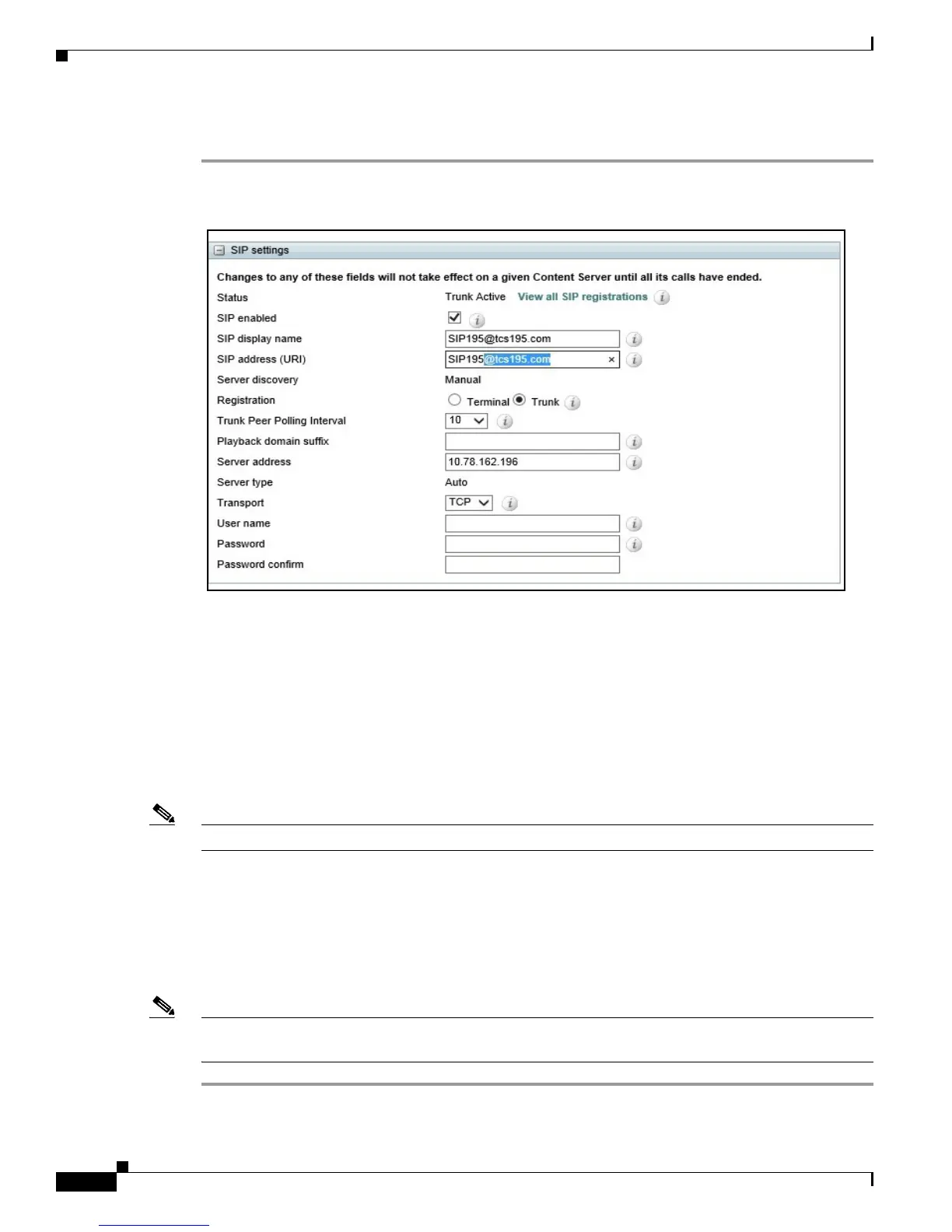
Step 1 In Content Server Administration, expand the Management tab, go to Configuration> Site Setting >SIP
Setting.
Step 2 Check the SIP enabled check box to enable registration with a SIP registrar.
Step 3 Enter the display name in the SIP display name text box.
Step 4 Enter the SIP address in the SIP address URL text box.
Step 5 Select the registration mode of the content server in the Registration field. The available options are
Ter mi na l or Trunk.
Step 6 Select the time interval in seconds, in the Trunk Peer Polling Interval drop-down.
Step 7 Enter the playback domain suffix.
Note This option will display, if SIP is in Trunk mode.
Step 8 Enter the server address in the Server address text box.
Step 9 Select the transport protocol from the Transport drop-down.The available options are TCP
(Transmission Control Protocol) and UDP (User Datagram Protocol).
Step 10 In the User name text box, leave the box blank.
Step 11 In the Password text box, leave the box blank.
Note The User name and the Password is not required as authentication is not enabled in CUCM SIP Trunk
profile.




 To Next Page