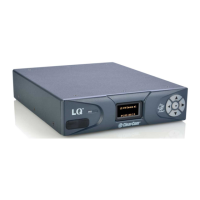
Quick Start Guide | LQ™ Series
Page 2 PN: 399G117 Rev D August 17th 2015
Linking the devices
Each device’s role is set as Link-Master by default.
1) Select one device in the group to be designated as the Link-Master, connect it to the network
and power it on.
2) Connect another LQ device to the same network and power it on.
3) Enter the IP address shown on the display of the Link-Member device into the address field of
your Web browser to connect to that device’s Core Configuration Manager.
Audio port settings
From the Core Configuration Manager (CCM) go to Overview > select device > A/B. The LQ devices
arrive with the following default settings:
Note: When
connecting any 2-
wire device to an
LQ Series port,
please auto-null
each port.
Connecting and configuring audio channels
Once an LQ device is connected to a Link-Master, click on the Assignments button within the
navigation bar to configure channel connections. See the LQ Series System User Guide on the Clear-
Com website for more information.
Copyright © 2015 HME Clear-Com Ltd. All rights reserved.
4)
5)
6)
Navigate to Home
> Linking.
Click Change Role to
Link-Member.
Enter IP address of Link-Master.
Click on blue check mark or press
<ENTER> key to submit.
Select an available device ID
(highlighted in blue).
7)
Click Apply changes.
Repeat linking process for each device.
8)
9)
All manuals and user guides at all-guides.com


 To Previous Page
 Loading...