27
Device Summary Help for Device Summary
Additional Information – External Antenna Port
You may attach an external antenna to your device although the antenna may or may not enhance,
and potentially could reduce, your device performance. Once you have connected to an external
antenna, flip the switch to “Enable” on the back of the device. To revert back to the internal antenna,
flip the switch to “Disable”. If you do not have an external antenna attached, please confirm the
switch is set to “Disable”.
Quick Tips
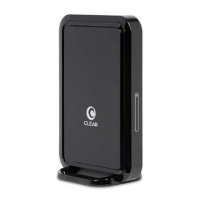
Maximize security of the CLEAR Hub Express
• Use the CLEAR Hub Express Home Page Setup Wizard to change the admin password required
to log in and manage your CLEAR Hub Express.
• Use the CLEAR Hub Express Wi-Fi network name and password. You can access your CLEAR
Hub Express Home Page without being connected to the Internet. Click here to open the CLEAR
Hub Express Home Page.
• Use the highest level of Wi-Fi security with your Wi-Fi-enabled devices. Go to the Help feature in
your CLEAR Hub Express Home page for instructions.
Change the Default Time Zone from Central Time
• Use the CLEAR Hub Express Home Page / Modem Setup / Modem Time to change the default
time zone to the desired time zone.
Ensure your devices recognize your CLEAR Hub Express
• Make sure you are using the correct device Wi-Fi network name and password. The default Wi-
Fi network name is “WiFiRSU-xxxxx”, where “xxxxx” are the last five digits of the MAC ID, which
can be found on the label on the back of the device. The MAC ID also might be referred to as
WAN MAC ID.


 To Next Page