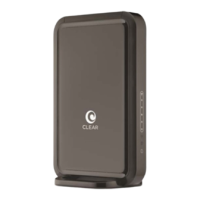
RESETTING THE PASSWORD:
If you changed your admin password and can’t
remember it, you can reset your device to the
factory settings.
• Turnonthedeviceandcarefullyinsertasturdy
thinobjectintotheresetholelocatedabove
theEthernetconnectoronthebacksideof
thedevice.Pressrmlyfortwosecondsand
removethethinobjectout.
• AllLEDswillturnoffexceptforthepower
LEDonthefront.Thedevicewillrebootwith
factorydefaultsettings.Thedefaultpassword
willberesetto“admin”.
UNABLE TO GET ONLINE:
• Trymovingthedevicetoadifferentlocation.
• Unplugthedevicefor15secondstoreboot
device.
• Bypassanypowerstripsandtryadifferent
poweroutlet.
• Connectthedevicedirectlytothecomputer
withtheEthernetcable.
• Checkconnectionbetweenthedeviceand
computer,makesurethecabletssecurely
intheportandrestartyoucomputer.
• Conrmexternalantennaswitchisdisabled.
EXTERNAL ANTENNA SWITCH
IfyouhaveaCLEARHubExpressandare
experiencingsub-optimalserviceinyourarea,
itmaybepossibletoenhanceyour4Gsignal
andperformancespeedbyusinganafter-market
auxiliaryantenna.Todoso,attachtheantenna
viatheSMA(SubMiniatureversionA)connector
locatedonthesideofthedevice.Onceyouhave
connectedtoanexternalantenna,iptheswitch
(onthebackoftheCLEARHubExpress)
to“Enable”.Toreverttotheinternalantenna,ip
theswitchto“Disable”.Ifyouarenotusing
anexternalantenna,pleaseconrmthattheswitch
issetto“Disable”.
Note that using an auxiliary antenna will not improve your signal in all
cases. We recommend you explore this alternative only if your 4G signal
strength registers a CINR score of 8 dBi or lower. To locate the 4G signal
strength on your CLEAR Hub Express, log into the Device Homepage and
note the CINR value on the Summary Page.
CUSTOMER SUPPORT AND INFORMATION
• Formoredetailedproductinformation,goto
theonlineUserGuide,FAQs,LiveChatSupport
atclear.com/supportorwww.facebook.com/
clear4g
• Ifyoustillhavequestions,callusat
1-888-888-3113forlivesupport.
• Paralaasistenciaenespañolporfavorllame
al1-888-888-3113yseleccionarespañol.
• PleasereadtheseparateImportant
Informationdocumentlocatedunder“Help”
onyourCLEAR®Hubhomepageforregulatory
information,safetyinformationandother
importantdisclosures.

 Need help?
 General

 To Next Page