
 Need help?
Do you have a question about the ClearCaptions Blue and is the answer not in the manual?
A steady light on the ClearCaptions button indicates captions are active.
Tap the ClearCaptions button to turn captions off (indicated by a flashing button) or on again.
Use the number keypad to dial the desired phone number.
Initiate the call by pressing the speakerphone button or lifting the handset.
Use the Volume Up/Down buttons to adjust audio volume during a call.
Press the Amplify button to quickly increase volume to the last saved setting or lower it.
Navigate to the Main Menu and tap the Messages icon.
Select a message from the list and tap the Play icon to start playback.
Tap the Delete icon to remove a message.
From the Home Page, tap the Contacts icon.
Tap Add, enter contact details (name, number), then tap Save.
Navigate to the Contacts section from the Home Page.
Choose a contact and select the specific number to call.
Tap Dial icon, then press Speakerphone or lift handset to start the call.
Access the Favorites list from the Home Page by tapping the Favorites icon.
Tap the Add icon to begin adding a new favorite entry.
Locate and select the contact you want to add to your favorites list.
Tap the favorite icon next to desired numbers to add them to Favorites.
Tap the ADD icon to complete the process of adding a favorite.
Access the Favorites list from the Main Menu by tapping the Favorites icon.
Choose a favorite entry from the displayed list.
Press the Speakerphone button or lift the handset to start the call.
Record phone service provider, phone number, internet provider, and internet service type.
Record the type of modem or router used.
Note whether the device is connected via Ethernet or Wi-Fi.
Record the Network Name (SSID) and Wi-Fi Password if using Wi-Fi.
Record ClearCaptions username and account password.
ClearCaptions ensures phone compliance with FCC regulations.
Unauthorized physical changes or modifications may void authorization to use the phone.
Provides contact number (866-868-8695), website (clearcaptions.com), and trademark details.
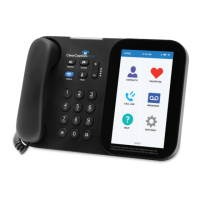
This document serves as an easy reference guide for the ClearCaptions Blue phone, designed to assist registered users with hearing loss in utilizing its features. The device is a specialized telephone that provides real-time captions of conversations, ensuring that users can read what is being said during a call. Federal law restricts the use of this device with captions on to registered users with hearing loss.
The ClearCaptions Blue phone is primarily designed to provide captioned telephone service. Its core function is to convert spoken words into text, which is then displayed on the phone's screen, allowing users to read the conversation as it happens. This feature is crucial for individuals with hearing loss, enabling them to follow phone conversations more effectively.
The phone offers a range of user-friendly features, making it accessible and easy to operate.
The ClearCaptions button, marked with "CC," controls the captioning feature.
The process of making a call is straightforward:
The phone provides multiple ways to manage audio volume during a call:
The ClearCaptions Blue phone includes a messaging feature, similar to voicemail:
The phone allows users to add, store, and call contacts efficiently.
Users can designate frequently called contacts as "Favorites" for quicker access.
The document also includes sections for users to record important information about their phone service and internet connection, which can be helpful for troubleshooting or support.
These sections prompt users to record:
These details are crucial for setting up the device, ensuring proper connectivity, and for any future technical support needs.
ClearCaptions emphasizes its responsibility for ensuring the phone's compliance with FCC regulations. It also states that any physical changes or modifications to the phone must be approved by ClearCaptions; otherwise, the user may no longer be authorized to use the device. This highlights the importance of maintaining the device's integrity as designed by the manufacturer.
The ClearCaptions Blue phone is a specialized communication tool designed to empower individuals with hearing loss by providing real-time captions, making phone conversations more accessible and understandable. Its intuitive interface and dedicated features aim to offer a seamless user experience.
 General
| Battery Backup | Yes |
|---|---|
| Power | AC adapter |
| Speakerphone | Yes |
| Answering Machine | No |
| Type | Caption Telephone |
| Display | Color touchscreen |
| Connectivity | Wi-Fi |
| Captioning Service | ClearCaptions service |
| Volume Control | Adjustable |
| Additional Features | Adjustable font size |

 To Next Page