14
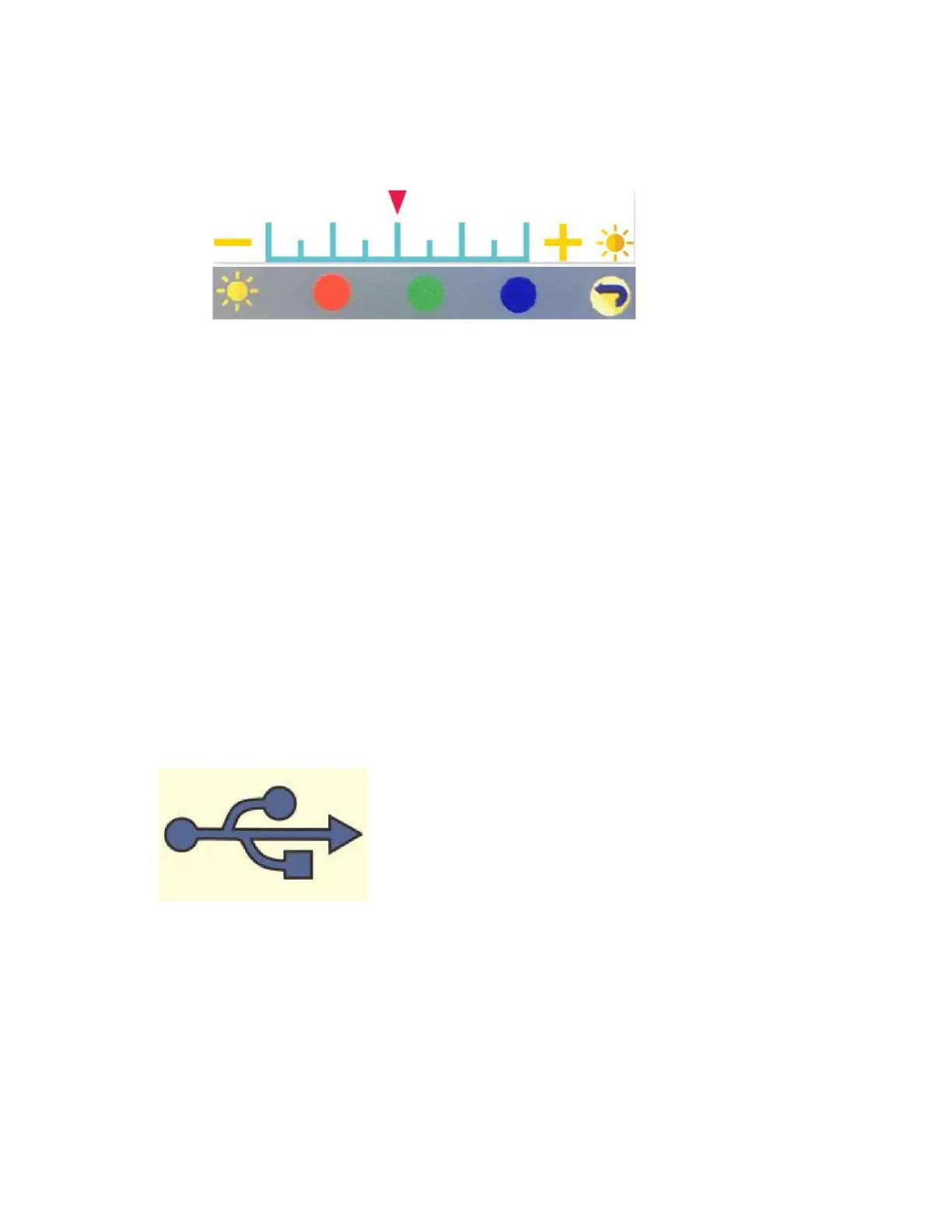
To move to the red/green/blue settings, press
the Play button. Then, use the right and left
arrow keys to adjust the setting.
To save the settings, press the “OK” button.
6. Download scanned images to your computer
& touch up with software.
a. With the scanner turned OFF, plug the scanner
into your computer using the included USB cable.
b. Turn the scanner on.
c. Select the “USB Upload” menu option, and press
the “OK” button.
d. Once the scanner successfully connects to the
computer, the scanner’s LCD screen may turn
off.


 To Next Page