Clickfree C6 Easy Imaging Using EASY Fix to Recover from a Hardware Failure
Copyright © 2011 Storage Appliance Corporation. 15
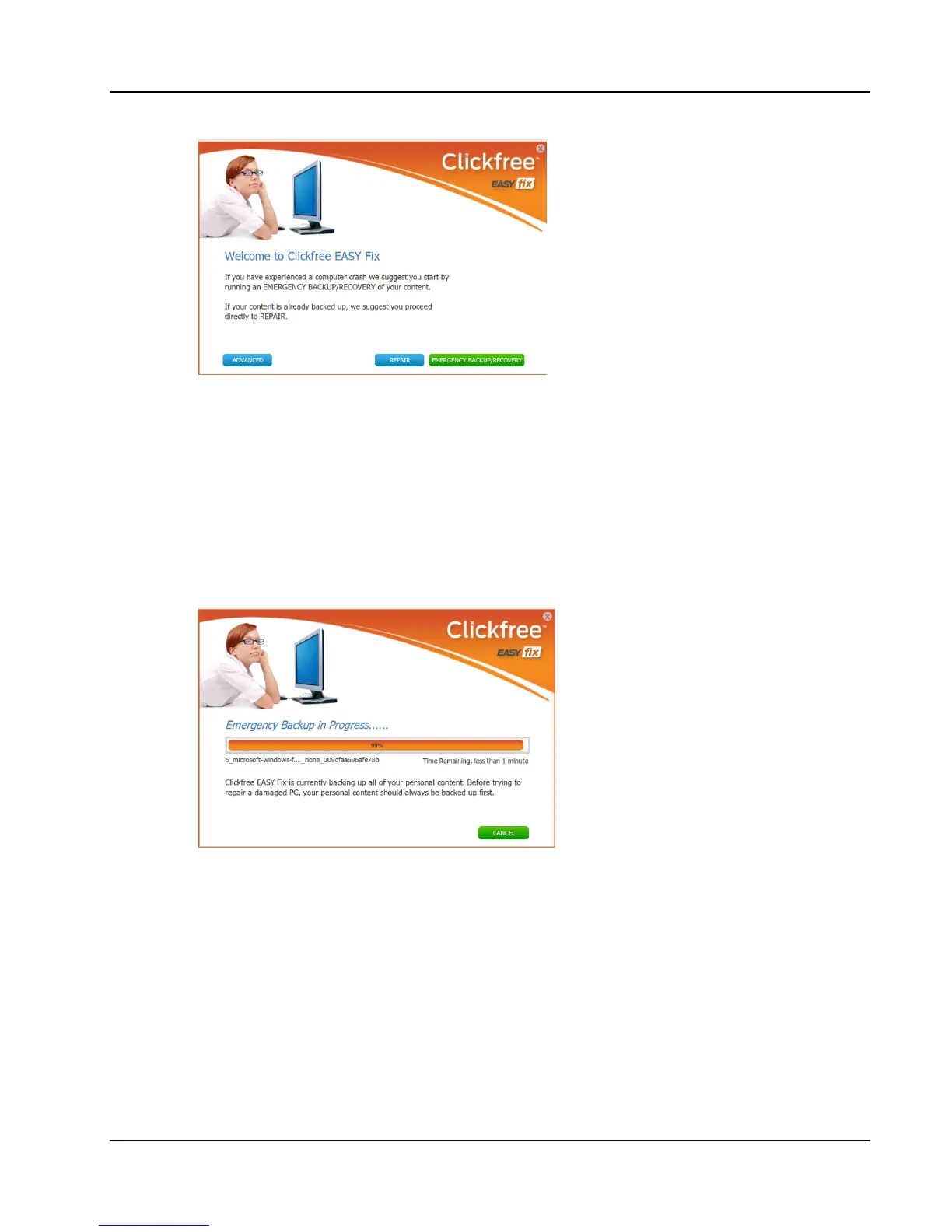
The Repair button appears at the bottom of the window only if a full backup for this
computer exists on your C6.
D
OING AN EMERGENCY BACKUP
/
RECOVERY
Unless you have very recently done a normal backup onto the C6, we suggest that you
perform an
Emergency Backup/Recovery
before performing a Repair or Re-Image to
ensure that you have a current copy of all personal content on the computer.
Unlike a regular backup, the Emergency Backup/Recovery only backs up content, not
Windows operating system files or software applications. By default this includes all
content on your computer; if you wish to exclude some folders, click
Advanced
instead
and then click
Settings
to choose the folders to exclude.
This emergency backup/recovery cannot be selected for Re-Image or Repair, but can be
used during a normal content Restore (as described on page 10).
After the emergency backup/recovery is complete:



 To Next Page