USING HYPERSTORE WITH OBJECT LOCK 5
HYPERSTORE PREREQUISTES
To setup and use Object Lock in HyperStore on newly created buckets, the following prerequisites must be
completed first:
• Deploy or upgrade HyperStore to version 7.2 on a minimum of 3 nodes
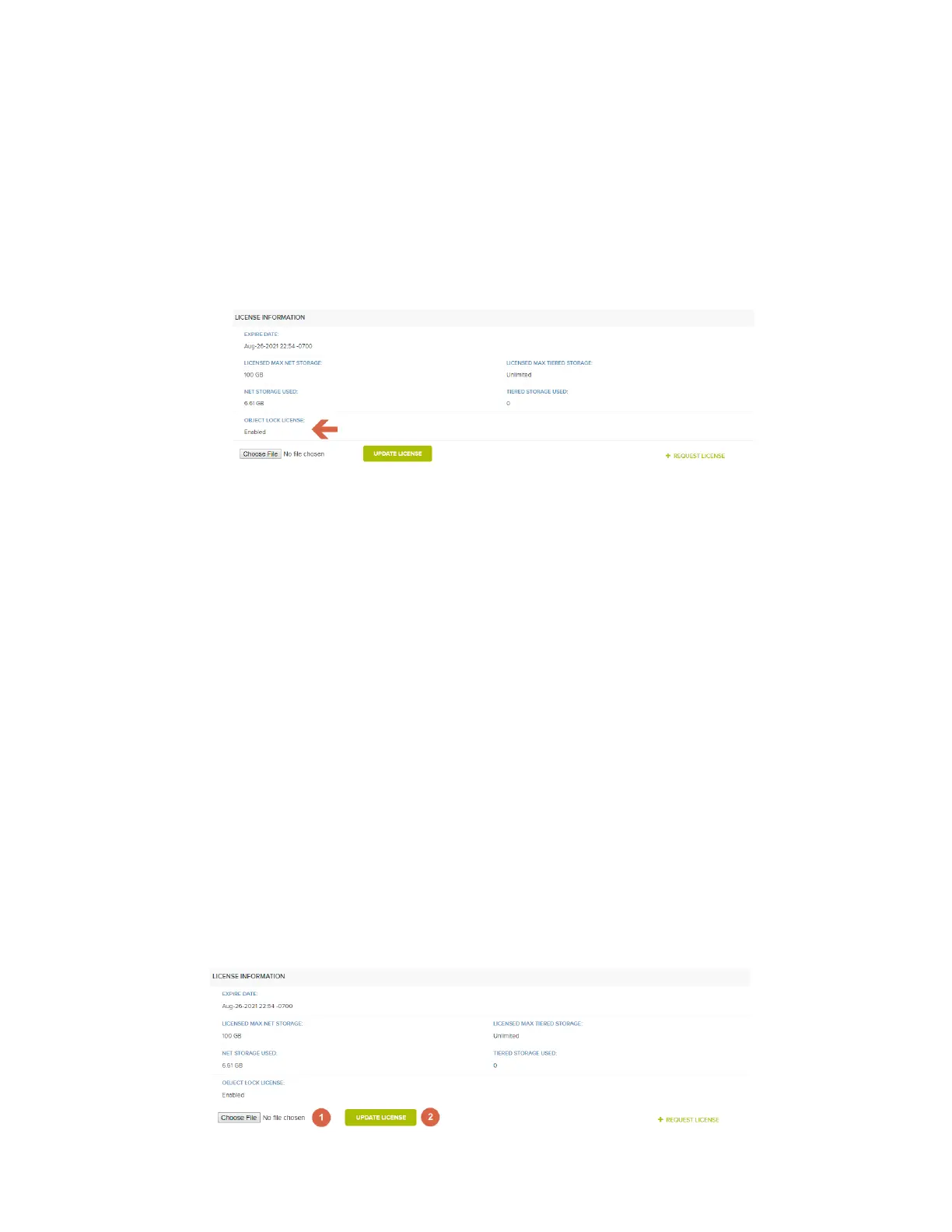
• Apply a HyperStore license that supports the Object Lock feature. To view the current license, se
e
the Cloudian Management Console (CMC) Cluster Information page. The "Object Lock License"
field will indicate either "Enabled" or "Disabled". If it shows Disabled, contact Cloudian customer
support for an upgraded license key.
• E
nable HyperStore Shell (HSH) The HSH shell is a new feature in the 7.2 release that provides
a
s
ecure command line interface for management tasks.
• Have the root user account password disabled. Once disabled, root password access to the
HyperStore will require Cloudian Support for assistance.
A 3rd party S3 application that supports S3 API for object locking is also required. In this guide, the AWS
CLI will be used. Only newly created buckets support Object Lock. All new buckets that support Object
Lock will also automatically have versioning enabled. Existing buckets cannot have object lock enabled.
Be aware that other additional configuration changes In HyperStore may be needed in addition to Object
Lock. Many third-party S3 applications may require IAM, SSL enabled for secure https S3 endpoints and
other features that are not enabled within HyperStore by default.
DEPLOY OR UPGRADE HYPERSTORE TO 7.2
The first step is to deploy or upgrade HyperStore to 7.2. If doing a new deployment, a minimum of 3 nodes
is required. Please follow the instructions in the HyperStore Installation Guide.
ENABLING OBJECT LOCK
To enable Object Lock, do the following steps.
1. Apply a license file that supports the Object Lock feature from the Cluster Information page in th
e
CMC. First click on Choose File.
a. Select an Object Lock enabled license file from the directory and file list that is displayed.
b. Once selected and uploaded, click on Update License. After a few minutes, the Object
Lock License will show “Enabled”. A manual refresh of the browser may be required.



 To Next Page