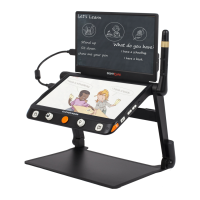
❑
Push the Joystick! to any directions and turn the Zoom
Button! to pop up the Panning Speed Bar.
!
❑ Use the slide gesture or turn the Zoom button! to increase/
decrease the panning speed.
❑ No operations for 5 seconds or short press the Home/Exit
button! / Speech/Enter button! (! ) or tap the inactive
area to close the Contrast Control Bar.
● Image Position
❑ Quickly tap the image center twice to re-center the image (or
push the Joystick! to any directions and press down the
Zoom Button! at the same time).
❑ Quickly tap the image edge twice to jump to the start/end point
(or quickly push the Joystick! in the same direction twice)
The autofocus system works well in the most situations. In
addition, some methods are provided to control the focus.
❑ Tap on the screen for 2 seconds to trigger the focus manually
(or long press Focus Control button! for 2 seconds).
❑
Press the Focus Control button! to enable/disable the
auto focus. Disable the auto focus is especially useful for
handwriting to prevent the fault focus on the hand or pen.
The Switch button! has different functions depending on which
configuration you choose for the Clover Book (Lite).
The device without the distance camera: press the Switch button
! to quickly get into the picture gallery.


 To Next Page
 Loading...