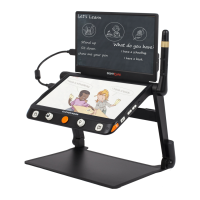
When images are captured by two cameras, tap the screen
corner twice to toggle between the main screen and the
external screen (or press the Home/Exit button! to pop up
the quick Control bar or press and hold the Switch button!
and push the Joystick! ). The highlighted screen can apply
operations such as magnification.
■ Micrograph Function
This function is only available when the images are the same on
the main screen and the external screen (Near View Mode or
Distance/Mirror View Mode).
❑
Short press the Home/Exit button! to pop up the Quick
Control Bar.
❑ Tap the Micrograph icon ! to activate this function and the
icon will change to! (or long press the Zoom Button! 2
seconds). The chosen screen will enter the Micrograph
function.
❑
The main screen shows the overview image and pops up the
Micrograph Chosen Box. The context in the box will be further
enlarged and displayed on the external screen.
❑
Use the Zoom operation to change the size of the box and use
Live-panning operation to change the position of the box.
Note: Find, Freeze, Line&Mask functions and so on are disabled
in this function.
❑ Tap the icon ! to disable the function (or long press the
Zoom Button! 2 seconds).
The device can capture the full page and you can read with the
ability to magnify, change colors, and scroll around the page.
❑ Press the Home/Exit button to pop up the Quick Control Bar.
Tap the icon! (or use the Joystick! to choose and Speech/
Enter button! or ! to confirm) to get into the Full page


 To Next Page
 Loading...