©2024 Clover Network, LLC | Clover Confidential | Fiserv Internal Use Only
2. Under Labels to Auto-Print select the labels that you would like assigned to that printer.
(For example, you may have a label called “Hot bar” for all items that are prepared by
the kitchen staff. Assign “Hot bar” to the printer you would like stationed in the kitchen.)
3. Once all printers have been assigned labels, select Save and exit the Printers app.
4. Open the Setup app and select How will order receipts be printed in Register?
5. Under Auto printing > What to Print, select Only items with printer labels.
6. Select Save.
To send order receipts to a KDS:
1. Once a printer is added, go to Settings in your Clover KDS.
2. Make sure that Kitchen mode is selected and assign all printer labels that you would
like shown on that KDS.
3. All configurations will automatically save.
4. Repeat steps 1 through 3 for any other KDS.
To learn more about routing orders to your Clover KDS, click here.
Kiosk admin mode
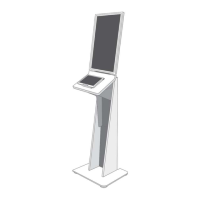
Admin mode provides access to Kiosk settings where Clover merchants and their staff can
make adjustments or troubleshoot their Kiosk.
Open Admin mode
1. Long press the Clover logo on the bottom left corner of the kiosk screen.
2. Enter the manager passcode to unlock Admin mode.
3. From here you can make adjustments to how your Kiosk is set up, access device
settings, and restart your kiosk.


 To Next Page
 Loading...