4 / 10
• Channel - Cycles between talk channels or accesses player channels
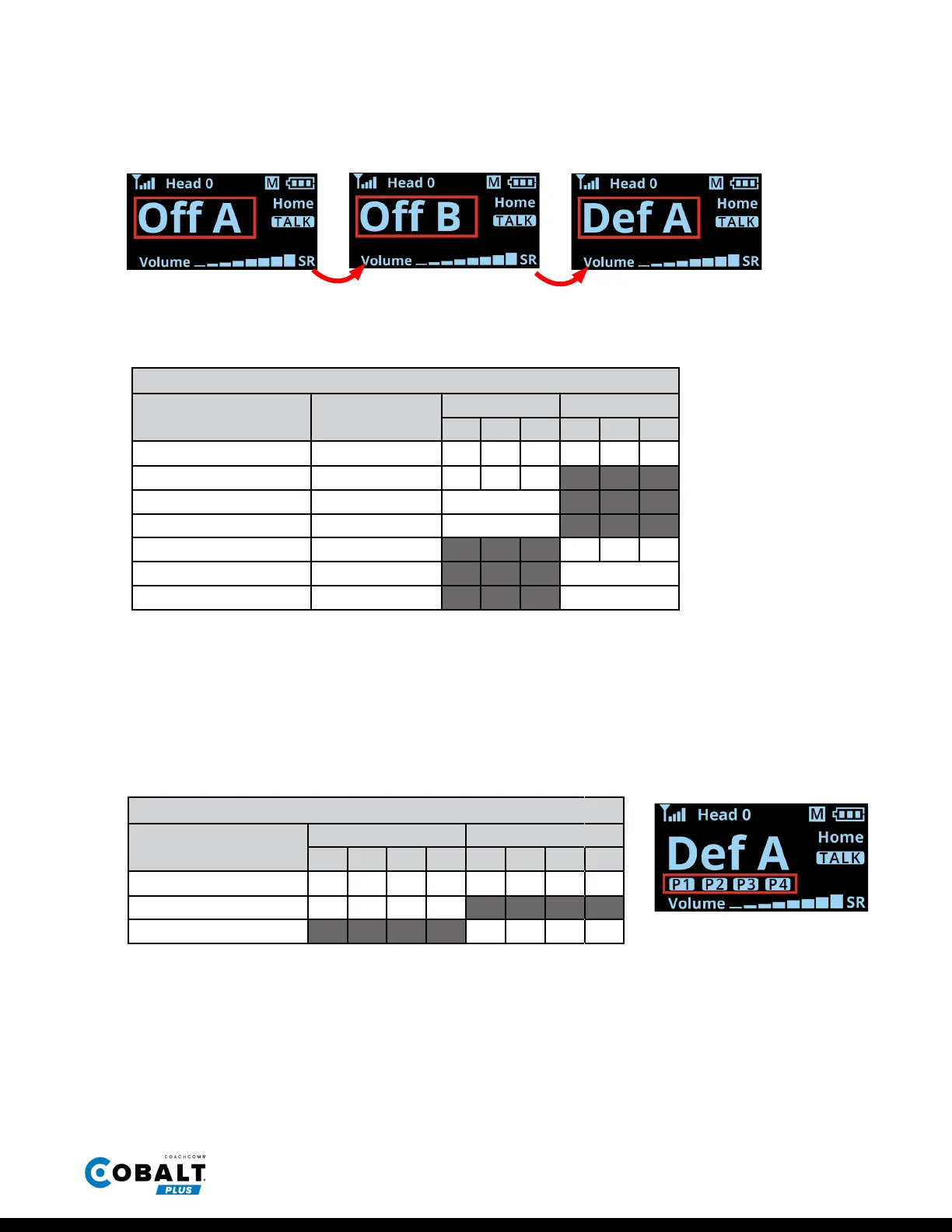
» Talk Channel: Short-press the CHANNEL button to cycle between the coaches’ talk channels
enabled on your beltpack.
Refer to the table below for the available talk channels per Cobalt PLUS user role:
*Only one Oense Shared Talk user and one Defense Shared Talk user can talk at a time.
**Shared Talk IDs (OS and OR) cannot be used at the same time as the last Oense/Defense full-duplex IDs.
» Player Channel: Press and hold the CHANNEL button to communicate to any player channels
enabled on your beltpack.
Refer to the table below for the available player channels per Cobalt PLUS user role:
***When enabled, Head Coach roles can communicate to either Oense or Defense player
channels, depending on what talk channel is currently active on the beltpack.
And so on...
Figure 6: Sample Talk Channel Options for Head Coach User Role
Available Talk Channels
User Roles IDs
Oense Defense
A B C A B C
Head Coach H0–H9
ü ü ü ü ü ü
Oense Coach O1–O9
ü ü ü
Oense Shared* OS Shared Talk**
Oense Receive Only OR Listen Only
Defense Coach D1–D9
ü ü ü
Defense Shared** DS Shared Talk**
Defense Receive Only DR Listen Only
Figure 7: Indicator for Enabled
Player Channels
Available Player Channels
User Roles
Oense Defense
P1 P2 P3 P4 P1 P2 P3 P4
Head Coach***
ü ü ü ü ü ü ü ü
Oense
ü ü ü ü
Defense
ü ü ü ü


 To Next Page