QUICK GUIDE FOR MFi CONNECTIVITY
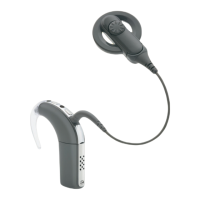
Cochlear™ Osia® 2 Sound Processor
Fig. 1.1 Fig. 1.2
Fig. 1.3 Fig. 1.4
Controlling the sound processor directly
from iPhone, iPad or iPod touch
Some basic features on your sound processor can be
controlled directly from the iPhone, iPad or iPod touch,
including program choice and volume level.
Control via Control Centre
Access the built-in sound processor controls (fig 1.1) by
tapping the ‘Hearing’ shortcut in the Control Centre (fig
1.2).
To add a shortcut for MFi Hearing Devices on the
Control Centre, go to Settings > Control Centre >
Customise Controls and scroll down until you see ‘MFi
Hearing Devices’ in the list and press its green ‘+’-sign
(fig 1.3). Return to the iPhone Home screen.
Swipe down from the top right corner of the screen and
press the ‘ear’ icon (fig. 1.2).
To activate the ‘Hearing’ shortcut directly from locked
screen, navigate to Settings > General > Accessibility
> MFi Hearing Devices and turn on ”Control on Lock
Screen” (fig.1.4).
Control via Triple Click
Once paired to your sound processor, the iPhone will
provide quick access to control via triple click. On older
models, triple-click the home button along the bottom
of the phone. On newer models (without a home
button), triple-click the ‘power button’ on the side of
phone.
Control via Settings
Access the sound processor via Settings >Accessibility
> Hearing Devices. Tap on the name of the sound
processor to access more features.
4



 To Next Page