QUICK GUIDE FOR MFi CONNECTIVITY
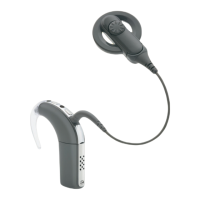
Cochlear™ Osia® 2 Sound Processor
Re-connecting to an iPhone,
iPad or iPod touch
The device will disconnect from your sound processor
when you turn off the sound processor, when the sound
processor battery level is too low, or when you are out
of range.
To automatically reconnect, make sure the sound
processor has sufficient battery power and your sound
processor is within range of the device. You should hear
a series of beeps in the sound processor confirming the
connection.
If the connection is not automatically re-established,
you may need to unpair your sound processor and
repeat the pairing sequence.
Pairing to bilateral sound processors
To control or stream audio to two sound processors
simultaneously they need to be bilaterally paired.
If you don’t know if your sound processors are
bilaterally paired, contact your Hearing Care
Professional and ensure that your two sound processors
have been configured as a left and a right device.
Changing audio streaming
default settings
To change the default streaming
settings, go to Settings >
Accessibility > Hearing Devices.
To prevent ring tones to be
streamed to the sound processor,
deactivate ‘Play Ringtones’ (fig.
3.1).
To prevent call audio to be
streamed to the sound processor,
tap ‘Audio Routing’, then tap ‘Call
Audio’ (fig. 3.2) and select ‘Never
Hearing Aids’ (3.3).
To disable music or other audio
streaming (including ‘Live Listen’
functionality), tap ‘Media Audio’
and select ‘Never Hearing Aids’ .
Fig. 3.1 Fig.3.3Fig. 3.2
6



 To Next Page