197
© Tieline Research Pty. Ltd. 2021
Gateway and Gateway 4 Manual v1.2
4. Select a location on your PC to save the configuration file. Note: You may need to "allow" your
browser to display the pop-up dialog.
Restoring Configuration File Settings
1. Open the HTML5 Toolbox Web-GUI and click Settings at the top of the screen, then click
Reset / Backup to display the Reset / Backup panel.
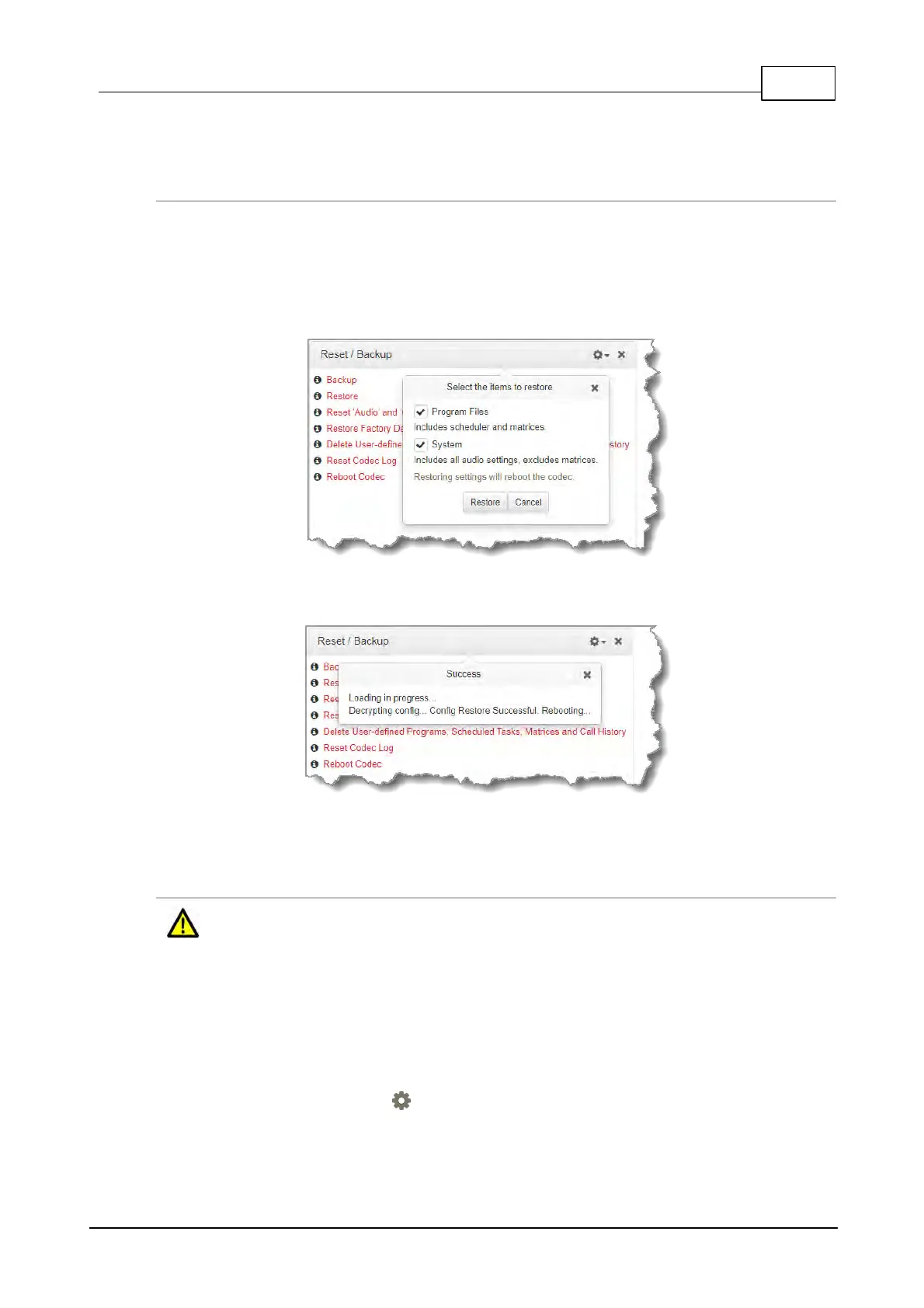
2. Click Restore.
3. Click to select the check-boxes and confirm your restore settings. For example, you could
select the Program Files check-box and deselect the System check-box to only copy
programs onto codecs.
4. Click Restore and select the .tgz file you want to load onto the codec. A Success dialog
confirms the files have been restored.
Note: The codec will automatically reboot when restoring system settings.
Advanced Settings: XML Config
Caution: DO NOT use advanced XML configuration features unless you fully understand
how they will affect the codec. The standard backup and restore function should normally
be used. Damage to the codec may occur if this feature is used without fully understanding
how it will affect the codec.
XML Config is a highly advanced feature which should only be performed by suitably qualified
personnel. To import or export XML config files:
1. Open the HTML5 Toolbox Web-GUI and click Settings at the top of the screen, then click
Reset/Backup to display the Reset/Backup panel.
2. Click the Options symbol to view Show Advanced Options.



 To Next Page