
 Need help?
Do you have a question about the cogeco Sagemcom Fast 3896 and is the answer not in the manual?
Guidance on selecting the best location for your modem, considering signal strength and connectivity.
Connect the coaxial cable from the wall outlet to the modem's connector.
Connect power to the modem and outlet to initiate synchronization process.
Check modem indicator lights for correct synchronization status; advises on relocation if needed.
Ensure the phone's electrical power supply is connected to its base.
Connect a telephone wire from the phone base to the modem's Line 1 jack.
Option to connect a second phone to the Line 2 jack for dual-line subscriptions.
Check modem lights for correct synchronization status; advises on relocation if needed.
This document provides a comprehensive guide for the self-installation and management of the Sagemcom F@st 3896 modem, designed to facilitate Internet and telephone services. The installation process is streamlined to be completed within approximately 30 minutes, including activation and setup. It is important to note that during the modem replacement or initial setup, both phone and Internet services will be temporarily unavailable. Therefore, it is recommended to perform these procedures during times when these services are not actively in use to minimize disruption.
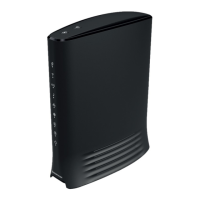
The installation kit provided by Cogeco includes all necessary components for a successful setup. These components are: the Sagemcom F@st 3896 modem itself, a coaxial cable for connecting to the wall outlet, an Ethernet cable for wired connections, and a power cord to supply electricity to the modem. Each of these items plays a crucial role in establishing a stable and functional home network.
A key feature of this modem and the associated services is the ability to manage your Wi-Fi network through the Cogeco Wi-Fi app. This application empowers users to take control of their home network directly from their mobile device. To utilize this feature, users must first register for a My Account profile on cogeco.ca/myaccount. This profile is essential for logging into the Cogeco Wi-Fi app and completing the installation process, as well as for ongoing management of the network. The app is available for download on both Google Play and the App Store, making it accessible to a wide range of smartphone users.
For users who are replacing an existing modem, the guide emphasizes the importance of properly disconnecting and packing up the old equipment. This step is critical not only for a smooth transition to the new modem but also to avoid any unnecessary charges that might arise from improper return of equipment. Users are advised to follow the instructions provided in the enclosed Equipment Return guide carefully.
The installation process begins with selecting an optimal location for the modem. The guide suggests choosing a central location within the living areas, as this helps in maximizing Wi-Fi coverage throughout the home. Several factors should be considered when selecting this location:
Once an ideal location is identified, the physical connection of the modem can begin. The first step involves connecting the coaxial cable from the wall outlet to the cable connector at the rear of the modem. It is important to hand-tighten these cables firmly to ensure a secure connection and prevent any damage to the connectors. A loose connection can lead to signal degradation or intermittent service.
Following the coaxial connection, the power cord should be connected to the modem and then to an active electrical outlet. This action initiates the synchronization process, during which the modem attempts to establish a connection with the Cogeco network. This synchronization process can take up to 20 minutes. Users can monitor the progress by observing the indicator lights on the modem. Once the process is complete, the DS (Downstream) and US (Upstream) lights will illuminate, typically in orange or green, indicating a successful connection. Additionally, the 2.4G and 5G Wi-Fi lights will turn green, signifying that the wireless networks are active.
If, after 20 minutes, the indicator lights do not display the correct pattern, the guide suggests a troubleshooting step: moving the modem to another coaxial outlet in the home and repeating the connection process. This can help in identifying if the issue is with the specific wall outlet or the modem's initial placement.
Beyond the initial setup, the Cogeco Wi-Fi app serves as a central hub for managing the Wi-Fi network. Users can log in to the app using their My Account credentials and follow the in-app instructions to activate and manage their network. This includes setting up Wi-Fi passwords, managing connected devices, and potentially optimizing network performance.
An important note for users who plan to use Cogeco Wi-Fi Pods is that these devices are also managed through the same app. This integrated management system simplifies the control of an extended Wi-Fi network. Additional details and FAQs regarding Wi-Fi Pods can be found on cogeco.ca/wifiapp.
In situations where a user is unable to download the Cogeco Wi-Fi app using their mobile data, a temporary solution is provided: connecting the device directly to the modem using the Wi-Fi credentials found on the sticker on the back of the modem. This allows the user to access the Internet and download the app, after which they can proceed with the full setup and management.
For users who subscribe to telephone services, the guide also includes instructions for connecting their telephone to the modem. If the phone uses an electrical power supply, it must be connected to the phone's base. A telephone wire (not provided in the kit) should then be connected from the base of the phone to the phone jack on the back of the modem. The phone jack located at the top of the modem is designated for Line 1. For customers with a two-phone-line subscription, a second phone can be attached to the Line 2 phone jack. Similar to the Internet setup, if the correct indicator light pattern for the telephone service is not observed after 20 minutes, users are advised to try moving the modem to another coaxial outlet and repeating the process.
The document also provides a comprehensive list of FAQs and technical support resources. For self-installation queries, users can visit cogeco.ca/selfinstall. Information regarding battery backup options for telephone services is available at cogeco.ca/battery, and Wi-Fi support can be found at cogeco.ca/wifisupport. For direct technical assistance, specific phone numbers are provided for Ontario (1-833-845-0064) and Quebec (1-800-695-9885). Users are also encouraged to visit the Cogeco website at cogeco.ca/support and connect with Cogeco on social media platforms like Facebook, Twitter, Instagram, and YouTube for additional information and updates.
A disclaimer at the end clarifies that the Cogeco Wi-Fi app, powered by Plume, is available at no extra cost to Cogeco Internet customers. It also highlights an important safety consideration for phone equipment: it must remain at the address where it was initially installed to ensure that 911 calls are correctly associated with the physical address in case of an emergency. Furthermore, it notes that new generation phone equipment does not include an external backup battery, which is an important detail for users to be aware of regarding power outages.
 General
| Model | Fast 3896 |
|---|---|
| Brand | Sagemcom |
| Type | Network Router |
| Ethernet Ports | 4 x Gigabit Ethernet |
| Weight | 500 g |
| Wi-Fi Standard | 802.11ac |
| Wi-Fi Frequency | 2.4 GHz and 5 GHz |
| Security | WPA2 |

 To Next Page