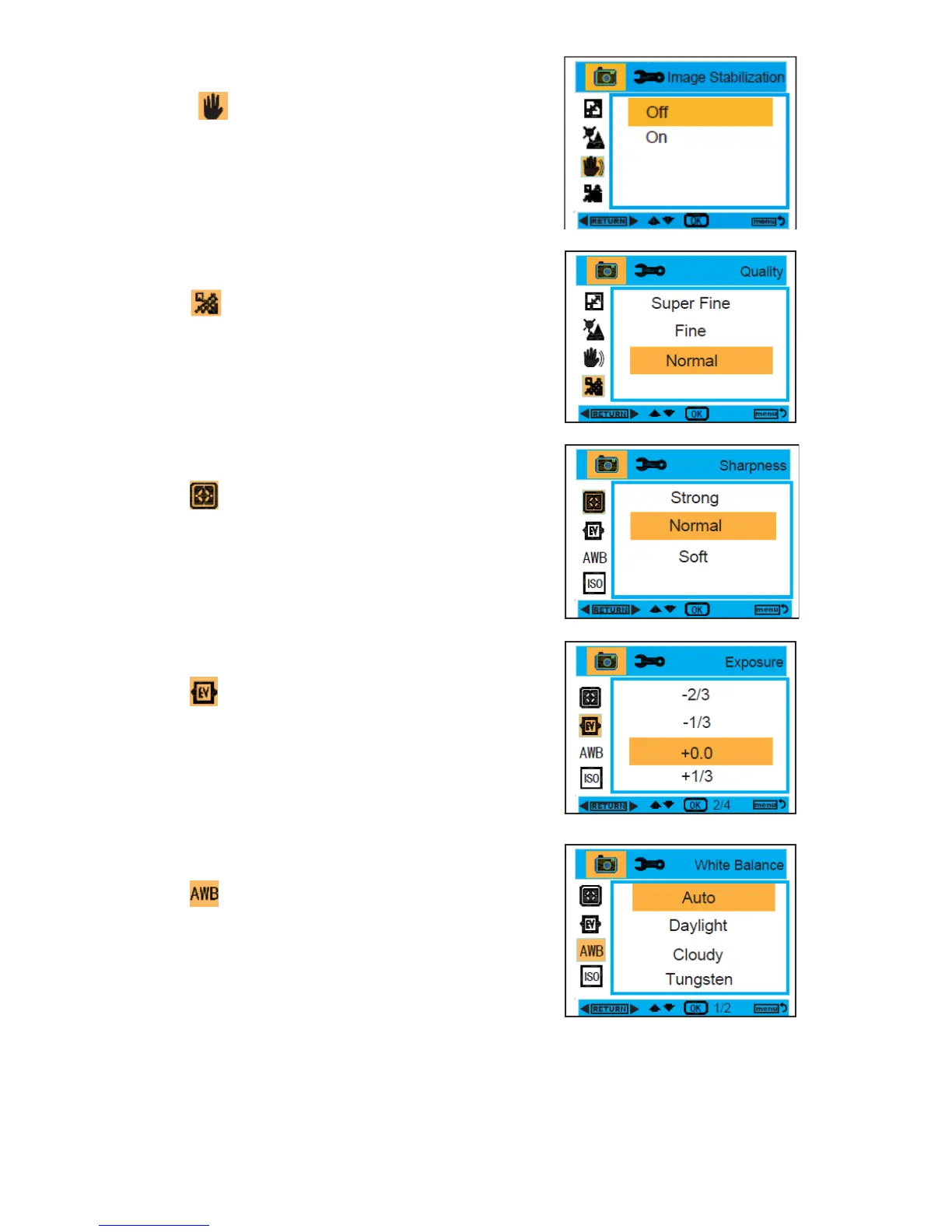
Image Stabilization :
1. Enter into the MENU, and press the Up/Down buttons to
select Image Stabilization.
2. Press the OK button, and then press the Up/Down buttons
to select On/Off.
3. After selection, press the OK button to confirm, and press
the Left button to exit. Or, press the MENU button to
return.
Quality :
1. Enter into the MENU, and press the Up/Down buttons to
select Quality.
2. Press the OK button, and then press the Up/Down buttons
to select the quality, Super Fine , Fine , Normal
3. After selection, press the OK button to confirm, and press
the Left button to exit. Or, press the MENU button to
return.
Sharpness :
1. Enter into the MENU, and press the Up/Down buttons to
select Sharpness.
2. Press the OK button, and then press the Up/Down buttons
to select sharpness, Strong , Normal , Soft
3. After selection, press the OK button to confirm, and press
the Left button to exit. Or, press the MENU button to
return.
Exposure :
1. Enter into the MENU, and press the Up/Down buttons to
select Exposure.
2. Press the OK button, and then press the Up/Down buttons
to select exposure,-2.0 , -5/3 , -4/3 , -1.0 , -2/3 , -1/3 , +0.0 ,
+1/3 , +2/3 , +1.0 , +4/3 , +5/3 , +2.0
3. After selection, press the OK button to confirm, and press
the Left button to exit. Or, press the MENU button to
return.
White Balance :
1. Enter into the MENU, and press the Up/Down buttons to
select White Balance.
2. Press the OK button, and then press the Up/Down buttons
to select white balance, Auto, Daylight, Cloudy, Tungsten,
Fluorescent
3. After selection, press the OK button to confirm, and press
the Left button to exit. Or, press the MENU button to
return.



 To Next Page