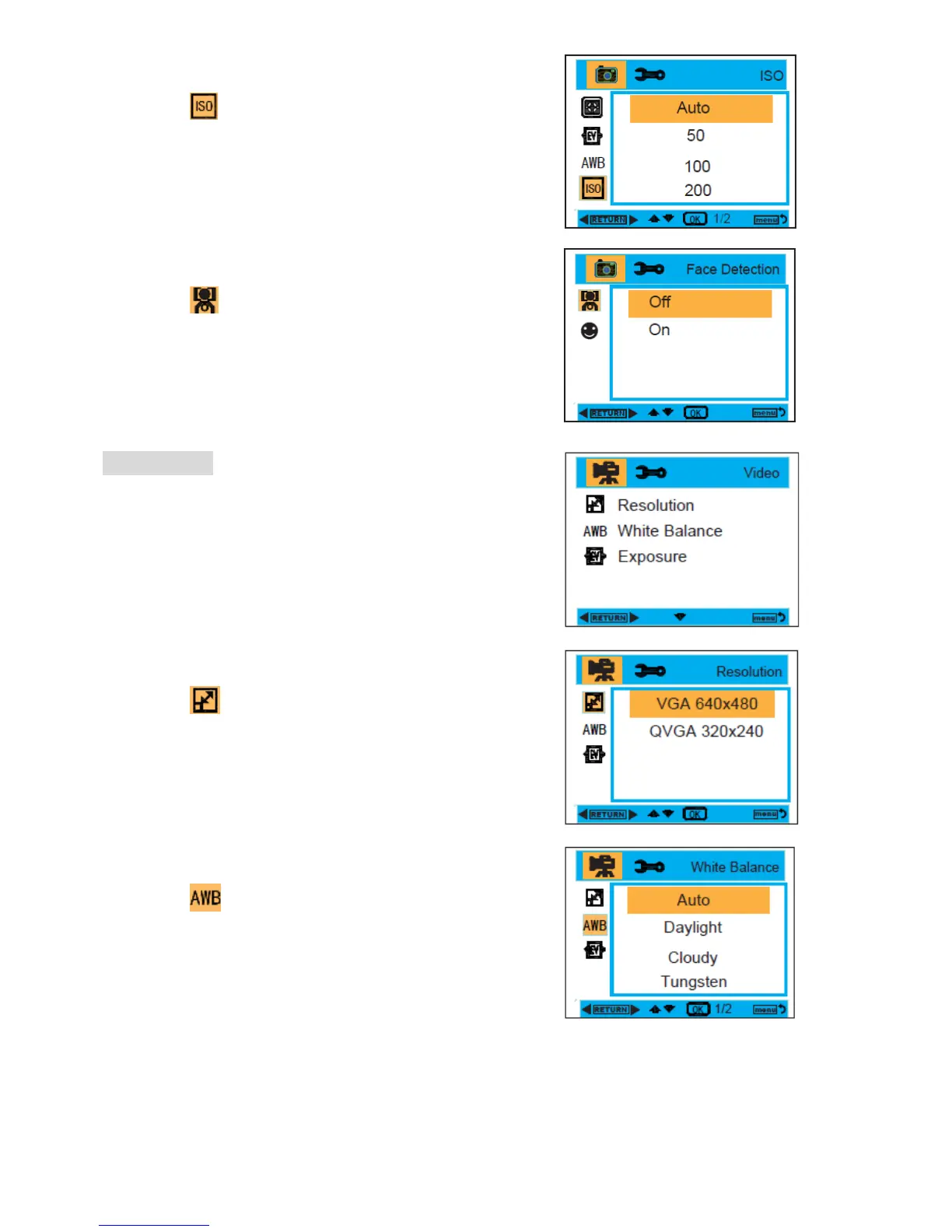
ISO :
1. Enter into the MENU, and press the Up/Down buttons to
select ISO.
2. Press the OK button, and then press the Up/Down buttons
to select an ISO, Auto , 50 , 100 , 200 , 400
3. After selection, press the OK button to confirm, and press
the Left button to exit. Or, press the MENU button to
return.
Face Detection :
1. Enter into the MENU, and press the Up/Down buttons to
select Face Detection.
2. Press the OK button, and then press the Up/Down buttons
to select Face Detection Off / On
3. After selection, press the OK button to confirm, and press
the Left button to exit. Or, press the MENU button to
return.
Video Mode:
Under Video mode, press the Menu button once to enter into the
menu, and press Up/Down buttons to select a setting Resolution,
White Balance, and Exposure.
Resolution:
1. Enter into Video Mode, and press the MENU button to
select Resolution.
2. Press the OK button, and then press the Up/Down buttons
to select the resolution, VGA , QVGA.
3. After selection, press the OK button to confirm, and press
the Left button to exit. Or, press the MENU button to
return.
White Balance :
1. Enter into Video Mode, and press the MENU button to
select White Balance.
2. Press the OK button, and then press the Up/Down buttons
to select a white balance, Auto, Daylight, Cloudy, Tungsten,
Fluorescent.
3. After selection, press the OK button to confirm, and press
the Left button to exit. Or, press the MENU button to
return.


 To Next Page