Colortrac SmartLF Installation and Operating Manual
PAS144 P/N: P002038 Colortrac Ltd © 2004
19
18. APPENDIX 1. – COMPUTER REQUIREMENTS FOR SMARTLF
The minimum computer specification needed to achieve the stated SmartLF performance is as follows:
Operating system: Windows XP or Windows 2000 (see note 4)
Processor: At least 2.8GHz, HT (Hyper Threading) processor
Memory: At least 512MB RAM
Data port: A USB2 compatible interface (see note 5)
Notes:
!"#$ %&$
$'&()*
+,-./
+0 1 ,-. 1 23
$$4 +$
+($+()&+(&
$+5 +(
4 67&$)4
$()
/*89$4 67$7&:89()()*:
*$
4 67;&
4 !%0*9084 $()
<:=():=()
HOW TO CHECK THAT THE COMPUTER HAS A USB2 INTERFACE
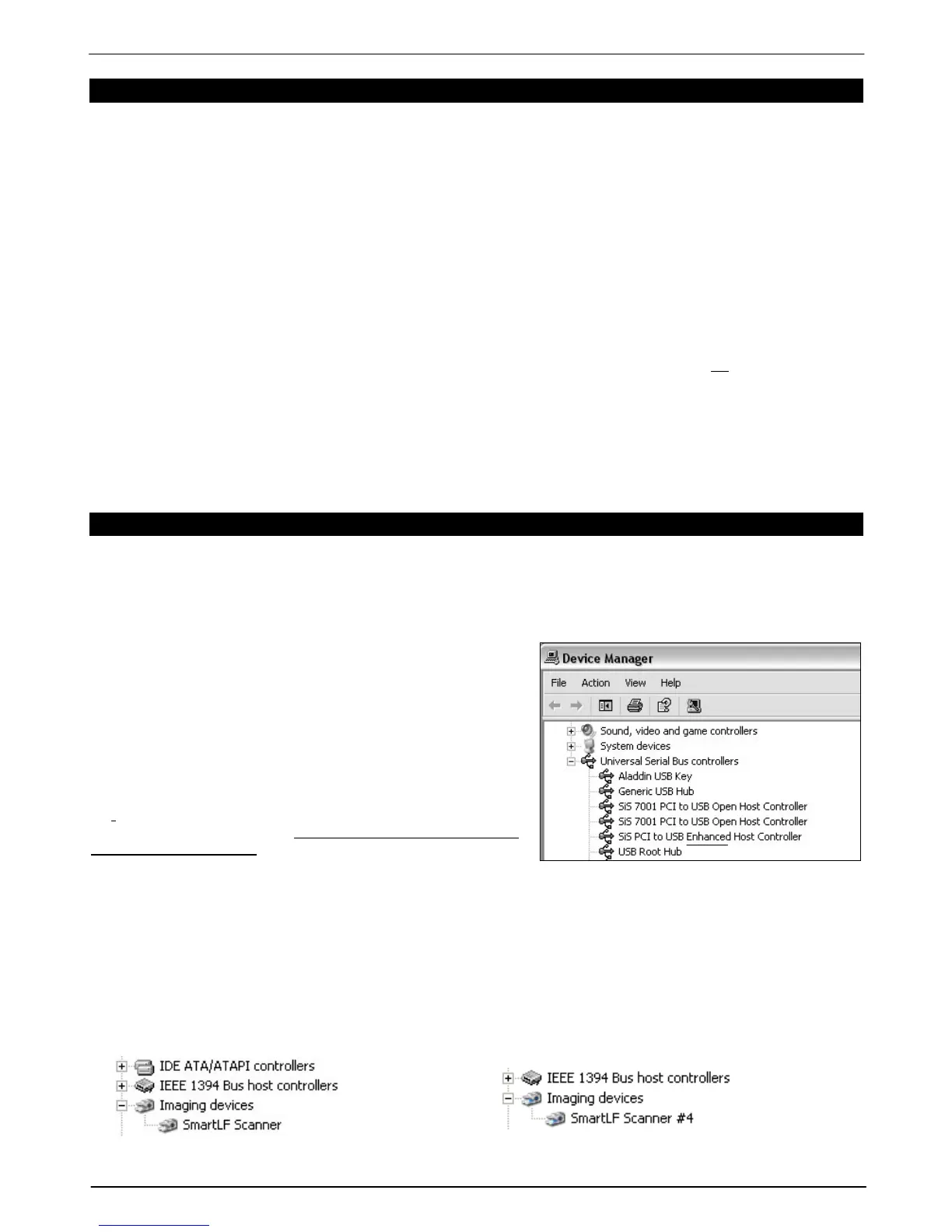
Go to the Control Panel and open up Device Manager. Expand the Universal Serial Bus Controller device. If one of
the USB sub-branches contains the word ‘enhanced’ then the PC is likely to have a USB 2 driver loaded on one of its
USB ports. Unfortunately this does not guarantee that the scanner is plugged into the port using the USB 2 driver.
Computers often have multiple USB ports and some more than
one USB controller. If SmartLF has been successfully installed
on a computer but the scanner connection is changed to a
different USB port (for example on the rear of the computer) this
will cause the driver to be installed again. This is effectively a
new installation.
Please be warned that this check will fail to detect if a USB 1.1
hub or extension cable is installed between the USB2 port and
the scanner or if another USB1.1 device is plugged into the same
controller. Either of these will effectively make the connection to
the scanner USB1.1 only.
The Imaging devices listing for SmartLF can appear with a #number after the words SmartLF Scanner – this is normal.
Below shows SmartLF when first installed and again when it is connected to a different USB port (#4) on the rear of the
computer.
NOTE: Every port can potentially have a different version of the SmartLF driver so if you have recently upgraded the
driver for SmartLF and changed the USB port you regularly connect through you should check the driver level using
the Properties for that particular port.



 To Next Page