EasyManua.ls Logo

Comelit PAC 512 DCi - User Manual

Comelit PAC 512 DCi
6 pages
Print Icon
To Next Page IconTo Next Page
Loading...
Ref: TB501
Issue date: 04/2022
COMELIT-PAC Limited
www.comelitgroup.com
Waterside Court, 1 Crewe Road
Manchester, ME23 9BE - UK
Comelit-PAC Ltd trading as Comelit-PAC.
Registered in England. Company No. 04311885.
Registered office: Unit 2B, The Quad,
Butterfield business park, Luton, Bedfordshire. LU2 8EF
pacgdxsales@comelit-pac.co.uk
T +44(0)1614063400
COMELIT_TB001
512 DCi IP Addressing Configuration
T: +44 (0)161 4063400 opt. 2
E: pacgdxsupport@comelit-pac.co.uk
1. Introduction
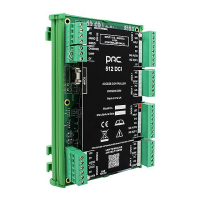
The 512DCi is IP enabled door controller which allows the PAC Access Central software to
communicate and allow or deny access to the doors. The 512DCi can control 2 doors both with read in
or read out if required. Further 512DC controllers can be connected to the 512DCi through the use of
the RS-485 data bus line.
Important Note:
The 512DCi differs slightly from the 512MkII, please follow these instructions carefully to get the
controller online and working correctly.
The 512DCi must be connected to an ethernet network, it cannot be used in a bus of door controllers
and connected on the RS-485 data bus only.
2. IP Addressing
There are two types of IP address the 512DCi can work with, these are DHCP IP addresses and Static
IP addresses. These are explained below:
Reserved DHCP IP Address (Recommended) When the controller is plugged into a
customers’ network, the controller requests an IP address from the DHCP Server to allow it to
communicate over the network to the Access Control software
Static IP AddressThe controller is set with an IP Address by the installing company that is
provided by the customersIT Department prior to installation
.
Important Note:
The recommended way for the controller to get an IP address it to be an automatically assigned
Reserved DHCP Address’ this means that when the controller is first seen on the IP network and
identifies itself the DHCP server gives it an IP address that will never change.
3. Out of the Box IP Settings
When the controller is new out of the box it is set by default to DHCP, this means that the controller
when first powered up will ask the IP network for an IP address.
4. Resetting the 512DCi
It is good practice to reset the 512DCi when new out of the box, this will ensure a smooth operation
when programming the unit.
Question and Answer IconNeed help?

Do you have a question about the Comelit PAC 512 DCi and is the answer not in the manual?

Summary

Introduction

IP Addressing

Reserved DHCP IP Address

Controller requests an IP address from the DHCP Server for network communication.

Static IP Address

Controller is set with a fixed IP address by the installer prior to installation.

Out of the Box IP Settings

Resetting the 512 DCi

Programming a Reserved DHCP Address

Programming a Static IP Address

Work Required: Access Controller on same network

Procedure for setting up the controller on the same network as the Access Central PC.

Configure Device IP Addresses

Using the utility to locate and modify the controller's IP address settings.

IP Configuration Utility

Successfully modified IP configuration

Confirmation that the controller's IP configuration has been successfully updated.

Adding Controller to Access Central

Log into Access Central

Accessing the Access Central software as an installer and navigating to the Hardware section.

Create New Channel

Initiating the process to add a new controller channel within the Access Central software.

Configure Channel Details

Entering specific details for the controller channel, including name, type, and IP address.

Work Required: Access Controller on DIFFERENT network

Summary

Introduction

IP Addressing

Reserved DHCP IP Address

Controller requests an IP address from the DHCP Server for network communication.

Static IP Address

Controller is set with a fixed IP address by the installer prior to installation.

Out of the Box IP Settings

Resetting the 512 DCi

Programming a Reserved DHCP Address

Programming a Static IP Address

Work Required: Access Controller on same network

Procedure for setting up the controller on the same network as the Access Central PC.

Configure Device IP Addresses

Using the utility to locate and modify the controller's IP address settings.

IP Configuration Utility

Successfully modified IP configuration

Confirmation that the controller's IP configuration has been successfully updated.

Adding Controller to Access Central

Log into Access Central

Accessing the Access Central software as an installer and navigating to the Hardware section.

Create New Channel

Initiating the process to add a new controller channel within the Access Central software.

Configure Channel Details

Entering specific details for the controller channel, including name, type, and IP address.

Work Required: Access Controller on DIFFERENT network

Overview

The Comelit-PAC 512DCi is an IP-enabled door controller designed to integrate with the PAC Access Central software, facilitating access control for up to two doors. This device supports both read-in and read-out functionalities, offering flexibility in security configurations. For larger systems, additional 512DC controllers can be connected to the 512DCi via an RS-485 data bus line, expanding the system's capacity. It's crucial to note that the 512DCi itself must be connected to an Ethernet network and cannot operate solely on an RS-485 data bus.

Function Description:

The primary function of the 512DCi is to act as an intermediary between door hardware and the PAC Access Central software. It receives commands from the software to grant or deny access, thereby managing entry and exit points. Its IP-enabled nature allows for network-based communication, making it suitable for modern access control systems. The controller's ability to manage two doors, each with optional read-in and read-out capabilities, provides a comprehensive solution for various access control needs. The RS-485 bus allows for scalable expansion, enabling a single 512DCi to serve as a central hub for multiple additional controllers.

Important Technical Specifications:

The 512DCi supports two types of IP addressing: DHCP IP addresses and Static IP addresses.

  • DHCP IP Address (Recommended): When connected to a network, the controller can request an IP address from a DHCP server. The recommended method is to use a "Reserved DHCP Address," where the DHCP server assigns a permanent IP address to the controller upon its first network detection. This ensures consistent communication without manual configuration.
  • Static IP Address: Alternatively, an installer can manually set a static IP address, subnet mask, and default gateway, typically provided by the customer's IT department. This method is used when DHCP is not available or a fixed IP is preferred.

The device comes with a default IP setting of DHCP out of the box. If it cannot obtain a DHCP address, it defaults to a static IP address of 169.254.10.5. It is critical to modify this default IP if multiple new 512DCi units are connected to the same network without prior configuration to avoid IP conflicts.

The controller's unique MAC Address is provided on a sticker, such as "MAC 00:18:1E:20:06:1A," which is essential for IT departments to configure reserved DHCP addresses.

Usage Features:

  • Initial Setup and Reset: For optimal performance, it is recommended to reset a new 512DCi out of the box. This is achieved by holding down the "One Touch" button while powering up the unit, keeping it pressed for 10 seconds, and then releasing it. This action fully resets the unit to DHCP mode.
  • IP Configuration:
    • Reserved DHCP: This is the recommended approach. Installers should contact the customer's IT department with the controller's MAC address to request a reserved DHCP address. Once configured by IT, the controller will automatically receive its permanent IP address upon network connection.
    • Static IP: For static IP configurations, the installer needs to set the IP address, subnet mask, and default gateway. A key instruction is to ensure the default gateway address matches that of the Access Central PC to establish correct communication. This can be done by connecting the controller directly to a laptop running a free version of Access Central, configuring the laptop's IP address to be in the same subnet as the controller's default (e.g., 169.254.10.1), and then using the "IP Device Address Configuration Utility" within Access Central.
  • Access Central Integration: After IP configuration, the controller is integrated into the PAC Access Central software. This involves:
    1. Logging into Access Central as an installer.
    2. Navigating to the "Hardware" section under the "Navigator" tab.
    3. Creating a "New Channel" and selecting "TCP/IP" as the channel type.
    4. Entering the controller's IP address or using the "Search" function to discover it on the network.
    5. Once discovered, the controller can be configured further within the software.
  • Network Scenarios:
    • Same Network (Subnet) as Access Central: If the controller is on the same subnet as Access Central, the configuration process is straightforward.
    • Different Network (Default Subnet) as Access Central: If the controller is on a different subnet, the default gateway programmed into the controller must be the gateway that allows it to reach the Access Central software. This information is typically provided by the IT department.

Maintenance Features:

  • Troubleshooting IP Issues: The manual provides clear steps for configuring IP addresses, which is crucial for troubleshooting connectivity problems. If a controller fails to connect, verifying its IP settings (DHCP vs. Static) and ensuring correct subnet and gateway configurations are primary diagnostic steps.
  • Reset Procedure: The "One Touch" reset button is a vital maintenance feature, allowing installers to quickly revert the controller to its default DHCP settings, which can resolve various configuration issues.
  • MAC Address Importance: The unique MAC address is not only for initial setup but also for ongoing network management and identification, aiding in network diagnostics and ensuring proper device recognition.
  • Software Utility: The "IP Device Address Configuration Utility" within Access Central is a key tool for managing and modifying controller IP settings, simplifying maintenance tasks.

In summary, the Comelit-PAC 512DCi is a robust, IP-enabled door controller designed for seamless integration with PAC Access Central. Its flexible IP addressing options, clear setup procedures, and expandability make it a versatile component in modern access control systems, with an emphasis on reliable network communication.

Comelit PAC 512 DCi Specifications

General IconGeneral
BrandComelit
ModelPAC 512 DCi
CategoryController
LanguageEnglish