Firmware upgrade
Download the VM40 firmware upgrade package to your computer from the Comica ocial website
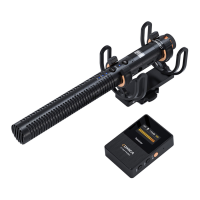
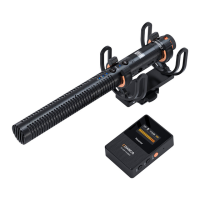
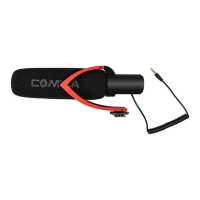
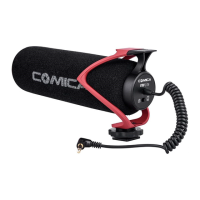
Shotgun microphone upgrade
Enter the copy mode when the mic is turned o (long-press the function button and mode button in sync), then
connect the mic to the computer via a USB data cable, copy the firmware upgrade package to the VM40
TX---UPDATA folder, disconnect the USB data cable and restart the mic to upgrade automatically
Receiver upgrade
Enter the copy mode when the receiver is turned o (press and hold the CH1 or CH2 button, and long-press the
power button), then connect the receiver to the computer via a USB data cable, copy the firmware upgrade package
to the VM40 RX---UPDATA folder, disconnect the USB data cable and restart the receiver to upgrade automatically
Bluetooth connection upgrade
Open the Comica Audio App and connect the VM40 microphone. Then go to the VM40 homepage and click the
settings icon in the upper right corner---Universal---Firmware Upgrade
17


 To Next Page